

Scanner modes
The mobile app reads barcodes in three ways. You pick the mode in the app: Settings → Scanner → Scanner Mode.
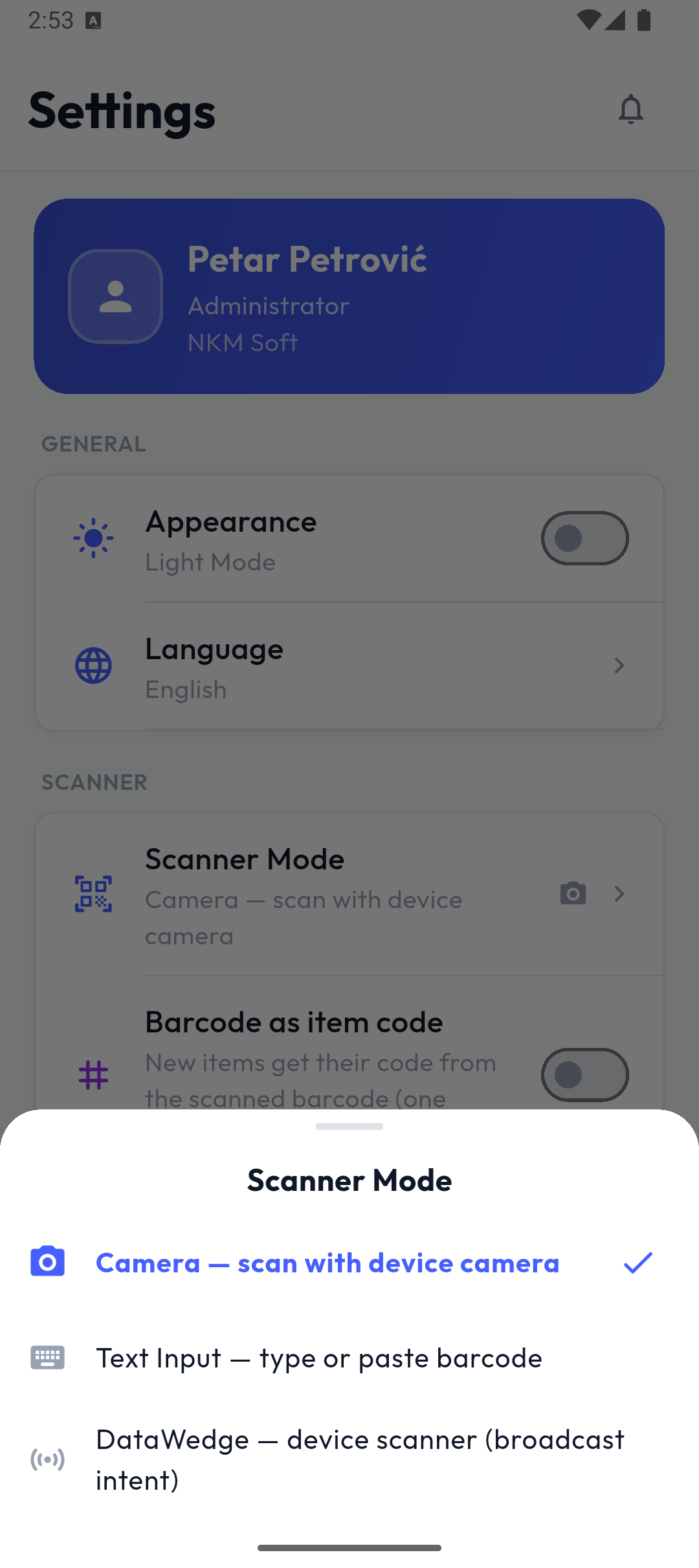
| Mode | For which devices | Device setup |
|---|---|---|
| Camera (default) | Any phone or tablet, without a separate scanner | None |
| Text Input | Bluetooth and USB scanners that "type" the barcode, or a rugged device in keyboard mode | On the scanner: keyboard output + an Enter key after the barcode — see Bluetooth and USB scanners |
| DataWedge | Rugged Android devices with a built-in scanner: Zebra, Honeywell, Datalogic, Newland, Urovo, CipherLab, Chainway… | On the device: "intent / broadcast" output — see Rugged devices (DataWedge) |
The same mode applies on every screen that scans: counting on a count list, records, the goods catalogue and the Scan tab.
Camera
- Scanner Mode → Camera.
- When the app asks the first time, allow camera access.
- On a list or record screen, tap Scan and point the camera at the barcode.
The camera is the best choice for ordinary phones. On a device with a built-in scanner, use DataWedge (or Text Input) — scanning is faster and works with the trigger.
Other scanner settings
The same part of Settings also has:
- Barcode as item code — a new item gets its code from the scanned barcode (one barcode per item);
- Vibrate on Scan (on by default);
- Scan Sound (off by default).
See also App settings.
Tip
The scanner guide also exists as a PDF, in 14 languages: in the portal, Documentation → Devices → Open PDF.