

Assets
Open the fixed assets catalogue by tapping the Assets card on the dashboard (shown if your package includes fixed assets). It works like the goods catalogue; here are the differences.
The list
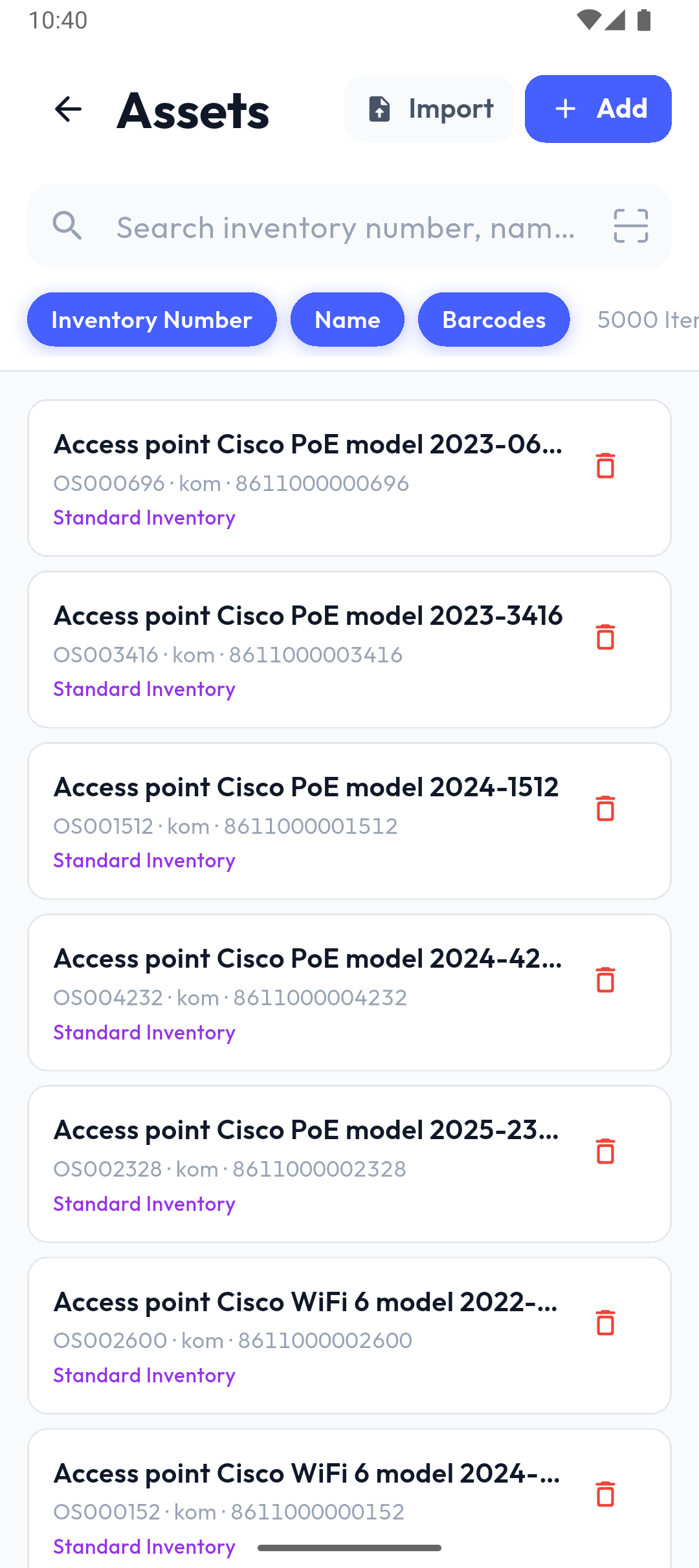
- Search runs on the Inventory Number, Name and Barcodes chips.
- Under each name, the asset type is shown in colour: Standard Inventory or Small Inventory. No price is shown.
- When nothing matches, the list says No assets found.
Adding and editing (administrators)
Add opens Add Item, and tapping a row opens Edit Item.
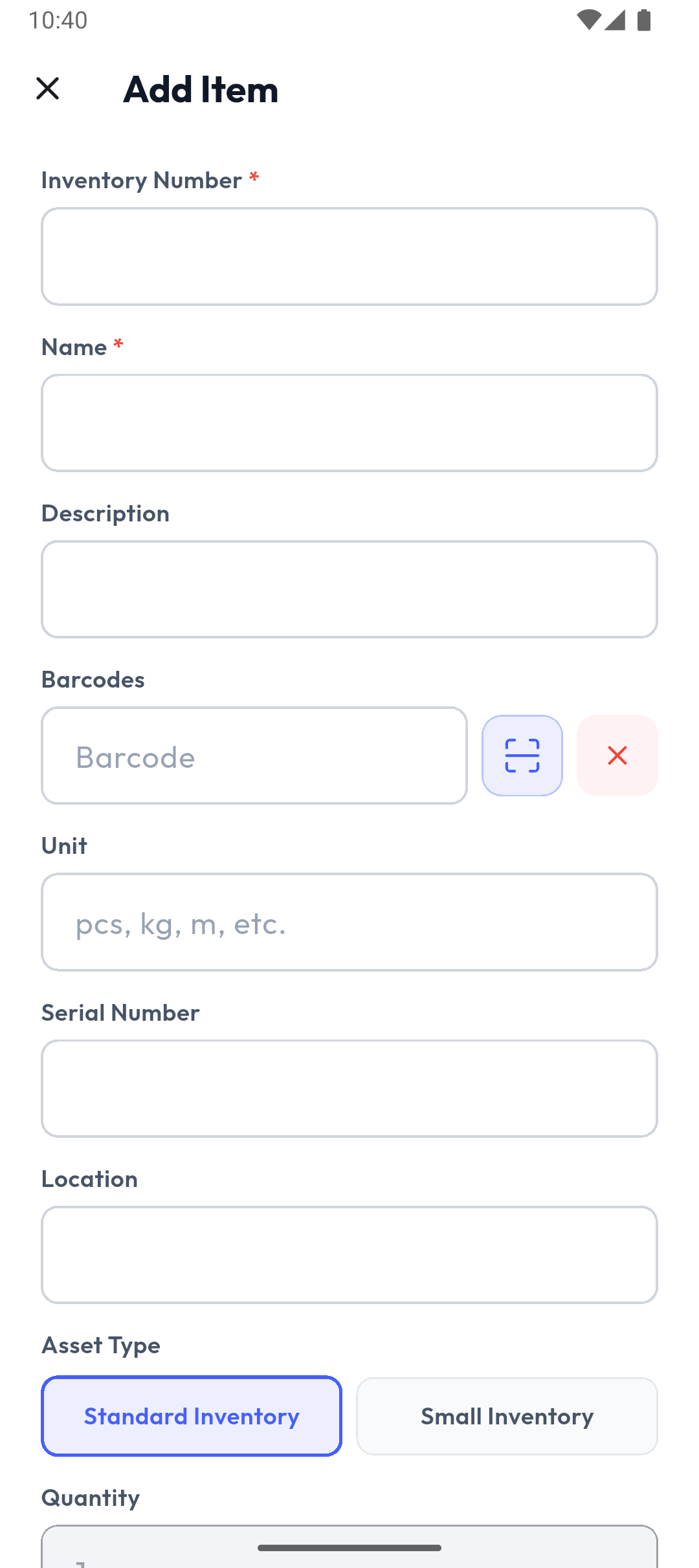
| Field | Description |
|---|---|
| Inventory Number * | The asset's unique number; it can't be changed after saving. |
| Name * | The asset's name. |
| Description | Free text. |
| Barcodes | One or more barcodes, typed or scanned. |
| Unit | Empty = pcs. |
| Serial Number | The manufacturer's serial number. |
| Location | Where the asset is (free text). |
| Asset Type | Standard Inventory (tracked one by one) or Small Inventory (tracked with a quantity). |
| Quantity | Always 1 for a standard asset (Fixed assets always have a quantity of 1.); enter the quantity for small inventory. |
Saving, error messages and code or barcode conflicts work the same as for goods.
Deleting
The red bin on a row (administrators only) asks Delete Item?; Delete permanently removes the asset, together with its barcodes and its rows in unfinished count lists. In Popis PRO, deleting goes to the server right away.
Import from Excel (administrators)
Import works as for goods, with the columns: Inventory number, Name, Barcode, Unit, Serial number, Type (small_inventory for small inventory, otherwise standard) and Quantity.
Package limit
When the number of assets reaches your package's limit, a lock with the asset count replaces Import and Add.