

Goods
In the app you browse the goods catalogue, and administrators can also change it: add, edit, delete and import from Excel. On the dashboard, tap the Goods card (shown if your package includes goods).
The goods list
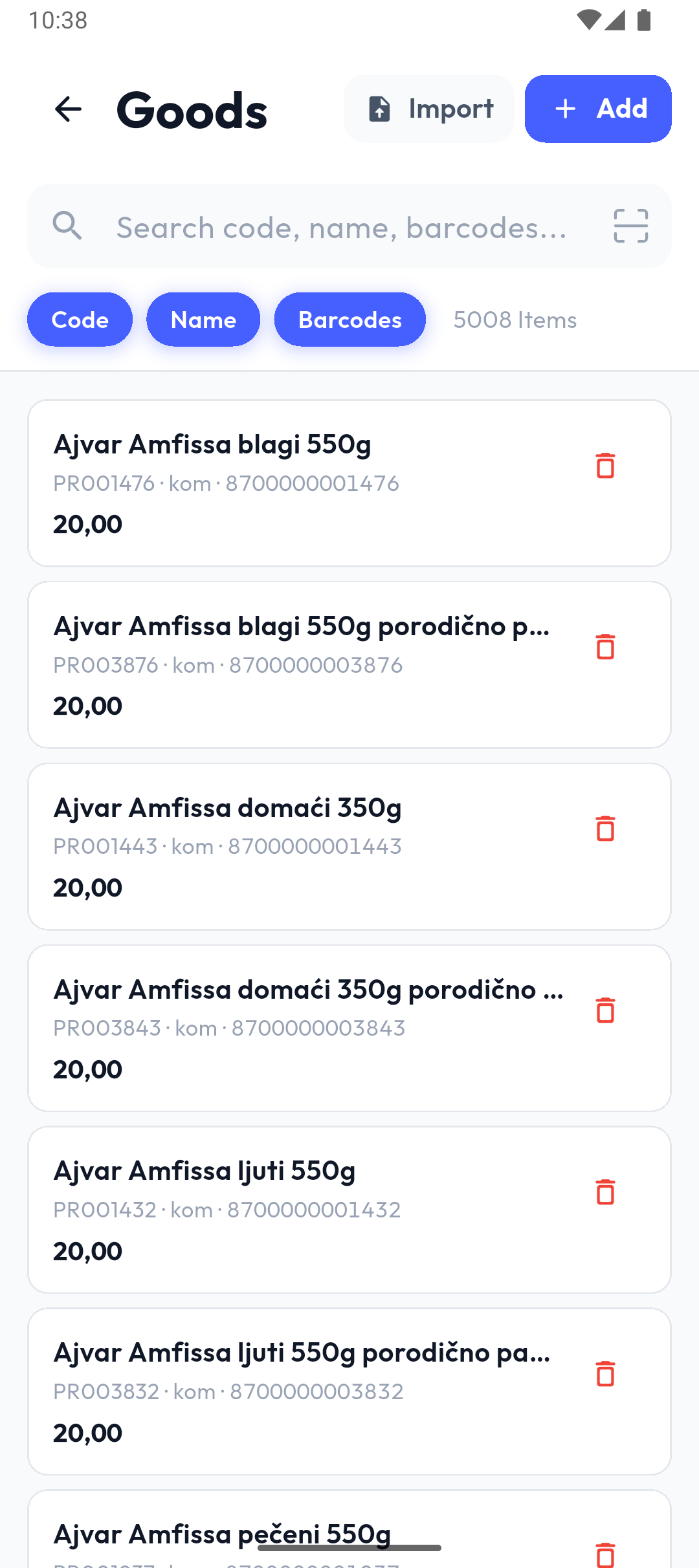
- The search field searches the fields chosen below it: Code, Name and Barcodes. Tap a chip to turn it on or off (at least one stays on).
- Next to the chips you see how many items match, e.g. 5008 Items.
- The scan icon in the search field (when the scanner is set to camera) scans a barcode and searches for it right away. With a hardware scanner, just scan. A barcode is found only when the Barcodes chip is on.
- Each row shows the name, code, unit, barcodes and price. Inactive items are greyed out with an INACTIVE badge.
- The list is sorted by name and loads more as you scroll. When nothing matches, it says No goods found.
Adding and editing (administrators)
Add in the header opens Add Item; tapping a row opens Edit Item. Users who aren't administrators see Item info when they tap a row, without editing.
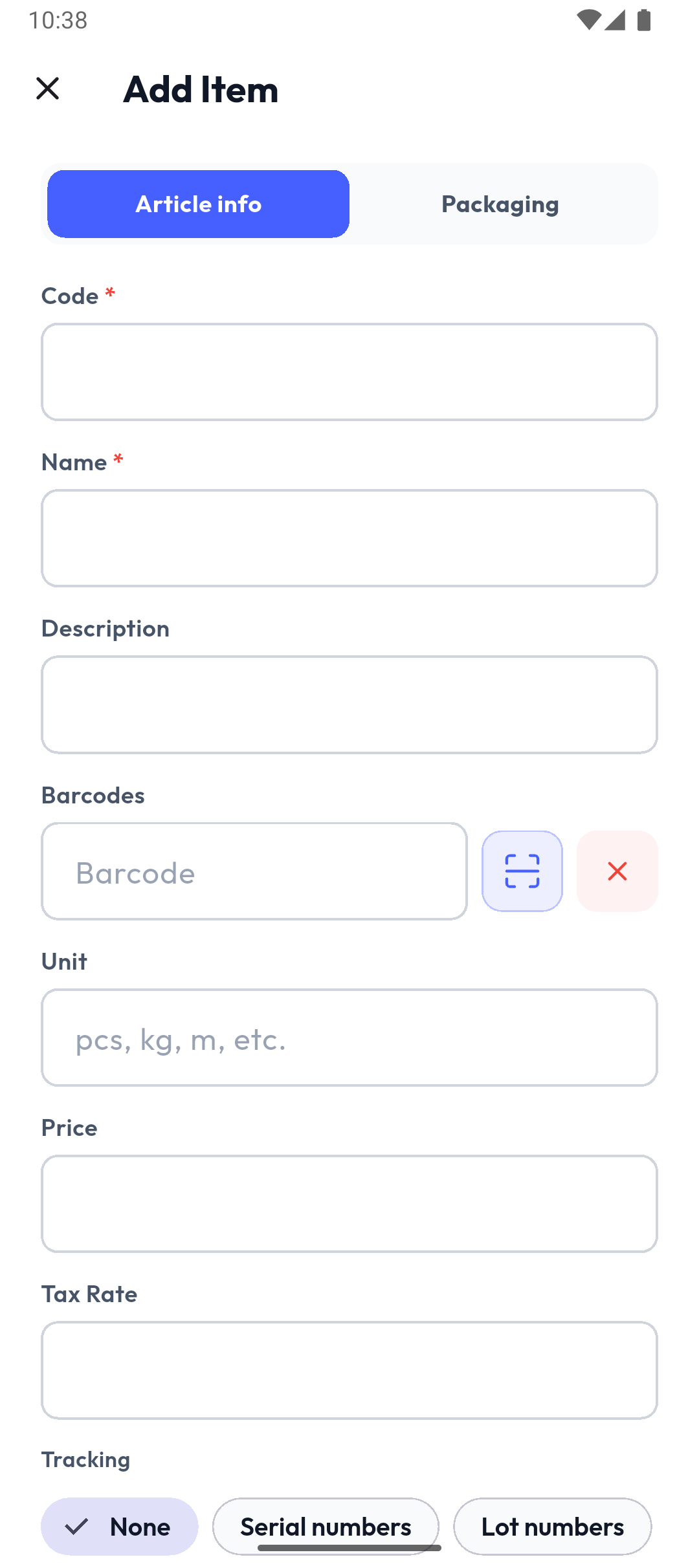
- Code * and Name *: without them the save button stays disabled. The code can't be changed after saving.
- Description, Unit (empty = pcs), Price and Tax Rate.
- Barcodes: type them or scan with the icon next to the field; Add barcode adds another row and the red ✕ removes one.
- Tracking: None, Serial numbers or Lot numbers.
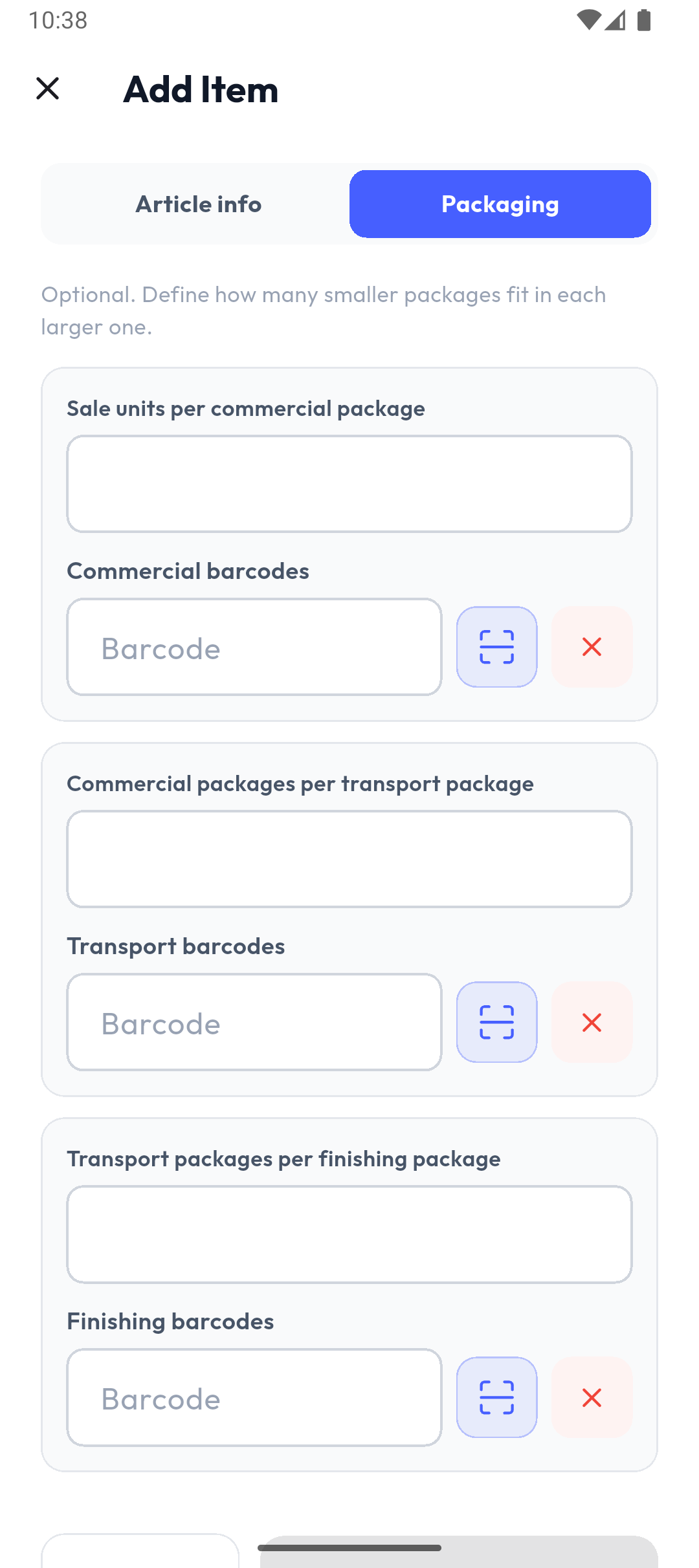
The Packaging tab has three package levels (commercial, transport, finishing), each with a quantity and its own barcodes — the same as in the portal.
Save with Add (or Save Changes) or leave with Cancel. Errors show in a red box above the buttons, e.g. Invalid price format. or Barcode … is entered more than once.
- If another item already has the same code, the app asks Replace existing item?; Replace overwrites that item.
- If a barcode already belongs to another item, it shows Barcode Conflict; Move Barcodes moves it to this item. If you cancel, the item is saved without that barcode.
Note
In Popis PRO, changes go to the portal with the next sync. In Popis PRO Offline, the catalogue exists only on the phone.
Tip
The Barcode as item code setting (in Settings) limits a new goods item to one barcode, and when you add an item from an unknown scanned barcode, that barcode also becomes its code.
Deleting
The red bin on a row (administrators only) asks Delete Item?. Delete permanently removes the item, together with its barcodes and its rows in count lists that aren't finished yet.
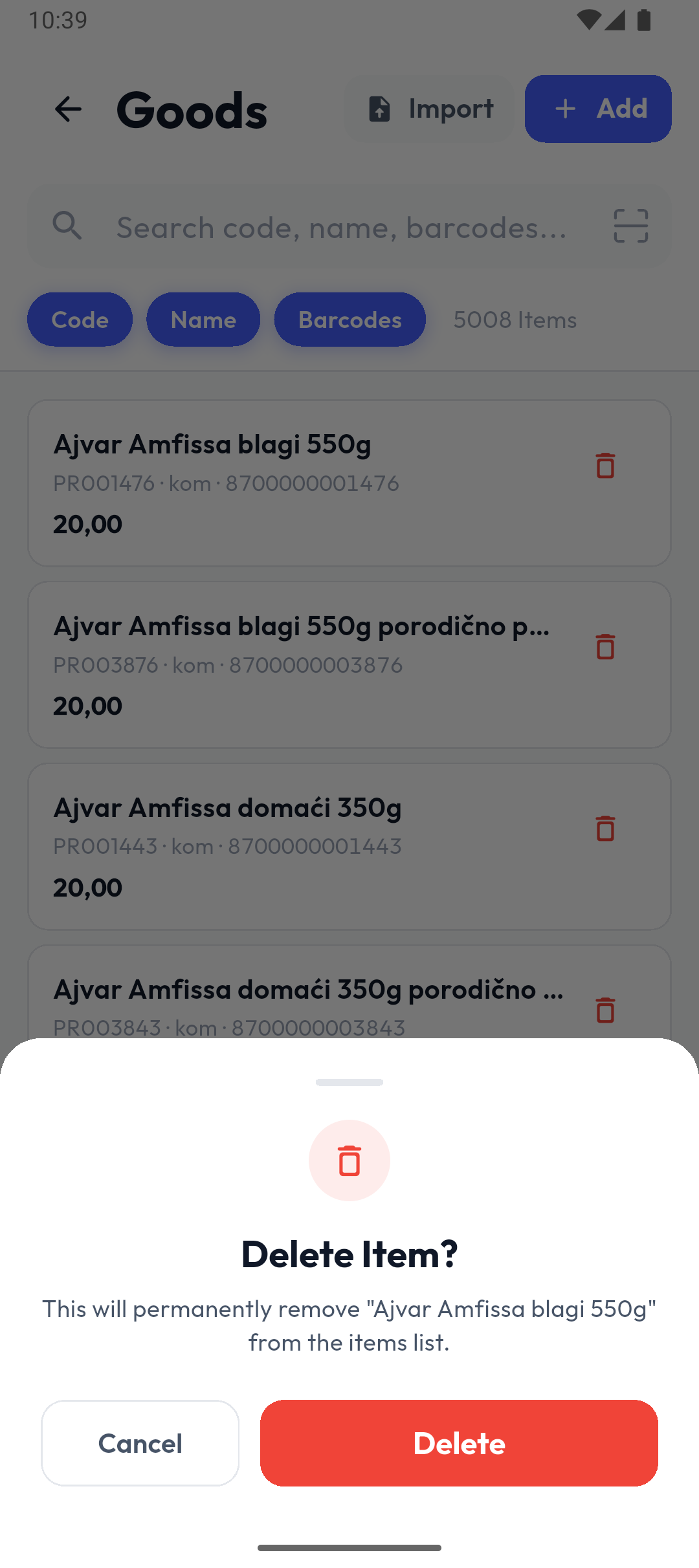
In Popis PRO, deleting goes to the server right away, so you need an internet connection. Items can't be deactivated in the app; that's done in the portal.
Import from Excel (administrators)
Import opens Import from Excel. Tap the box and choose an .xlsx file; the first row is the header.
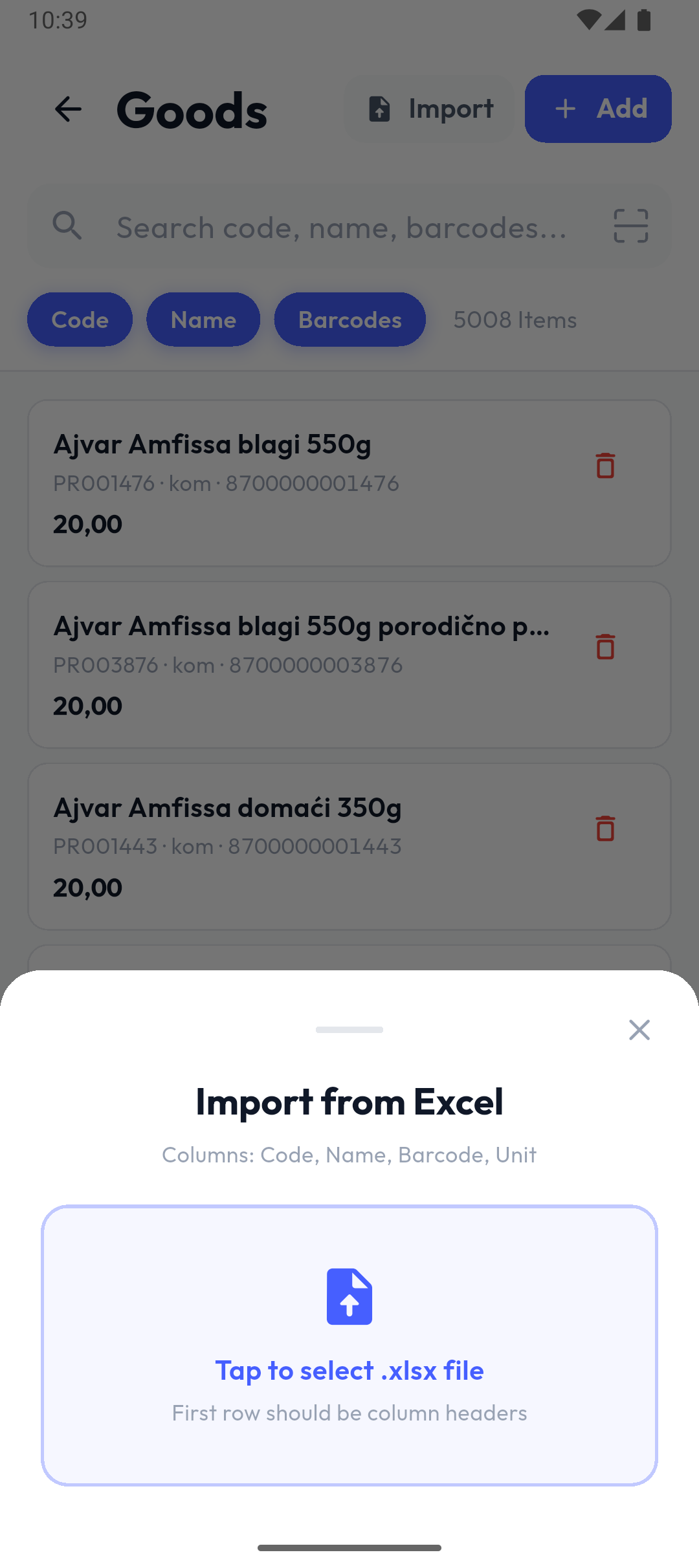
The app first shows a preview: how many items are in the file and how many are New, Update and Same, plus the first 20 rows. Nothing changes until you tap Import N Items. The import shows its progress; if you stop it, items already imported stay.
Columns are read by position: Code, Name, Barcode (separate several with 😉, Unit, Price, Tax rate, Weight, then packaging (quantity and barcode for commercial, transport and finishing) and Tracking (none, serial or lot) — the same as the portal import.
Package limit
When the number of items reaches your package's limit, a lock with the item count replaces Import and Add. A long press on it explains the limit. An import that would go over the limit isn't allowed.