

Items
Items are the goods your company counts, receives and sells. The app recognises them from this catalogue when scanning, and counts, records and warehouse stock all use it. Open the page from the left menu, Items; it's shown if your package includes goods.
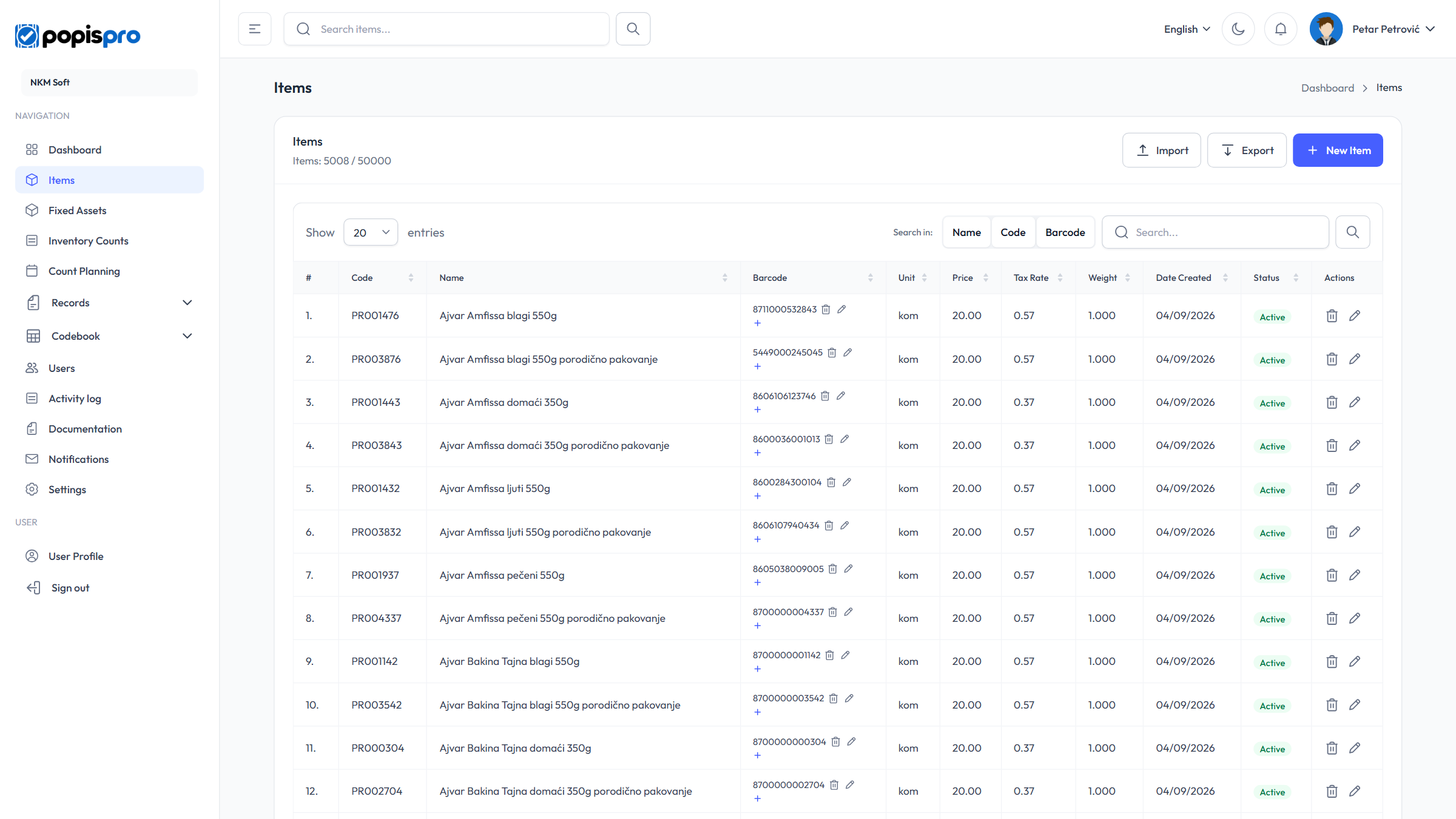
The items list
- Under the Items heading you see how many items you have and how many your package allows, e.g. Items: 5008 / 50000.
- Search in chooses which fields to search: Name, Code and Barcode (at least one stays on). Type and press Enter or click the magnifier.
- Click a column header to sort by it; click again to reverse.
- Show 20 / 50 / 100 / 200 entries changes the rows per page; Previous and Next move between pages.
- In the Barcode column you edit barcodes right in the table: the pencil changes a barcode, the bin removes it and + adds one. These changes are saved immediately.
- In the Actions column, the bin deletes the item and the pencil opens the edit form.
Buttons above the table: Import and Export (see Import and export) and New Item.
New item
Click New Item, fill in the fields and click Add.
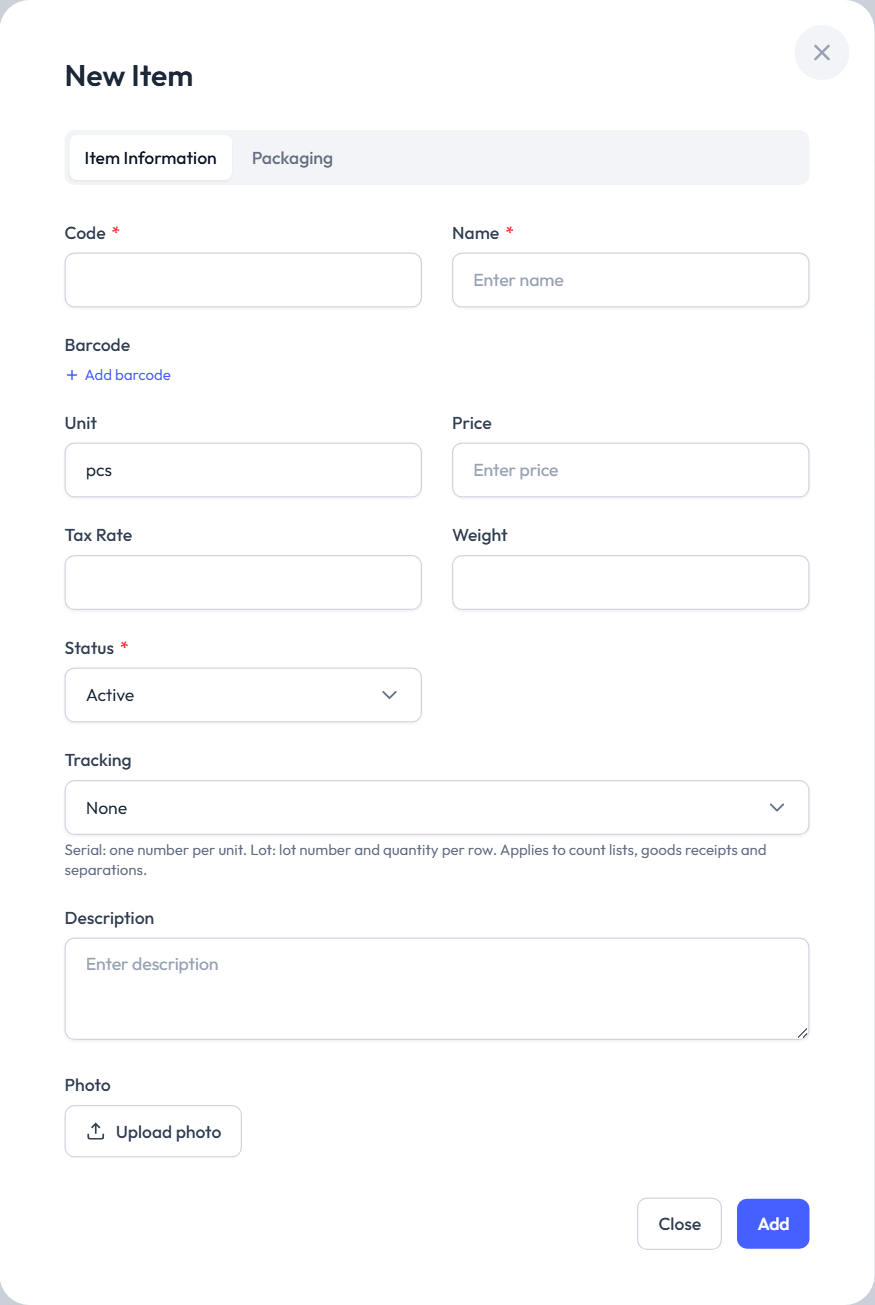
| Field | Description |
|---|---|
| Code * | The item's unique code in your company. It can't be changed after saving. |
| Name * | The name shown in the app and in reports. |
| Barcode | One or more barcodes (Add barcode). A barcode can't belong to two items. |
| Unit | For example pcs, kg, l. Defaults to pcs. |
| Price, Tax Rate, Weight | Numbers, optional. |
| Status * | Active or Inactive (see below). |
| Tracking | None, Serial numbers (one number per unit) or Lot numbers (a lot number and quantity per line). Applies to count lists, goods receipts and separation. |
| Description | Free text. |
| Photo | Upload photo: jpg, png, gif or webp, up to 5 MB. |
TIP
If you enter the code of an item that was deleted earlier, that item comes back with the form's data instead of a new one being created.
Packaging
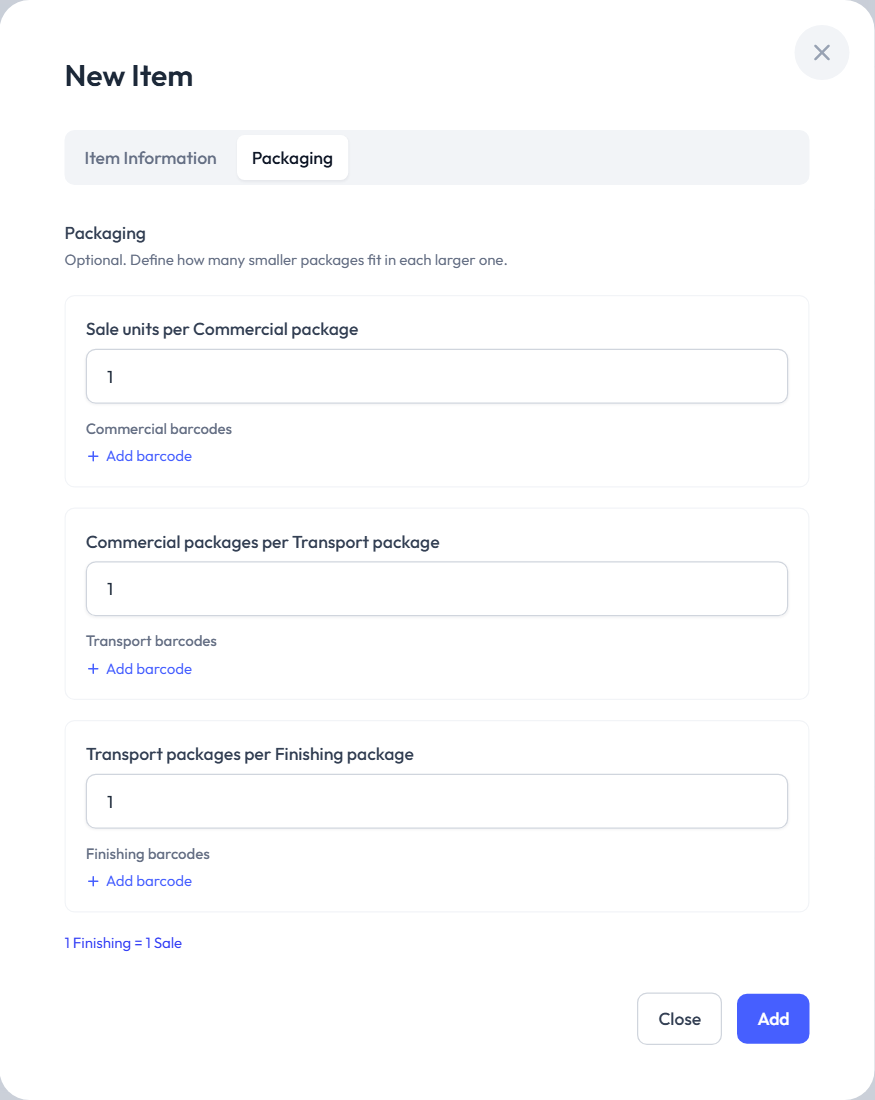
On the Packaging tab you describe larger packages, if the item has them. For each level, enter how many smaller packages fit into it (a whole number, at least 1) and, optionally, that package's barcodes:
- Sale units per commercial package, e.g. 12 pieces in a box;
- Commercial packages per transport package, e.g. 10 boxes in a carton;
- Transport packages per finishing package, e.g. 40 cartons on a pallet.
The line at the bottom shows how many sale units the largest package holds. The item can then also be counted in packages: scanning a package barcode counts the whole package, and the quantity is converted to sale units.
A barcode that already exists
If a barcode already belongs to another item or fixed asset, a Barcode Already Assigned window shows which one. Reassign removes it there and gives it to this item; Close takes you back to the form.
Editing an item
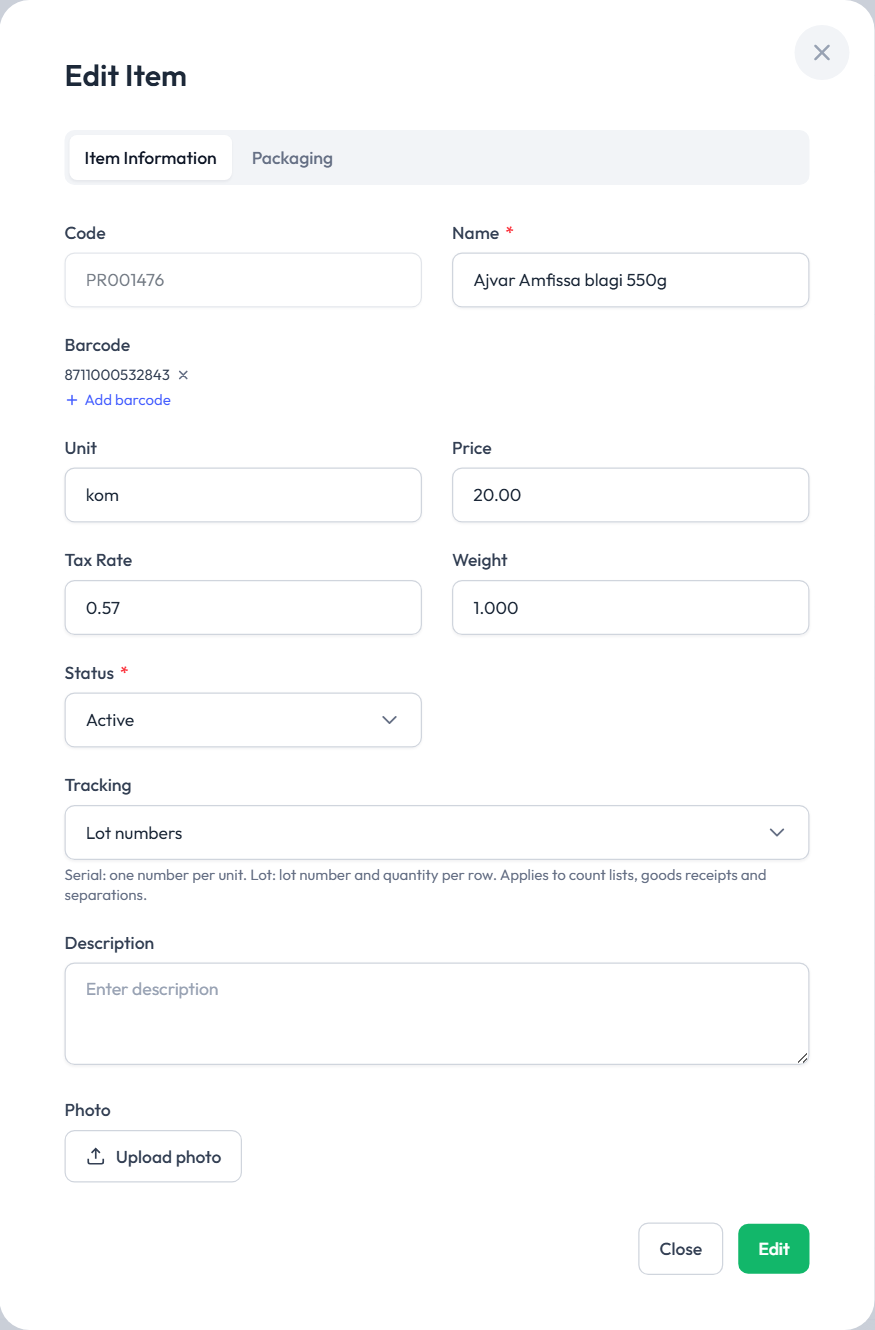
The pencil in the Actions column opens Edit Item. Every field except the code can be changed. Save with Edit.
Inactive items
Set an item you don't use for now to Status: Inactive. It stays in the catalogue with an orange Inactive badge, but the mobile app no longer offers it when choosing items. Set it back to Active when you need it again.
Deleting
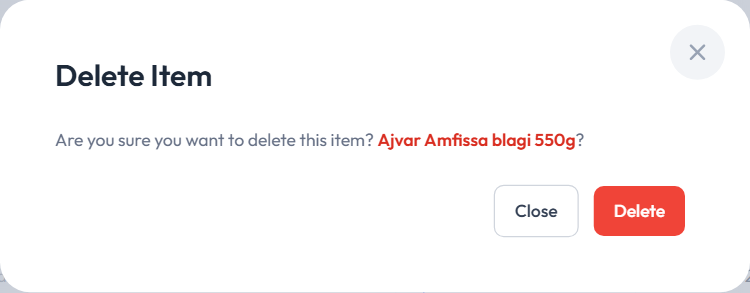
The bin in the Actions column opens the Delete Item confirmation. After Delete, the item disappears from the list and frees a place in your package.
- Counts and records that used the item still show it.
- Deleting isn't blocked even when the item has been used, so check before you delete.
- If you later add or import the same code, the item comes back.
WARNING
Your company's main user also sees Delete all, which deletes every item at once. It's available only when no goods count is in progress and no record is in draft.
Package limit
When the number of items reaches your package's limit, New Item is disabled and an import that would go over the limit is refused. Delete items you don't need or upgrade your package.