

Working from a list
A separation and a goods receipt can be done freely or from a list of expected items. The company's main user picks the way in Settings, in the Entry mode field:
| Entry mode | How it works |
|---|---|
| Completely free | No list: you enter any items and quantities. The binding document number is required. |
| Free, from a list (order / import) | The record gets a list from an order or from Excel, and for each row you enter how much was actually picked or received. |
| By barcode, from a list (order / import) | Like the list mode, but done only in the mobile app, where a list row opens by scanning the item's barcode. In the portal such records are view-only. |
The entry mode is stored on the record when it is created. Changing it later applies to new records; only a switch between "from a list" and "by barcode" also changes records that are still open. All other record types are always free.
Where the list comes from
When the entry mode isn't free, the form for a new separation or receipt asks for the List source.
From an order
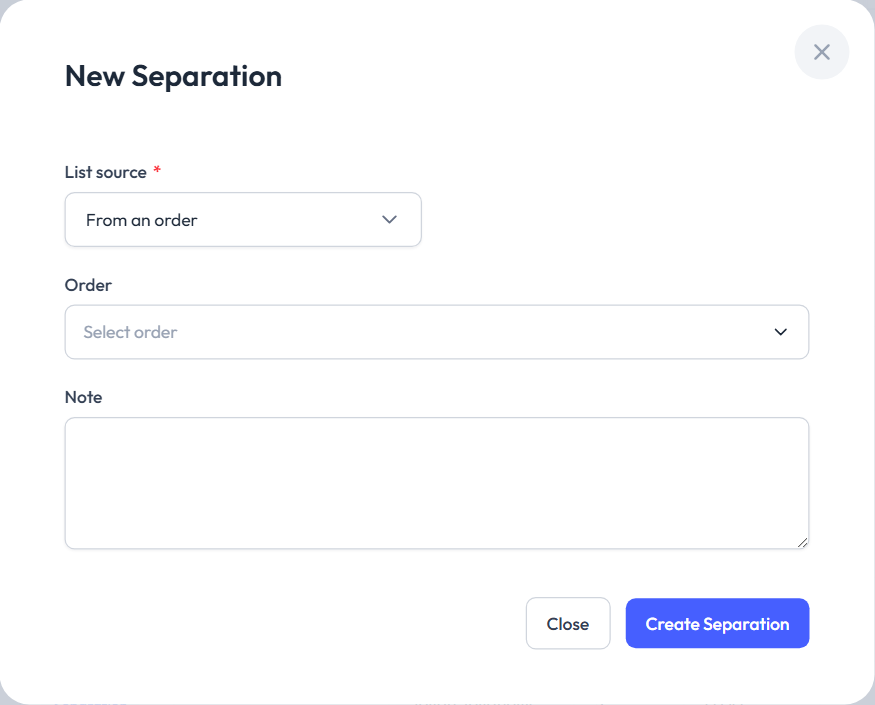
In the Order field you pick a completed order that no document has been made from yet: a customer order for a separation, a supplier order for a goods receipt. Orders of every user of the company are offered.
- The order's items (added up per item) become the list; every row starts at 0 marked Not processed.
- The location, warehouse and partner are copied from the order, and the order number becomes the binding document number.
- The record goes straight to In Progress. Excel import isn't available on it.
- The order then shows Separated → SEP-… or Received → GRN-…. One order can have only one separation or one receipt.
From Excel
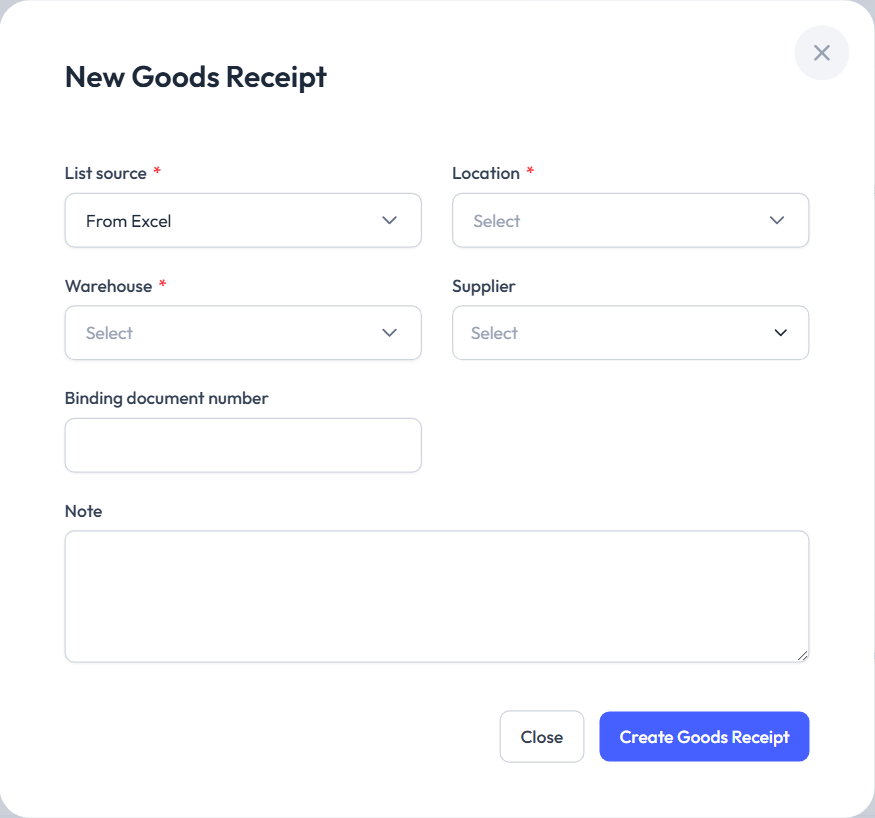
You fill in the usual form (location, warehouse, partner, binding document number — required for a separation). The record is empty until you import the list: it says Import the list of expected articles (Excel/CSV) before entering quantities.
Import then reads the columns code, expected quantity and note. You can import the list again until you enter the first quantity; after that: The list can no longer be imported — quantities have already been entered.
Entering from a list
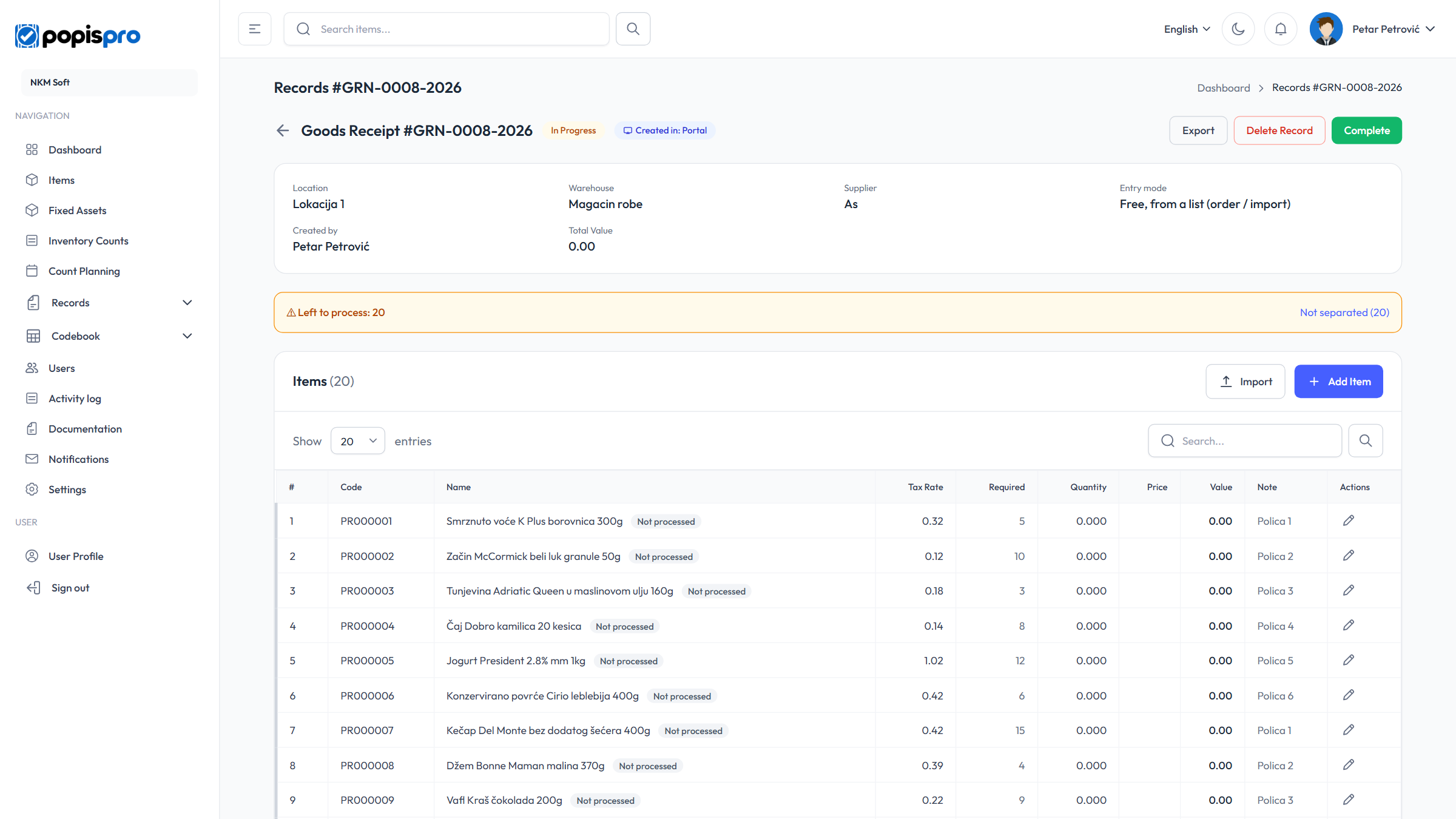
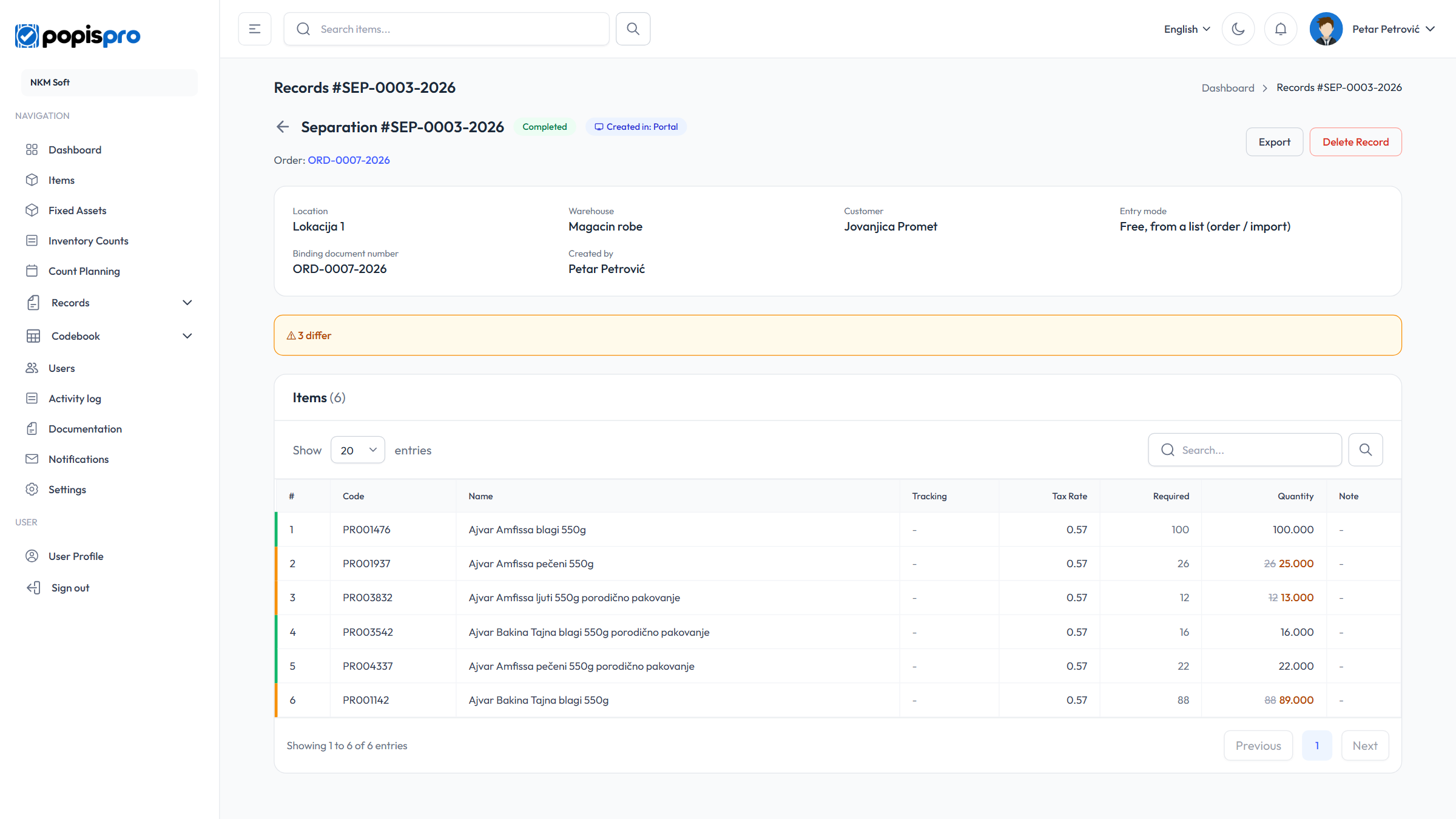
- The table has Required and Quantity columns. When they differ, the required quantity is struck through and the entered one is orange.
- The pencil opens a row with the required quantity proposed; enter the actual quantity and save. An entered 0 means Not found.
- Adding an item that is already on the list changes its row instead of adding a new one.
- List rows can't be deleted: A list item cannot be deleted — enter quantity 0 if it was not found.
- An item that isn't on the list is marked Not on order or Not on list and counts as extra.
- The row's left edge: green = matches the list, orange = differs, grey = missing, extra or not processed yet.
The bar above the items shows Left to process: N, and once every row is processed, the differences: N missing · N differ · N extra. Not separated (N) opens the list of missing items.
Options
Two options in Settings apply only to list-based records, immediately, including records that are already open:
- Quantity may exceed the required quantity — when off, the total quantity of a listed item can't go above the required one: Quantity cannot exceed the required quantity (N). Items not on the list have no cap.
- Allow articles not on the list — when off, an item that isn't on the list is refused: The article is not on the list. Adding articles outside the list is not allowed.
Completing a list-based record
While there are unprocessed rows, Complete is disabled and the dialog shows Left to process: N. When every row is processed but there are differences, it warns Some ordered items are missing or quantities differ. Finish anyway? and lists the missing items. After completion the differences stay recorded, and the records list shows a ⚠ N badge.
Tip
By barcode, from a list doesn't create records in the portal: the form shows This entry mode is available only in the mobile app. In the app, a list row whose item has a barcode opens only by scanning it (This article can only be edited by scanning its barcode.), which prevents entering the wrong item.