

Count lists
A count list is one part of a count, counted by one user. Lists are created in the portal or in the mobile app; most counting happens in the app, and the portal is used for review and, when needed, for entering or importing items.
New list in the portal
On the count page, click Add List.
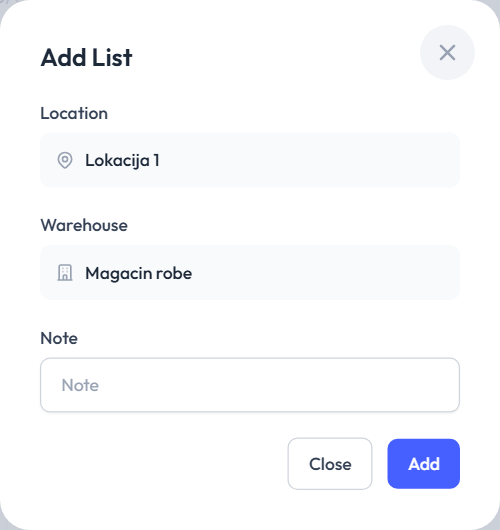
- Location and Warehouse are taken from the count. If the count covers all warehouses, you pick the warehouse here, and it's required. If the location has only one warehouse, it's already selected.
- Note is optional (e.g. "Rack 3, left").
- Add creates the list and opens it.
Note
Each user can have only one open list per count and warehouse — separately in the portal and in the app. Until you finish or delete it, a new one is refused with You already have an open list for this warehouse. Complete or delete it before creating a new one.
The list page
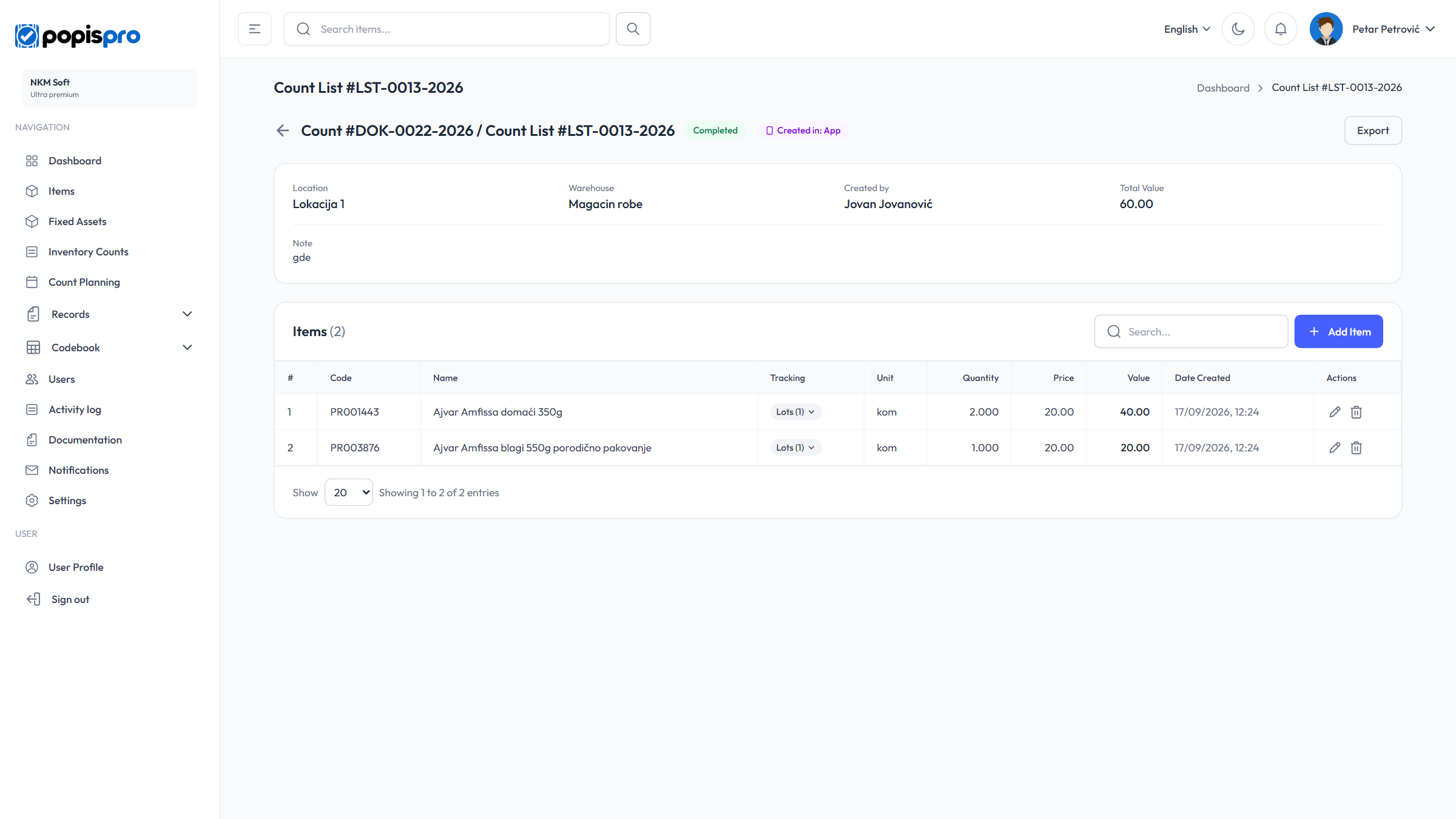
The header shows the list number, its status and Created in: Portal or App. Below are the location, warehouse, who created the list, its total value and note, then the items table: Code, Name, Unit, Quantity, Price, Value and Date Created. If your company uses positions, there's also a Position column.
- The search box above the table searches the list's items.
- For a partial count, the list says Partial count — only pre-selected items can be added.
- Items with serial numbers or lots that are missing data carry an Incomplete badge — x of y while the pieces or lot quantities don't add up, or Expiry date missing when a lot has no date.
- For tracked items, the Serial numbers (N) or Lots (N) button in the Tracking column opens their rows: the number, lot quantity, expiry date and position.
- Export (when the list has items) downloads the list as Excel (.xlsx), Excel 97-2003 (.xls), CSV (.csv), OpenDocument (.ods), XML or Code;Quantity — see Exporting. There's no PDF for a list.
Open lists created in the app are view only in the portal (This list was created on the mobile app — view-only from the portal.). Only the user who created them and your company's main user can finish or delete them. An administrator can correct a finished list.
Adding items in the portal
On an open list created in the portal, click Add Item:
- Scan barcode (goods): scan or type a barcode and press Enter, or
- Select item (or Select asset) from the catalogue. For a partial count, only pre-selected items are offered.
- Packaging: if the item has packages, choose whether you count pieces or packages; the quantity is then converted (e.g. "3 Transport (= 72)").
- Quantity: 1 by default; a fixed asset always has quantity 1.
- Serial numbers / Lots: for tracked items, enter the serial numbers, or each lot's number, expiry date and quantity. The expiry date is mandatory for every lot.
- Position: if your company requires positions.
- Note.
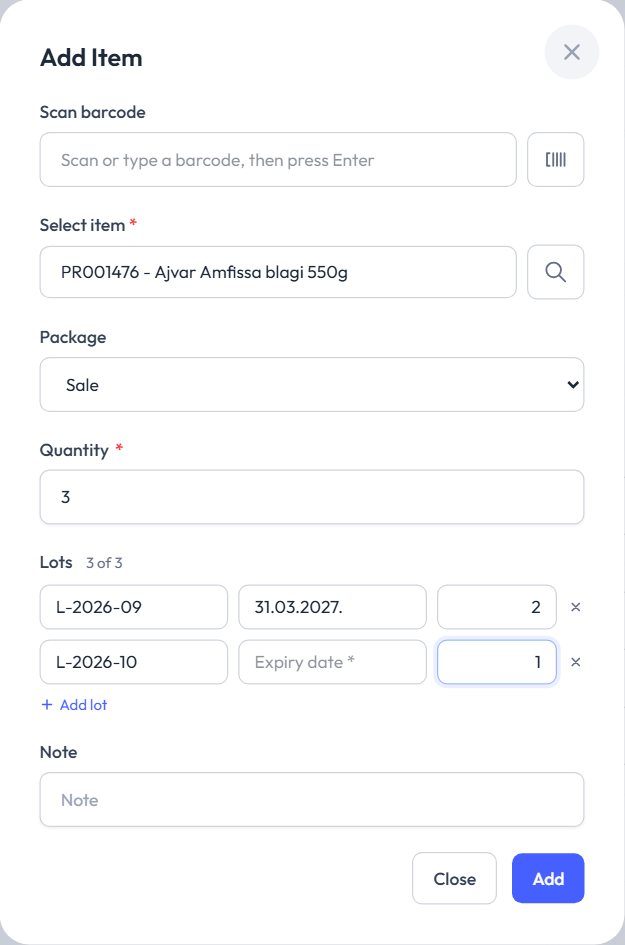
The price fills in by itself: the warehouse stock price, or, if there is none, the item's price. The pencil on a row edits the item, the bin removes it.
Importing items into a list
Import on a list loads an Excel file with the columns Code, Quantity, Price and Note (price and note are optional; for fixed assets the quantity may be empty). There's no preview: items are added immediately, with Imported N item(s) to the list. If any quantity or price is invalid, the whole file is refused.
Finishing a list
Click Complete List and confirm. The list needs at least one item, and tracked items need all their serial numbers, lots, lot expiry dates and positions (otherwise: Missing serial numbers, lots, expiry dates or positions for: …). A finished list can't be reopened, but while the count is running an administrator can correct it.
Correcting a finished list
While the count isn't completed, a company administrator (the Administrator role, see Users) can correct a finished list — including one made in the app. Such a list shows Add Item, and the pencil and bin on its rows; the list stays finished. The picture under The list page shows one: a finished list from the app, as an administrator sees it.
- Every saved item must be complete: tracked items need all their serial numbers, or lots with expiry dates, and a position when one is required. Otherwise the save is refused with Missing serial numbers, lots, expiry dates or positions for: ….
- The last item can't be removed (Cannot complete a list without any items.).
- Import, Complete List and Delete List are only on open lists.
- The phone doesn't sync a finished list, so a correction made in the portal stays.
- Other users can only view a finished list. Once the count is completed, its lists can no longer be changed (The count is finished — its lists can no longer be changed.).
The correction shows up in the count report right away.
Deleting a list
Delete List (or the bin in the lists table) deletes the list with all its items. A list can be deleted by the user who created it and by your company's main user, and only while the count isn't completed.