

Import and export of items and assets
You can add or change many items and fixed assets at once from an Excel file, and export them to Excel, CSV or PDF. The steps are the same on both pages; only the columns differ.
Import
- On the Items or Fixed Assets page, click Import.
- In the Import window, click Download example and save the example file. Fill it in with your data, keeping the column layout.
- Click Select file and continue and choose the file (.xlsx, .xls or .csv, up to 50 MB).
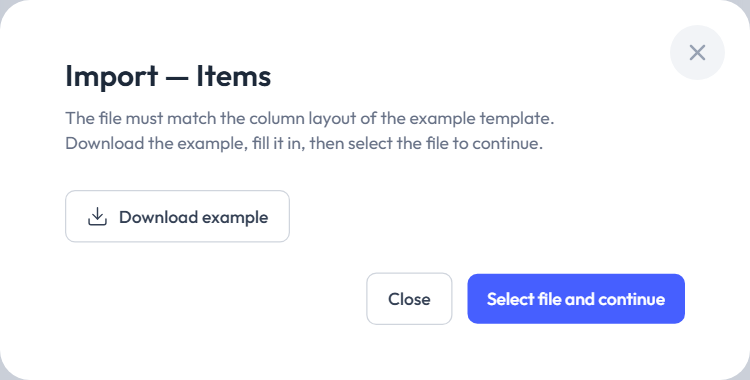
The Import Preview opens. Nothing has been saved yet.
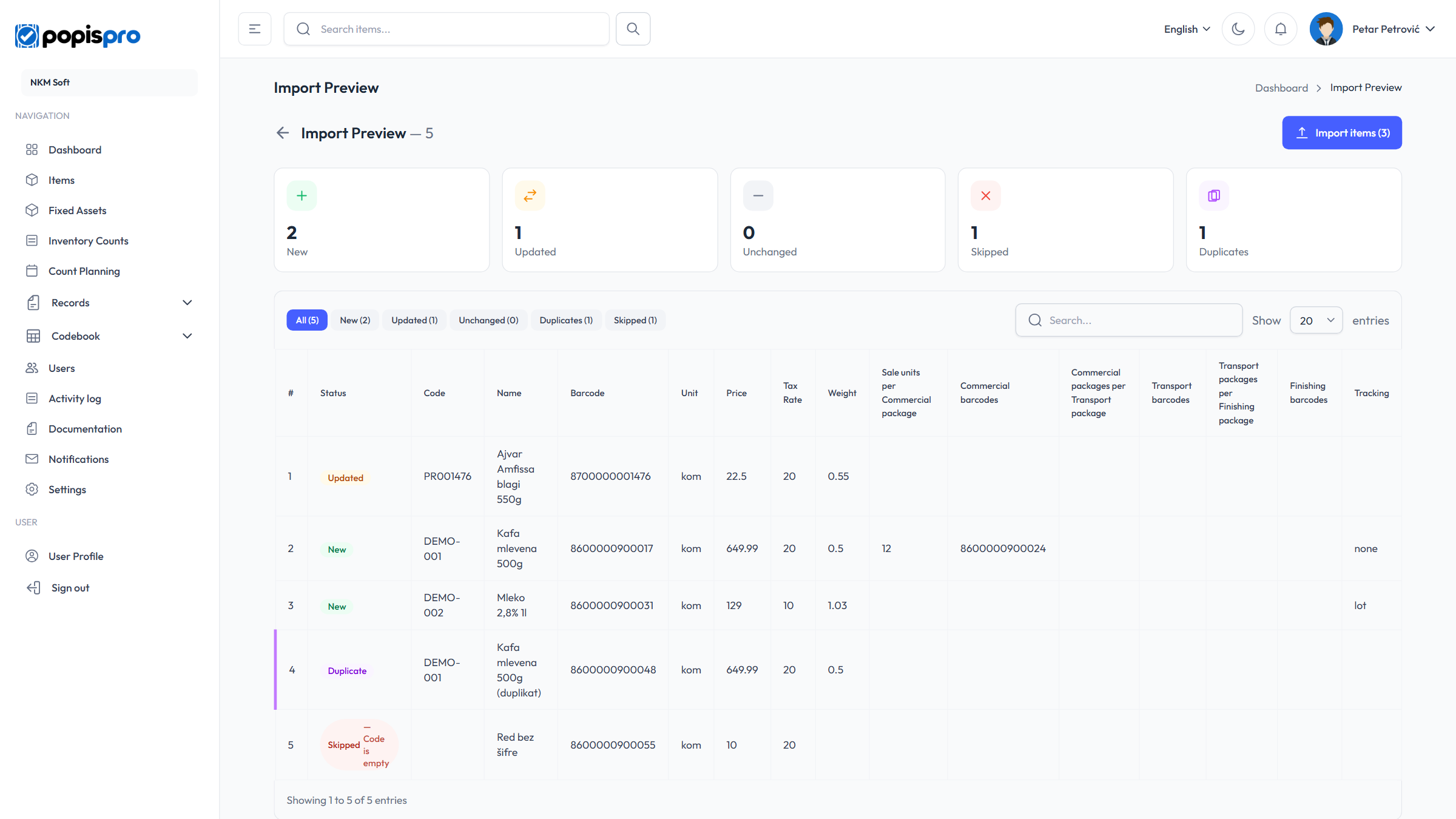
The cards at the top show what will happen to which row, and the labels under them filter the table:
| Label | Meaning |
|---|---|
| New | The code (inventory number) isn't in the catalogue: the item will be added. |
| Updated | The item exists and something in the row differs: it will be changed. |
| Unchanged | The item exists with the same data: nothing changes. |
| Skipped | The row has no code (inventory number): it won't be imported. The reason is shown on the row, e.g. Code is empty. |
| Duplicate | The same code appeared earlier in the file: only the first row with that code is imported. |
- Check the preview and click Import items (N), where N is the number of new and updated rows. The arrow left of the title goes back to the list without importing.
After the import you get Import completed successfully. with the number of imported items.
How rows are matched
- An item is recognised by its code (items) or inventory number (fixed assets). Existing items are updated, not duplicated.
- A deleted item with the same code comes back, and imported items are Active.
- Barcodes are only added. A barcode that already belongs to another item in your company is skipped, and barcodes missing from the file stay.
- A row with a code but no name isn't imported.
- An invalid price, tax rate or weight is imported as empty. An empty Tracking column leaves the current setting.
- The Description column and photos aren't imported.
Warning
If the import would go over your package's limit, an Import not allowed window shows the number of rows and the allowed maximum. Remove rows or upgrade your package.
Columns for items
Columns are read by position, not by the header text; the first row is the header and is skipped.
| Column | Content |
|---|---|
| A | Code * |
| B | Name * |
| C | Barcode (separate several with 😉 |
| D | Unit |
| E | Price |
| F | Tax rate |
| G | Weight |
| H | Sale units per commercial package |
| I | Commercial barcode |
| J | Commercial packages per transport package |
| K | Transport barcode |
| L | Transport packages per finishing package |
| M | Finishing barcode |
| N | Tracking: none, serial or lot |
Columns for fixed assets
| Column | Content |
|---|---|
| A | Inventory number * |
| B | Name * |
| C | Barcode |
| D | Unit |
| E | Serial number |
| F | Type: fixed_asset or small_inventory |
| G | Quantity |
A fixed asset's price isn't imported: new assets get price 0, and existing assets keep theirs. Enter prices in the portal.
Tip
The example files are also on the portal's Documentation page, in the language you've chosen.
Export
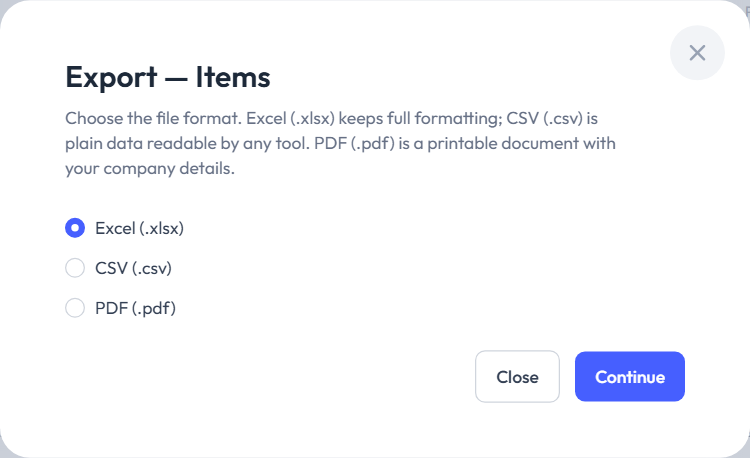
Click Export, choose Excel (.xlsx), CSV (.csv) or PDF (.pdf) and click Continue. Excel and CSV have the same column layout as the import example, so you can edit them and import them again; a PDF is a document for printing.
If there's text in the search box, only matching items are exported, by code, name, unit or description (not by barcode).