

Forgotten password
If you have forgotten your password, you set a new one yourself through a link sent to the account's email address. The same steps apply to accounts that only use the mobile app.
1. Request a link
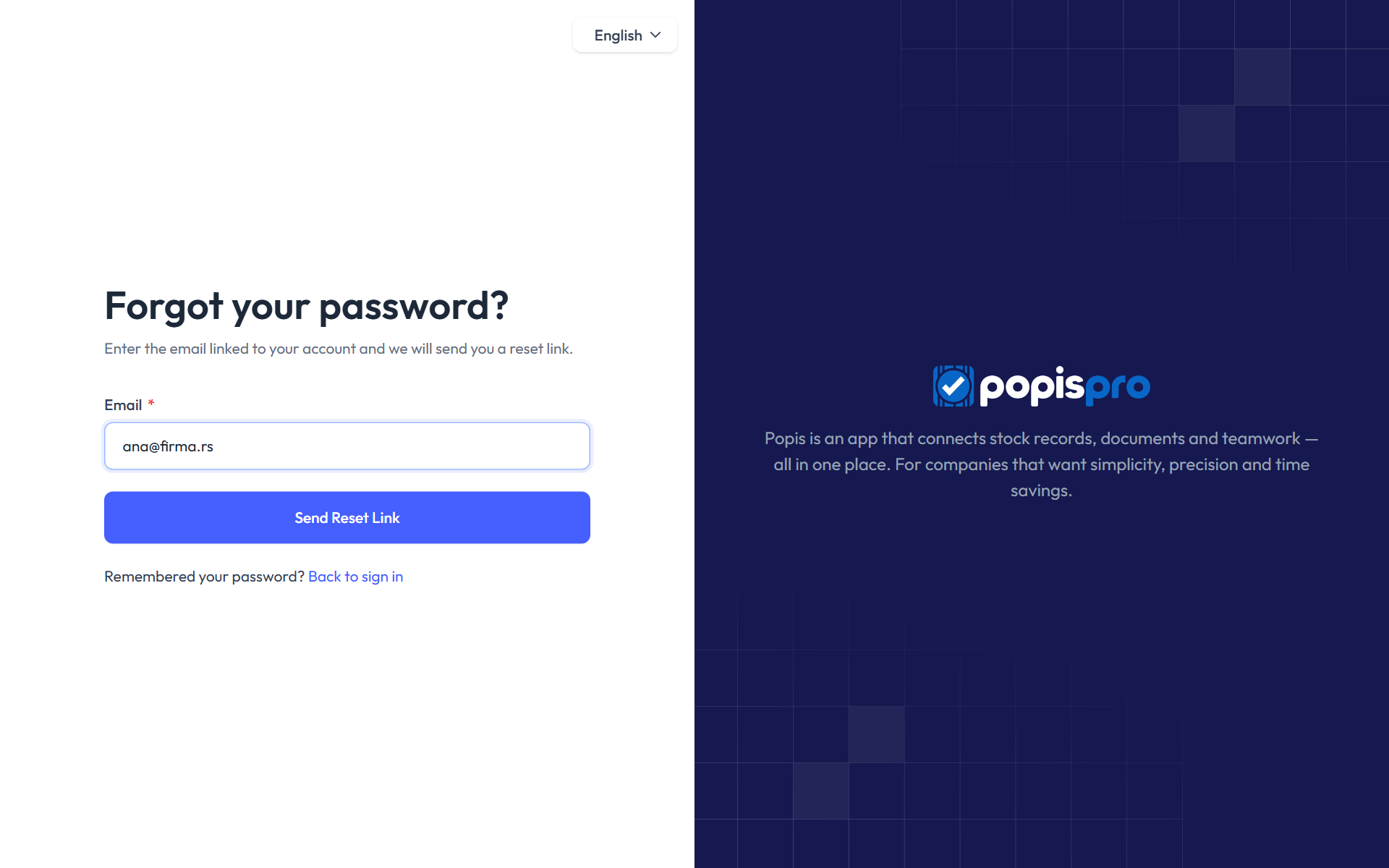
- On the sign-in page, click Forgot password?.
- In Email, enter your account's email address.
- Click Send Reset Link.
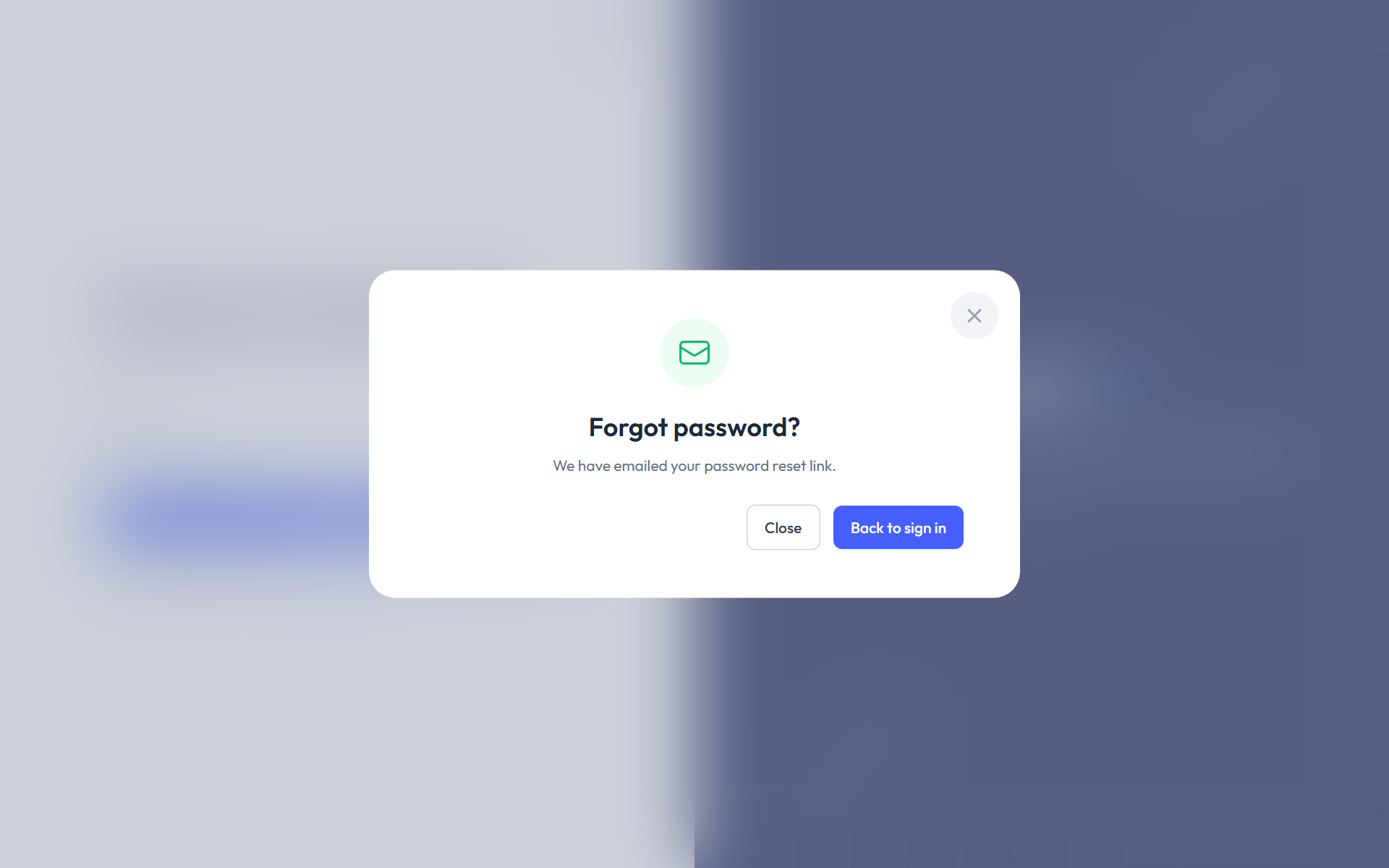
When the request is accepted, the message We have emailed your password reset link. appears. Back to sign in returns you to the sign-in page.
2. Open the email
You receive an email titled Password Reset Request. Click the Reset Password button in it.
Warning
The link is valid for 60 minutes and works only once. If it has expired, request a new one.
If the email doesn't arrive within a few minutes, check your spam folder too.
3. Set a new password
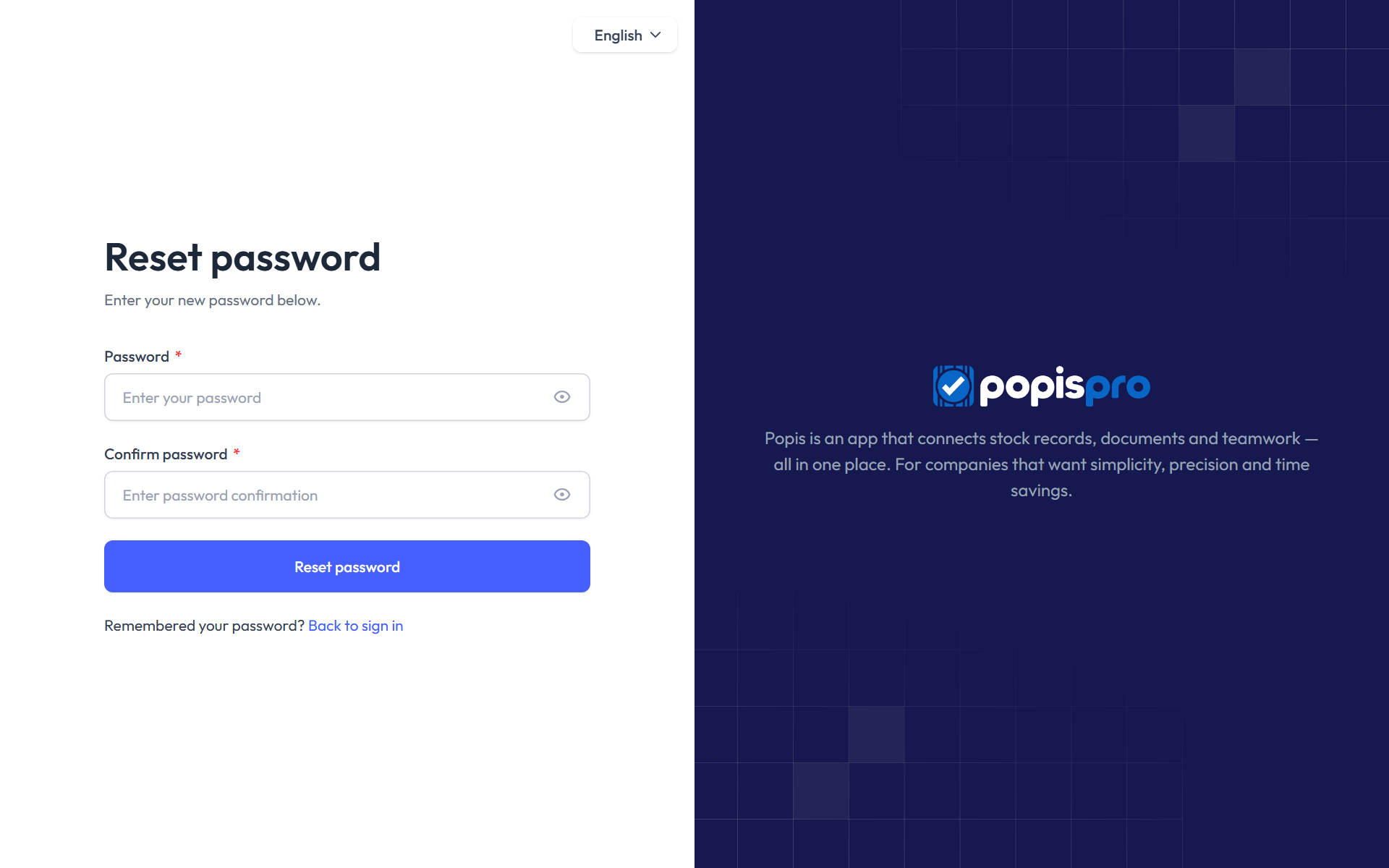
The link opens the Reset password page in the portal.
- In Password, enter the new password. It must be at least 8 characters long.
- In Confirm password, enter it again.
- Click Reset password.
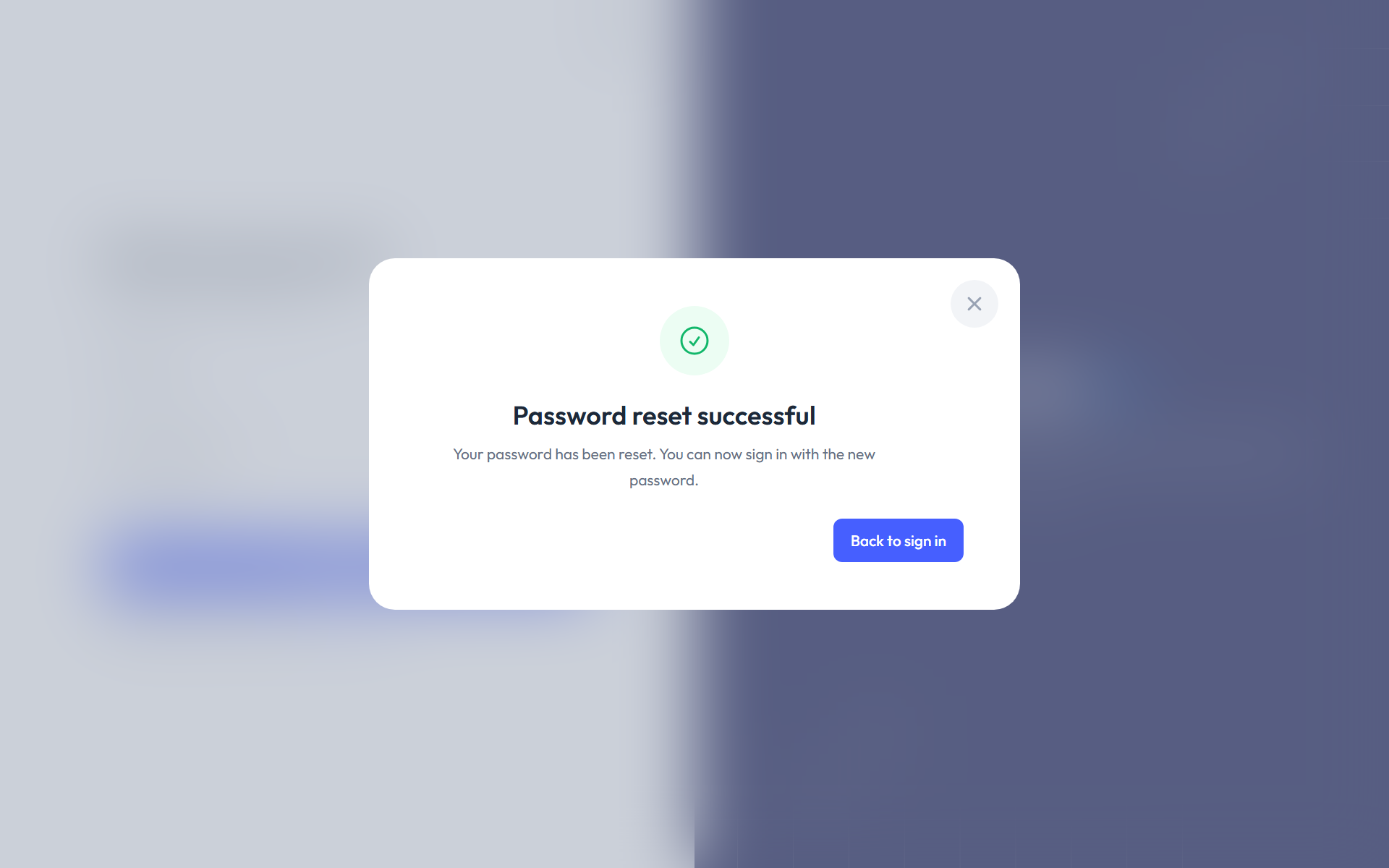
Password reset successful confirms the change. Click Back to sign in and sign in with the new password.
Important
Changing the password signs the account out everywhere: in the portal and in the mobile app, on every device. Sign in again with the new password on each device.
Common problems
| Message | What it means and what to do |
|---|---|
| We can't find a user with that email address. | There is no account for that email. Check that you typed it correctly. |
| Please wait before retrying. | A new link can be requested at most once a minute. Wait a moment and try again. |
| This password reset token is invalid. | The link has expired, was already used, or you requested a newer one after it. Request a new link and open the latest email. |