Record items
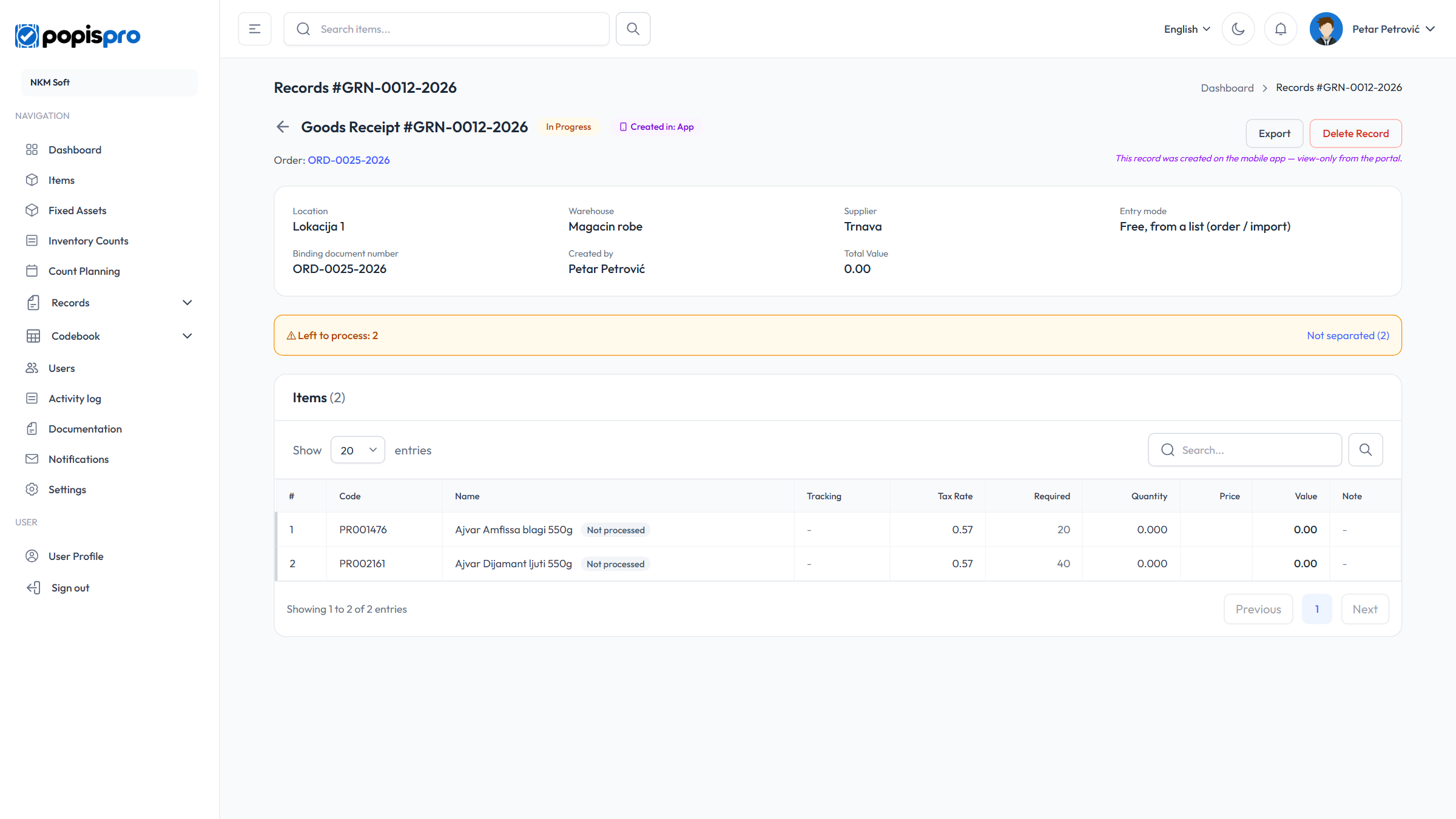
Clicking a record's number opens its page: the header, the details and the items table.
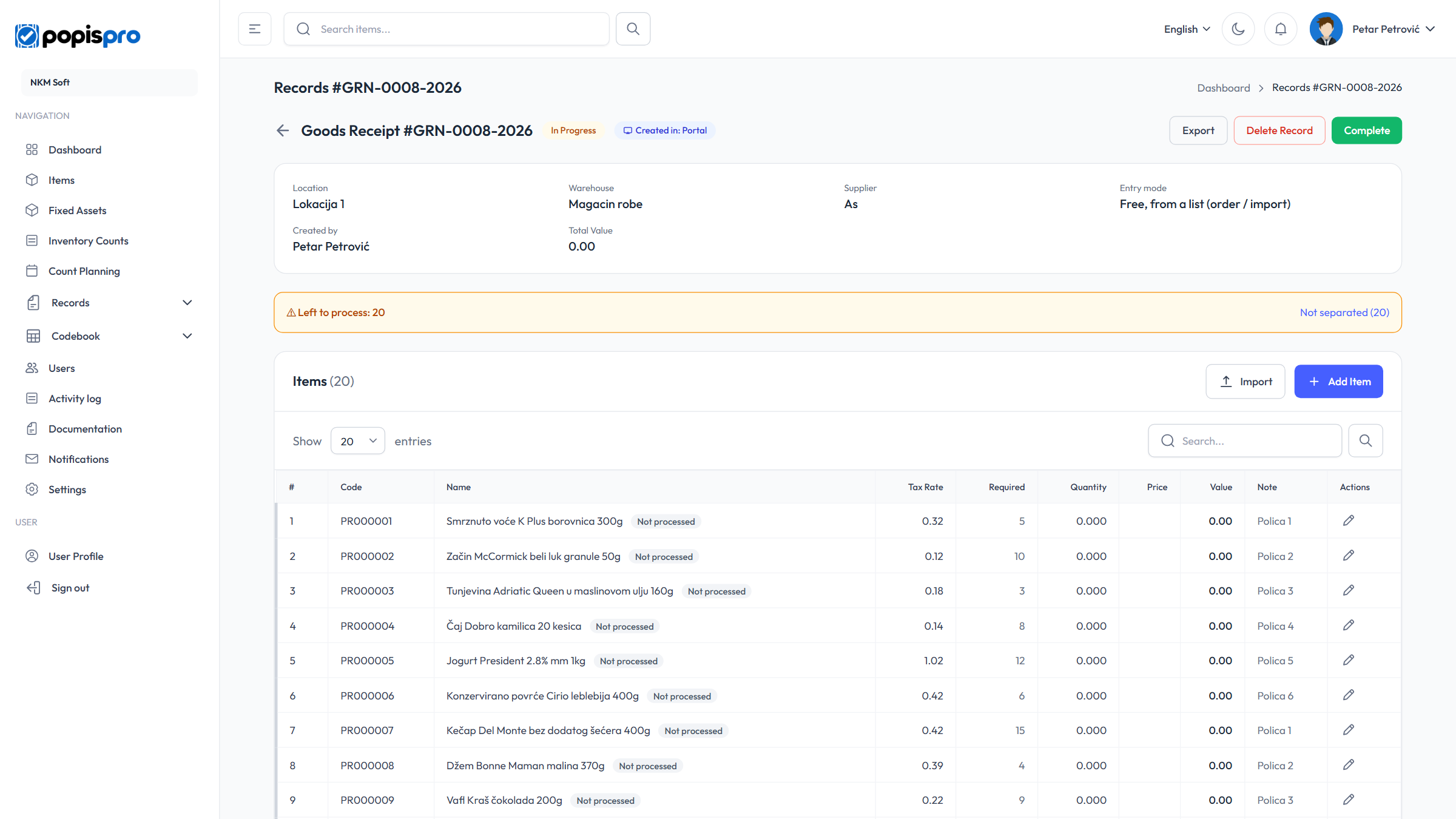
The header shows the type and number, the status and a Created in: Portal or App badge, with the buttons:
- Export — when the record has items;
- Delete Record — the same rules as in the list;
- Complete — while the record is open.
The card below shows the location, warehouse, partner, who made the record, the binding document number, the total value and the note. An order also shows Order type, Payment type and Transport type; a separation and a goods receipt show Entry mode.
The items table
The columns are Code, Name, Tax Rate, Quantity and Note, plus, depending on the type:
- Price and Value — order, sale and goods receipt;
- Expiry date — expiry records;
- Required — list-based separations and receipts (Working from a list);
- Tracking or Position — when items have serial or lot numbers, or a position is mandatory.
The search above the table looks in codes and names.
Adding an item
On an open record made in the portal, click Add Item.
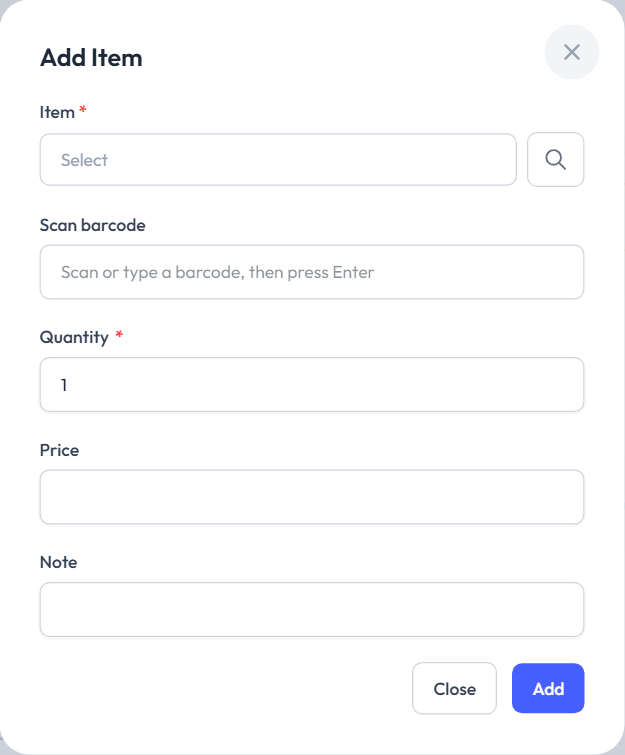
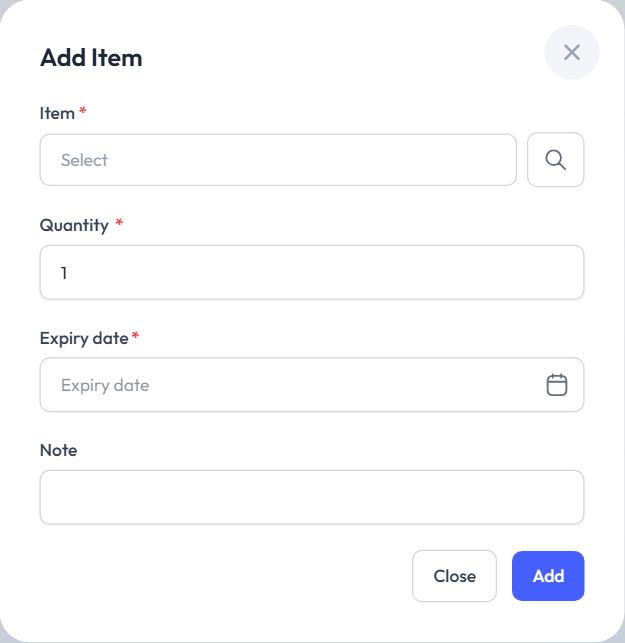
- Item *: Select opens the catalogue, or type a barcode in Scan barcode and press Enter.
- Package: if the item has packages (Sale, Commercial, Transport, Finishing), you enter the quantity in packages and the portal converts it to units.
- Quantity *.
- Price: optional on orders and goods receipts, required on sales (Price is required for every item on a Sale.).
- Expiry date *: expiry records only.
- Position *: when a mandatory position is turned on in settings — on every type except orders and sales.
- Serial numbers or Lots: for tracked items, on goods receipts and separations only. Every lot needs its number, expiry date and quantity.
- Note.
The first item moves the record from Draft to In Progress. The pencil on a row opens Edit Item, and the bin deletes the item.
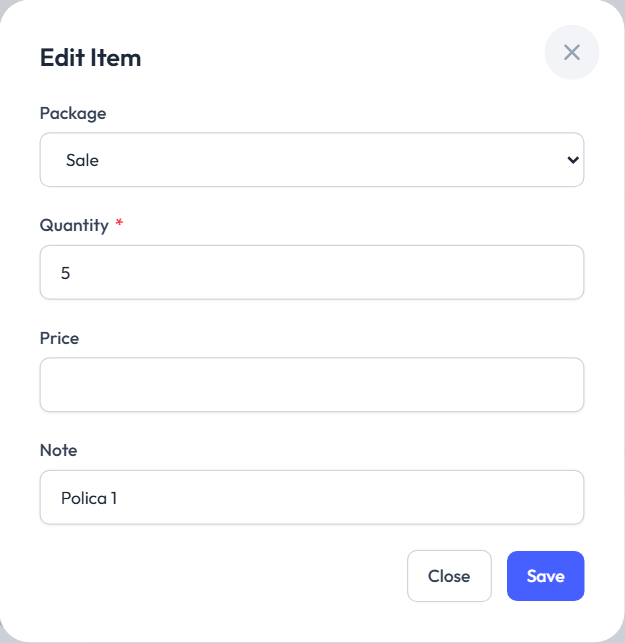
On an expiry record the dialog has no barcode or price, and the date is required:
Import from Excel
Import opens Import items. Download example gives an empty template, and Select file and continue loads an .xlsx, .xls or .csv file.
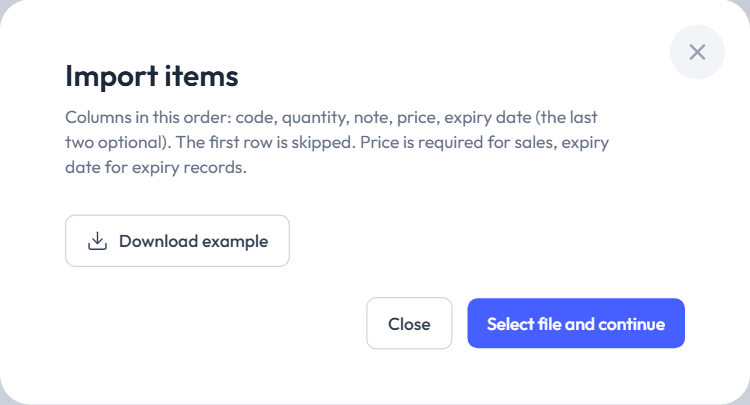
- Columns are read in order: code, quantity, note, price, expiry date (the last two optional). The first row is the header.
- Price is required for sales, and the expiry date for expiry records.
- An item already on the record is replaced; a new one is added.
- If any row is invalid, the whole file is rejected. A successful import says Imported N item(s), skipped M.
Export
Export offers Excel (.xlsx), CSV (.csv), PDF (.pdf) and formats for business software (Excel 97-2003, OpenDocument, XML, Code;Quantity) — see Exporting; Continue downloads the file.
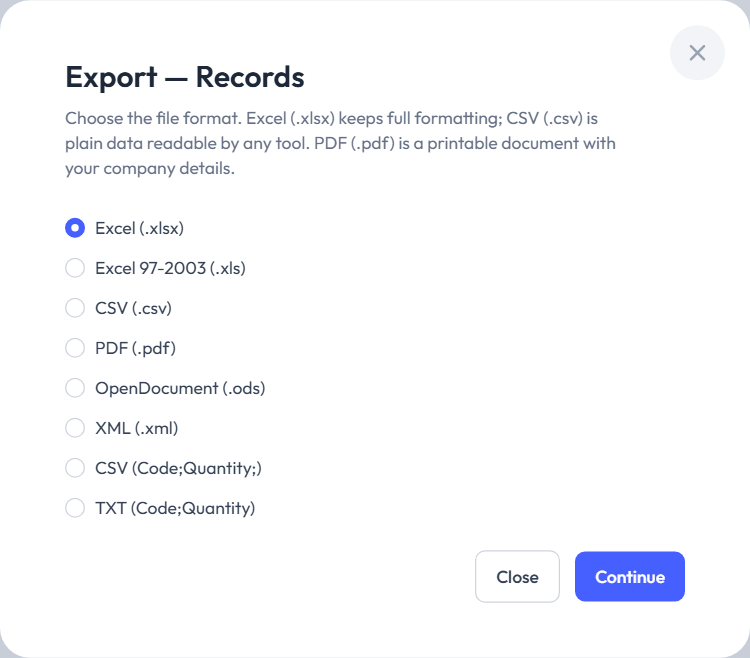
Excel, CSV and PDF files start with a header block (number, type, status, location, warehouse, partner, binding document…), followed by the columns Code, Name, Tax %, Quantity, Price, Total and Note, plus Expiry date (expiry records) and the tracking columns (position, serial number, lot, lot quantity, lot expiry date) when used. It ends with a Total row. The required quantity is not exported.
Completing
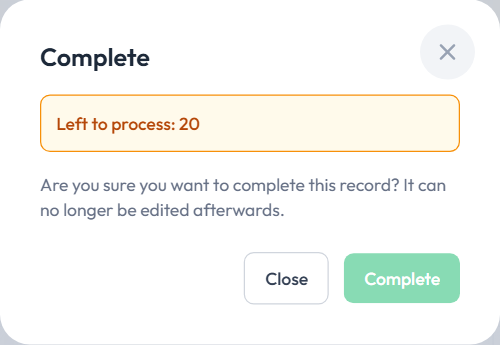
Complete asks Are you sure you want to complete this record? It can no longer be edited afterwards.
A record can't be completed if:
- it has no items (Add at least one item before completing.);
- it has unprocessed list rows (Left to process: N — the Complete button is disabled);
- tracked items or items with a mandatory position are missing data (Missing serial numbers, lots, expiry dates or positions for: …).
A completed record can't be changed or reopened; export and delete remain.
Records from the app
A record made in the mobile app is view-only in the portal: no adding, import or completing, and above the details it says This record was created on the mobile app — view-only from the portal. Export and delete work as usual.