

Inventory counts
An inventory count is the counting of goods or fixed assets at one location, in one warehouse or in all of the location's warehouses. A count is made of count lists: each list is one part of the job (e.g. one row of shelves or one room), and one user fills it in, in the portal or in the mobile app. When every list is finished, the count is completed and the result is in the report.
Open the page from the left menu, Inventory Counts.
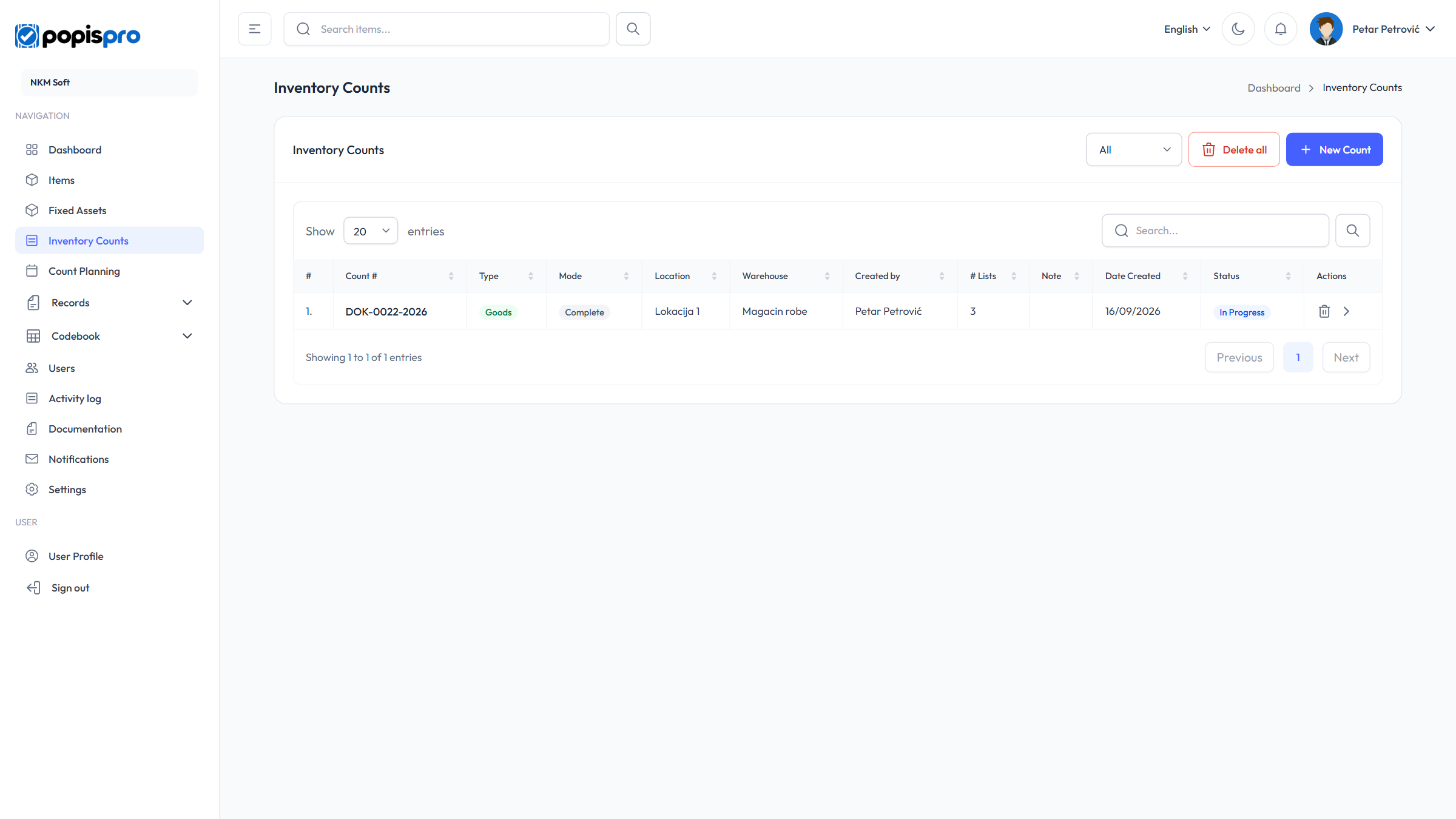
The counts list
The columns are Count #, Mode, Type, Location, Warehouse, Created by, # Lists, Note, Date Created and Status. Click a number to open the count.
| Status | Meaning |
|---|---|
| Draft | The count exists but has no lists yet. |
| In Progress | At least one list has been created. |
| Completed | The count is completed and no longer changes. |
- The menu above the table shows counts by status: All, Draft, In Progress or Completed.
- Search looks in the count number and the note (Enter or the magnifier).
- In the Actions column, the arrow opens the count, the pencil changes its location, warehouse or note (only while it has no lists), and the bin deletes it.
New count
Click New Count, fill in the fields and click Add.
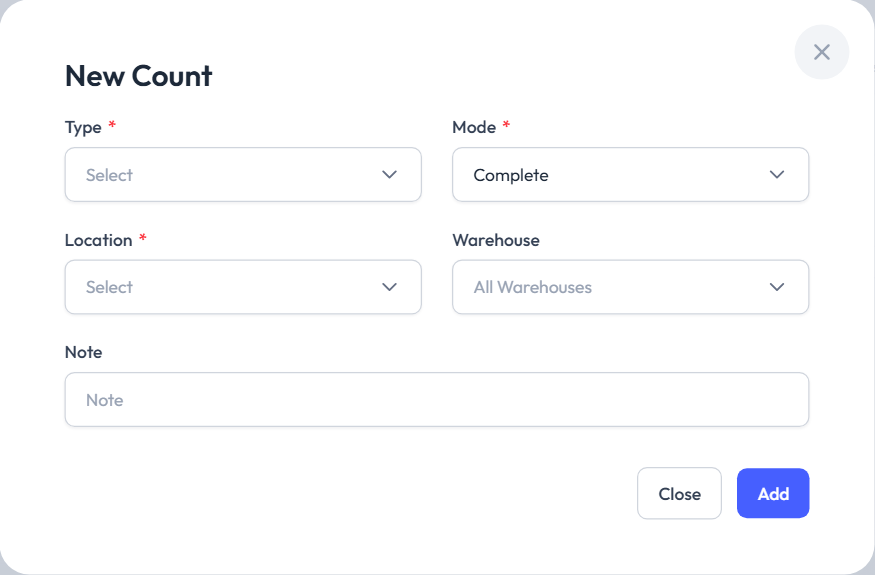
| Field | Description |
|---|---|
| Type * | Goods or Assets. Only what your package includes is offered. |
| Mode * | Complete: everything at the location is counted. Partial: only the items you pick in advance are counted (see below). |
| Location * | Where the count takes place. |
| Warehouse | One of the location's warehouses, or All Warehouses. The list fills in once you pick a location. |
| Note | Free text, e.g. the reason for the count. |
The new count opens in Draft. It gets its number automatically, e.g. DOC-0001-2026 (sequence and year).
Warning
There can be only one unfinished count for the same location, warehouse and type. A second one is refused with There is already an incomplete count for this location and warehouse. A goods count and an assets count at the same location can run at the same time.
If your company doesn't keep warehouses separate from locations, the Location field isn't shown and Warehouse reads Location / Warehouse.
Partial counts
For a partial count, first decide what gets counted. On the count page click Pre-selected items (N), then:
- Add item adds one item from the catalogue, or
- Import loads an Excel file with one column: Code (goods) or Inventory number (fixed assets). The example is downloaded from the import window, and a preview is shown before you confirm.
Lists can't be created until there are pre-selected items (Add pre-selected items before creating lists.), and only pre-selected items can be added to lists. If a goods count has a warehouse with stock, only items stocked in that warehouse can be picked.
The count page
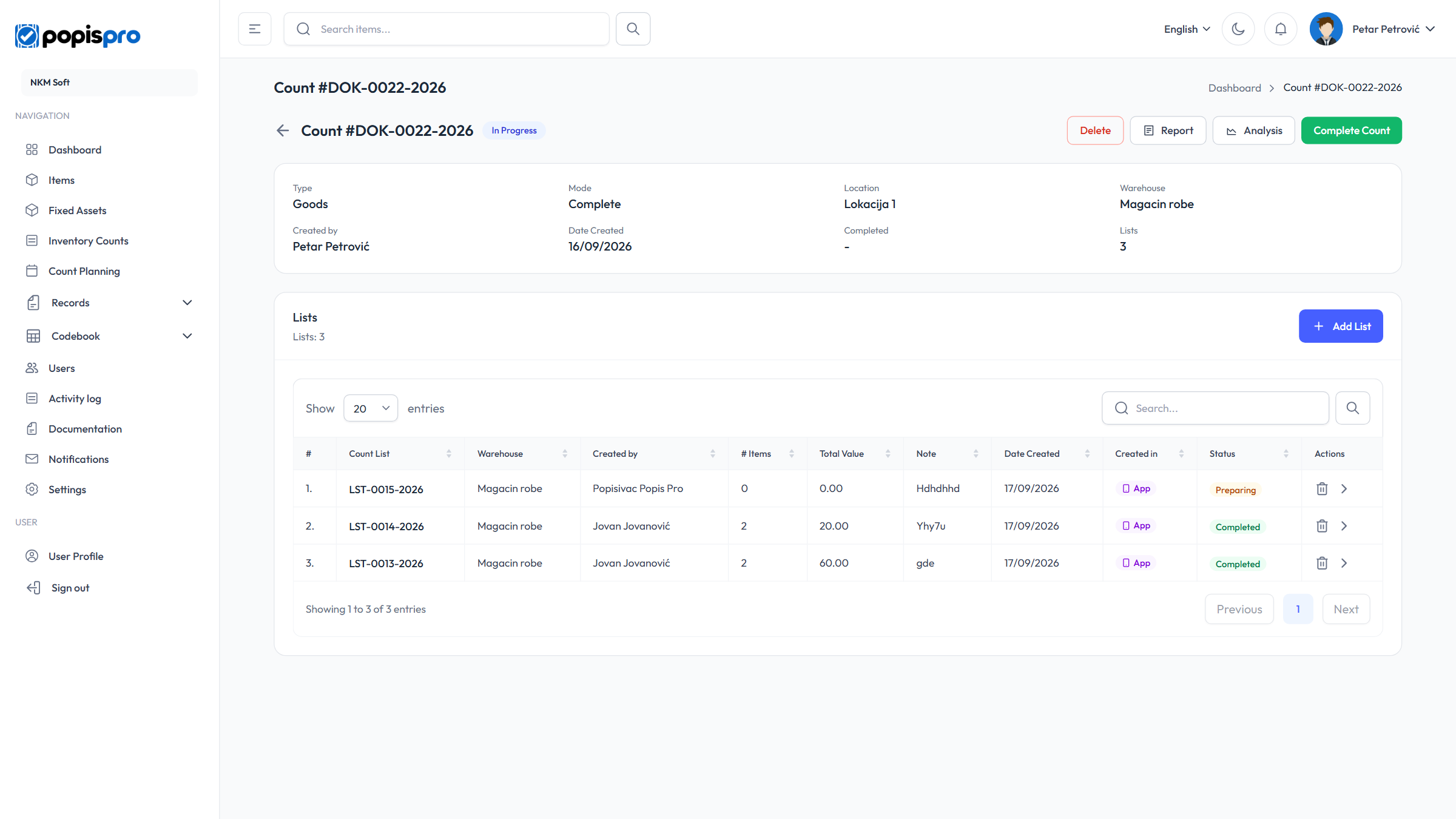
- The header shows the status and the Delete, Report, Analysis and Complete Count buttons (plus Pre-selected items (N) for a partial count).
- Below are the count's details: type, mode, location, warehouse, who created it and when, the completion date and the number of lists.
- The Lists table shows every list: number, warehouse, who created it, number of items, total value, note, date, where it was created (Portal or App) and status (Preparing, In Progress, Completed).
Working with lists is described in Count lists.
Completing a count
When every list is finished, click Complete Count and confirm.
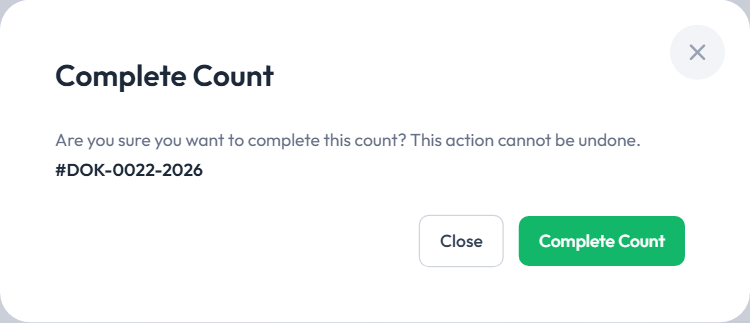
- The count needs at least one list (Cannot complete a count without any lists.), and all lists must be finished (All lists must be completed before completing the count.).
- A completed count can't be reopened, and no lists can be added to it.
- Completing a count doesn't change warehouse stock; use the result from the report.
Deleting
- A count in Draft can be deleted by anyone with delete permission. Your company's main user can delete a count in any status.
- Deleting a count also deletes all its lists and items.
- The main user also sees Delete all, which deletes every count of the company at once.