

Signing in to the app
Popis has two mobile apps. Signing in looks the same in both:
- Popis PRO, for online packages. Data syncs with the portal.
- Popis PRO Offline, for offline packages. Data stays on the phone only.
An account works only in the app that matches your company's package.
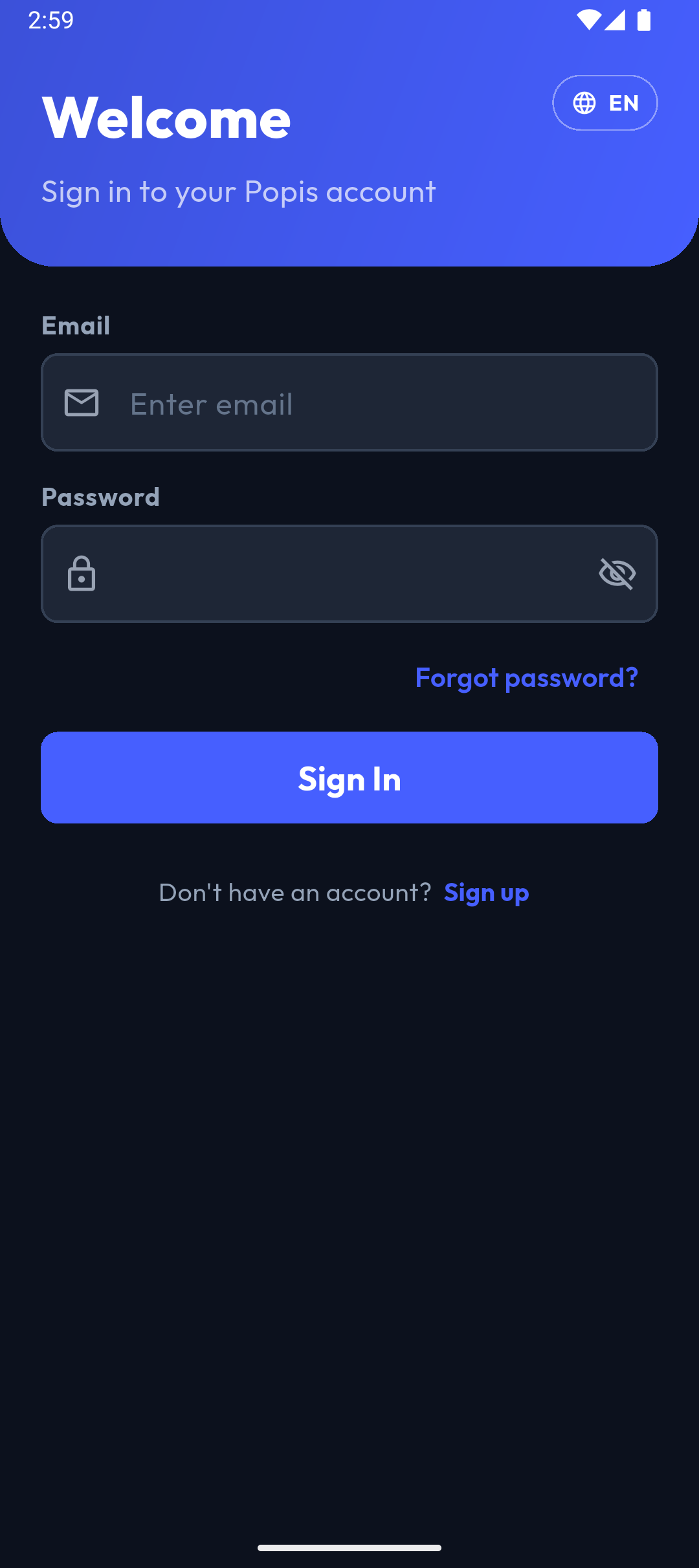
How to sign in
- Open the app. The Welcome screen appears.
- In Email, enter your account's email address.
- In Password, enter your password. The eye icon shows or hides it.
- Tap Sign In.
The same email and password work in the portal. If your company doesn't have an account yet, tap Sign up.
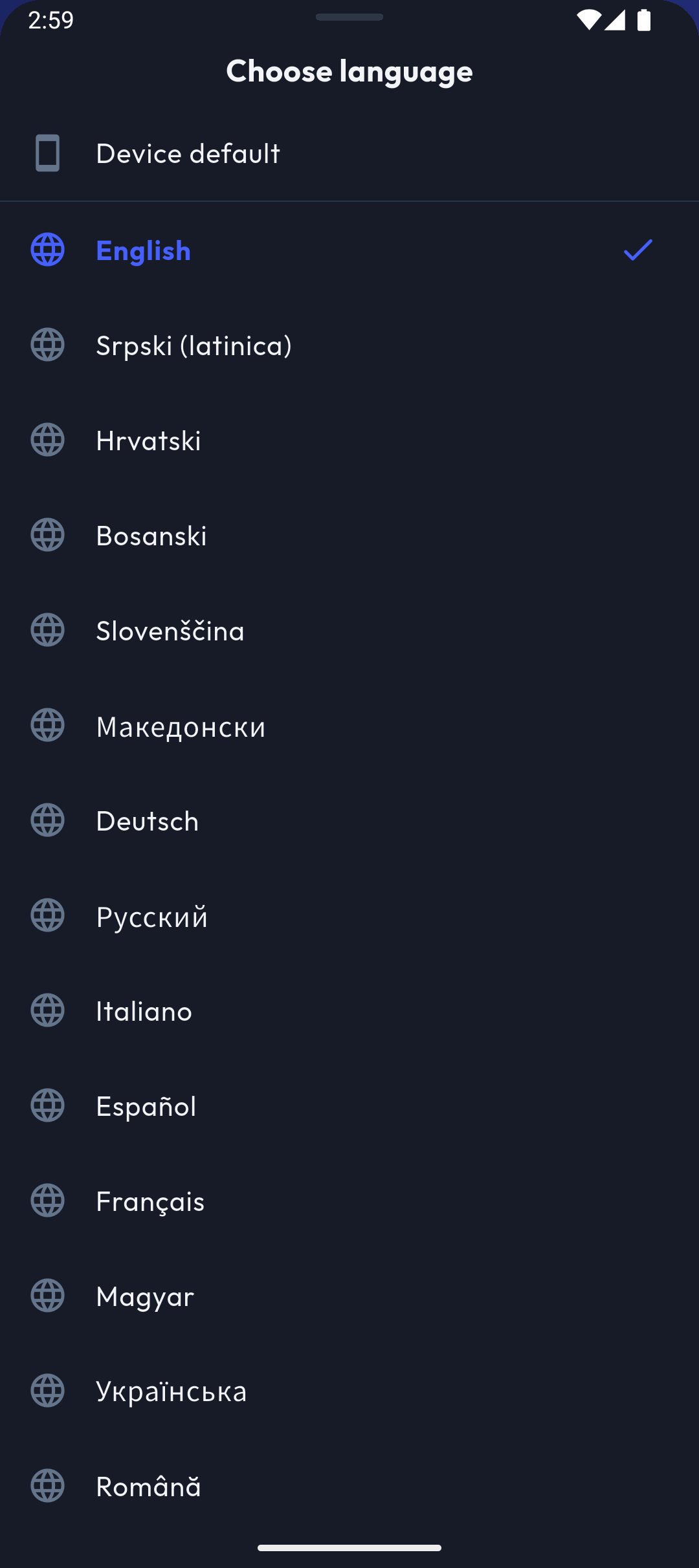
App language
Change the language with the button showing the language code in the top right corner (EN in the picture). Device default follows the phone's language.
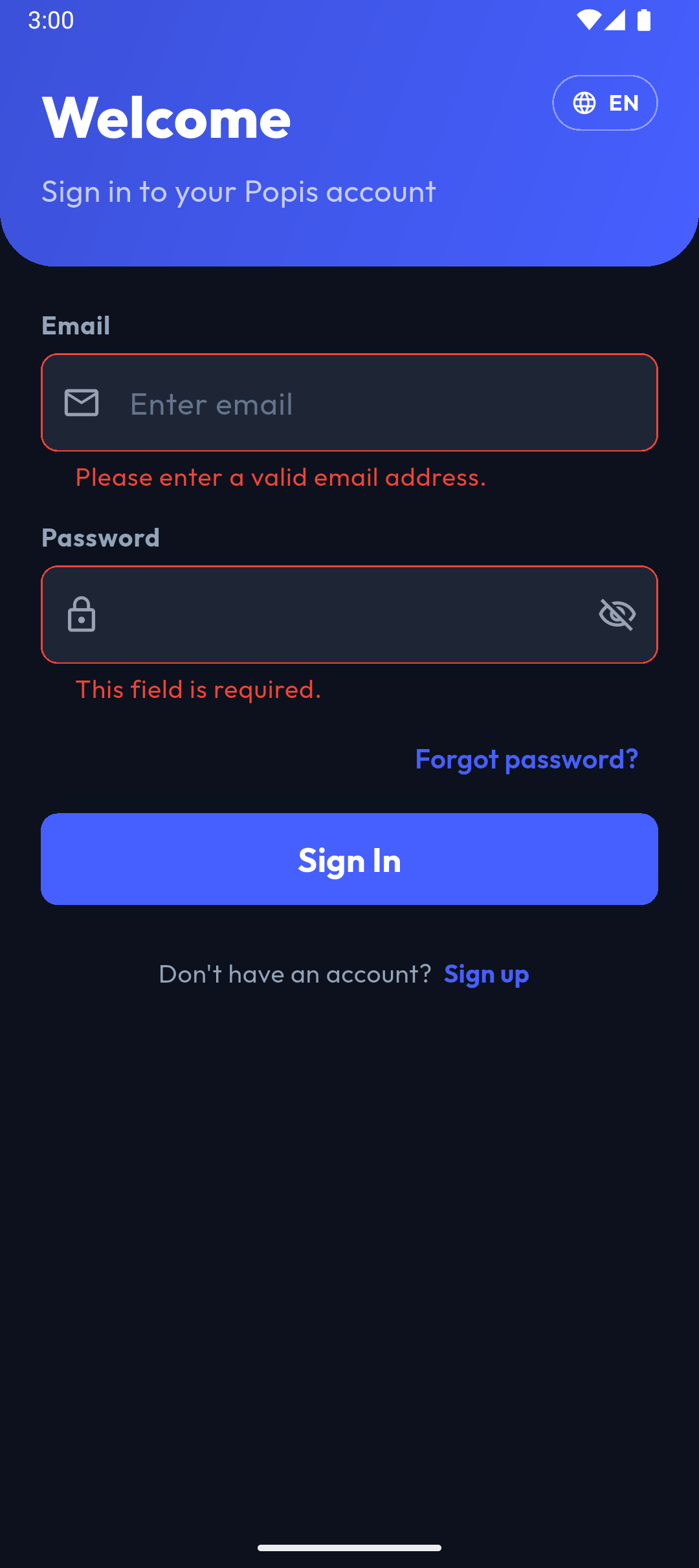
Invalid fields
If the email isn't valid or the password is empty, Please enter a valid email address. or This field is required. appears under the field and nothing is sent.
Signing in with another account on the same phone
When a different account signs in on the phone, the previous account's data is removed from it. If that would lose work, the app first asks Unsaved work will be lost:
- in Popis PRO: counted items or records that haven't reached the server yet;
- in Popis PRO Offline: any data of the previous account, because it exists only on that phone.
Warning
Erase and continue deletes that work for good. If you need it, cancel, sign in with the previous account, and finish or sync the work first.
When sign-in fails
| Message | What it means and what to do |
|---|---|
| These credentials do not match our records. | The email or password is wrong. Try again or set a new password. |
| This is an offline account. Please sign in with the Popis.pro Offline app. | The account belongs to an offline package. Install Popis PRO Offline and sign in there. |
| This is an online account. Please sign in with the Popis.pro app. | The account belongs to an online package. Sign in with Popis PRO. |
| This account is already in use on the maximum number of devices. … | An offline account works on a limited number of phones. The devices using the slots are listed under the message. Sign out on one of them, or ask your administrator to remove a device. |
| Please verify your email before signing in. … | The account hasn't been confirmed yet. Open the verification email and click its link. |
| Account is inactive. | The account has been disabled. Contact your company's administrator. |
| No internet connection. Check your network. | Signing in needs internet, even in the offline app. Connect and try again. |