

Forgotten password
You reset your password from inside the app. The link arrives at the account's email address, and you enter the new password on the portal page that link opens.
1. Request a link
- On the sign-in screen, tap Forgot password?.
- In the Reset password sheet, enter your account's email address.
- Tap Send reset link.
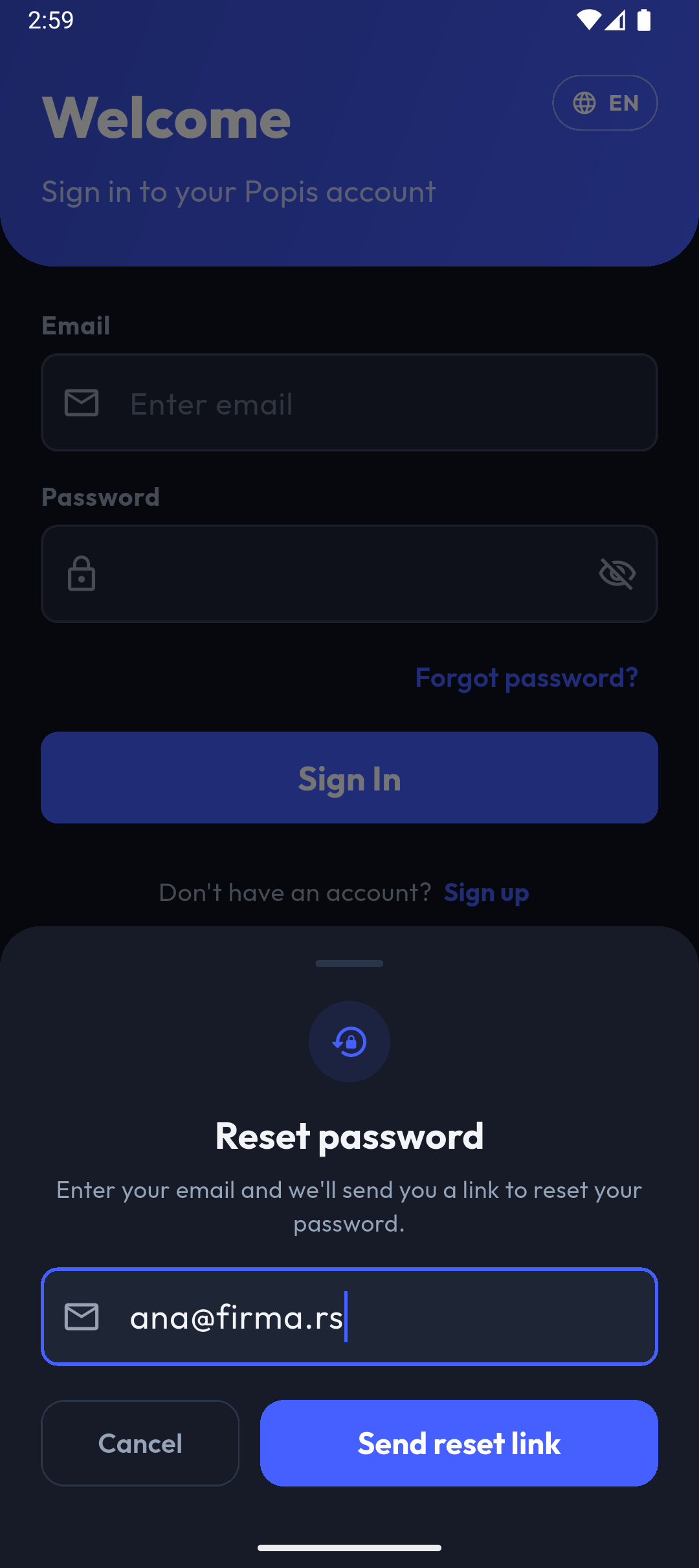
When the request is accepted, the sheet shows Reset link sent. Check your inbox. Tap OK to close it.
2. Set a new password
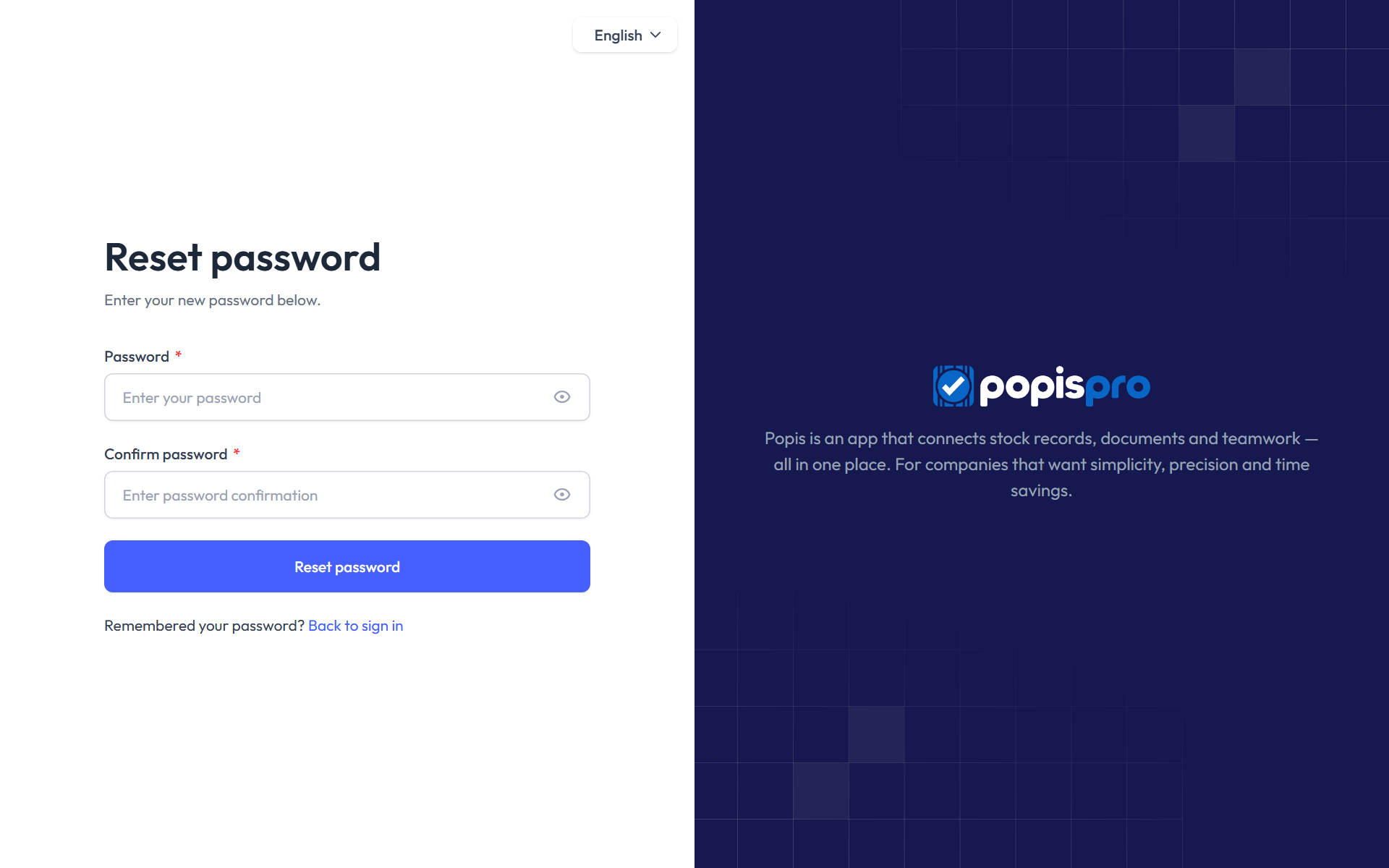
You receive a Password Reset Request email. Tap its Reset Password button. The link works on the phone or on a computer and opens a portal page:
- In Password, enter the new password, at least 8 characters.
- In Confirm password, enter it again.
- Click Reset password.
Warning
The link is valid for 60 minutes and works only once. If the email doesn't arrive, check your spam folder too.
3. Sign in again
Go back to the app and sign in with the new password. Changing the password signs the account out on every device and in the portal, so sign in again there too.
Common problems
| Message | What it means and what to do |
|---|---|
| Please enter a valid email address. | The email isn't in a valid format. Check what you typed. |
| We can't find a user with that email address. | There is no account for that email. |
| Please wait before retrying. | A new link can be requested at most once a minute. |
| No internet connection. Check your network. | Sending the link needs internet. |
More about the new-password page and its messages: Forgotten password in the portal.