

App settings
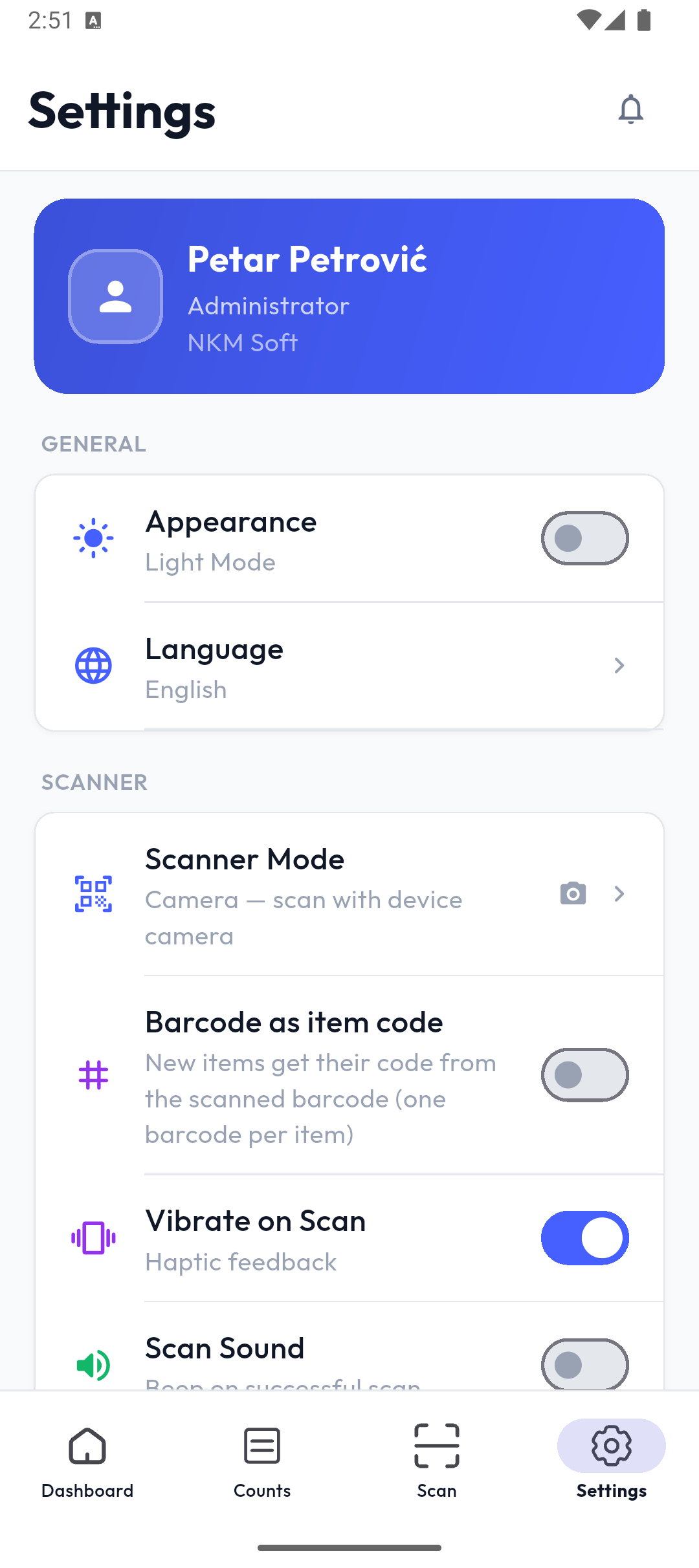
Settings is the last tab in the bottom menu. At the top are your name, role and company (they can't be changed here).
General
- Appearance — a dark mode switch. On first launch the app follows the phone's setting.
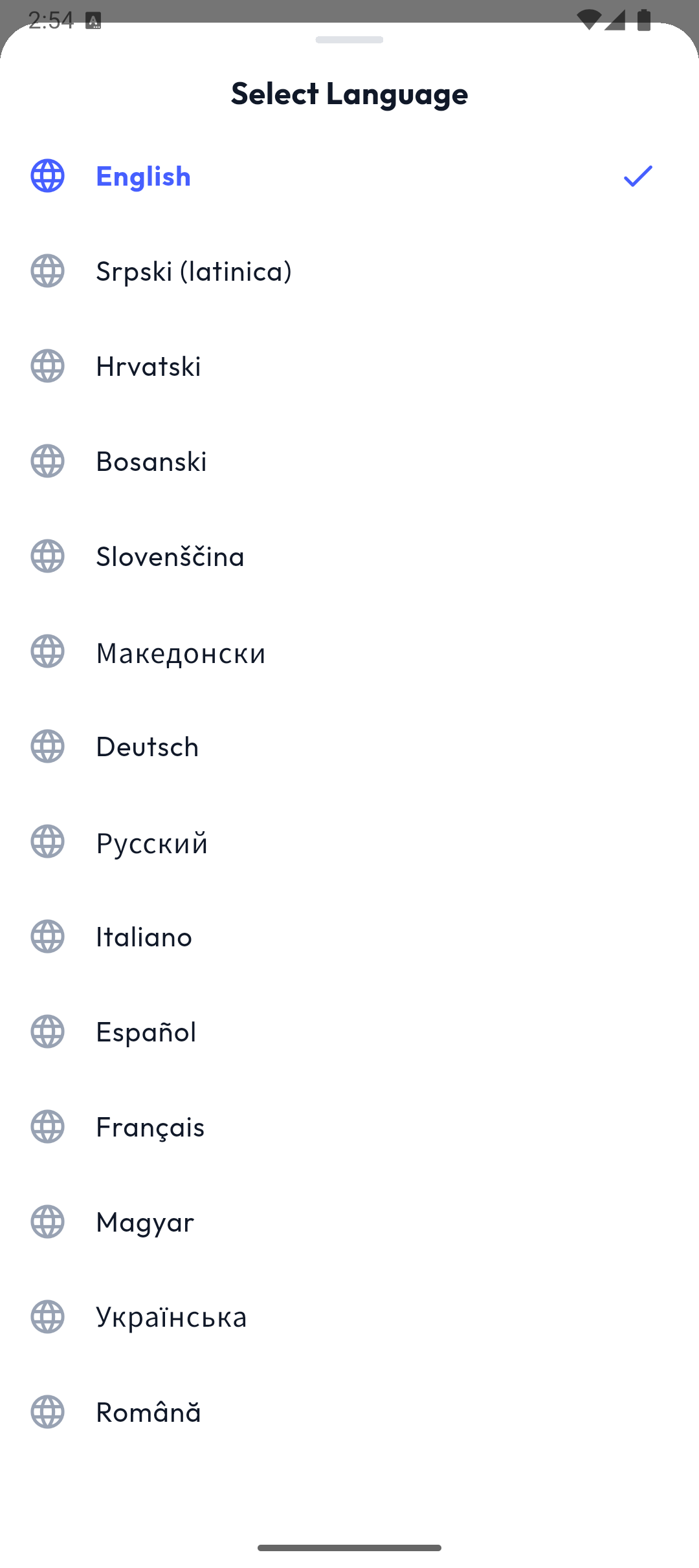
- Language — Select Language: 14 languages, from English and Serbian to Romanian.
Scanner
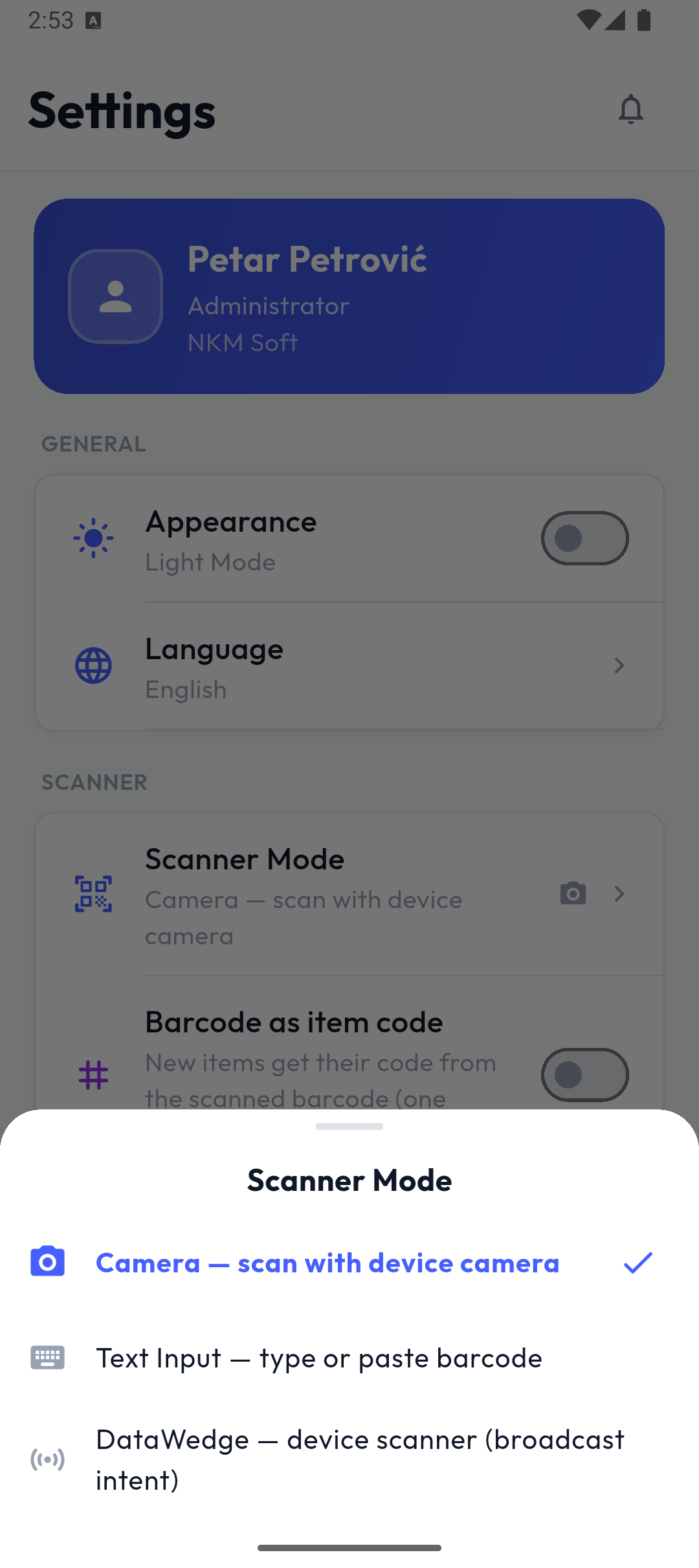
- Scanner Mode:
- Camera (default) — scan with the phone's camera;
- Text Input — an external scanner that "types" the barcode (Bluetooth or USB), or typing by hand;
- DataWedge — the built-in scanner of rugged devices (Zebra and similar). Two more rows then appear, Intent action (default
pro.popis.app.SCAN) and Data extra key (defaultcom.symbol.datawedge.data_string), which must match the DataWedge profile.
- Barcode as item code — a new item gets its code from the scanned barcode (one barcode per item).
- Vibrate on Scan (on by default) and Scan Sound (off by default).
Data
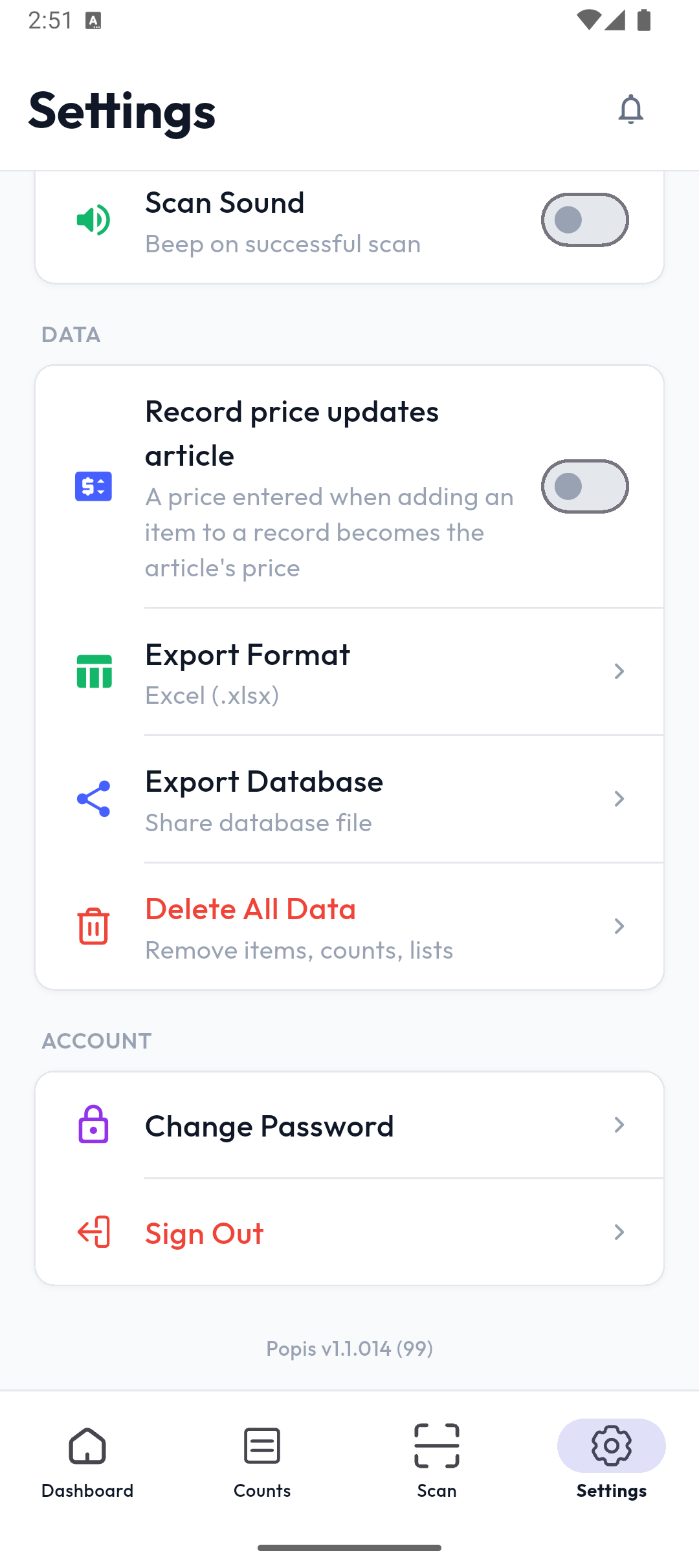
- Record price updates article (when your package includes records) — a price entered when adding an item to a record becomes the item's price. A package price doesn't change the item price.
- Export Format — Excel (.xlsx), CSV (.csv) or XML (.xml) for exporting counts, lists and records.
- Export Database — shares the phone's database file (e.g. for support).
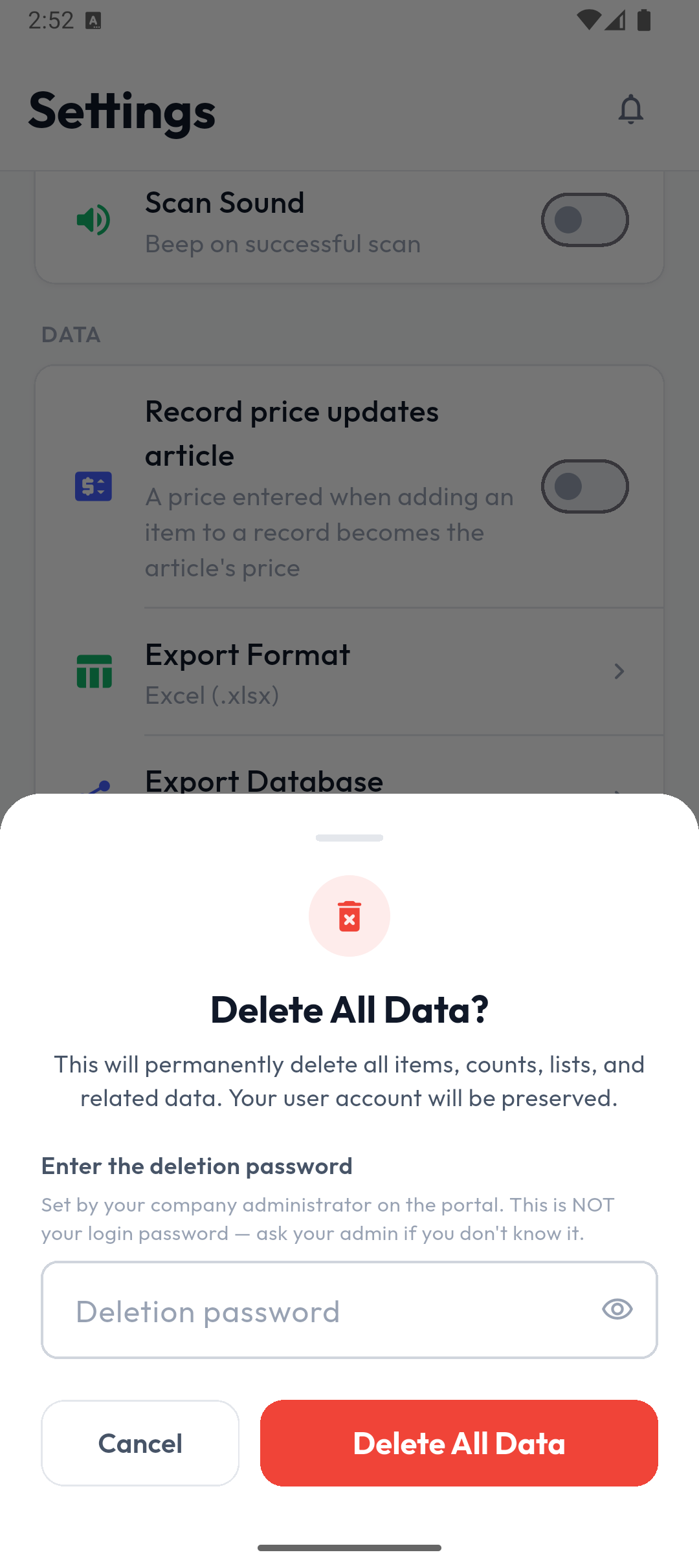
- Delete All Data — asks for the deletion password set by your administrator (it isn't your sign-in password).
Important
In Popis PRO, deleting removes only the data on the phone, and everything is then downloaded again from the server — nothing is deleted in the portal. In Popis PRO Offline, deleting is permanent.
Entry mode in Popis PRO Offline
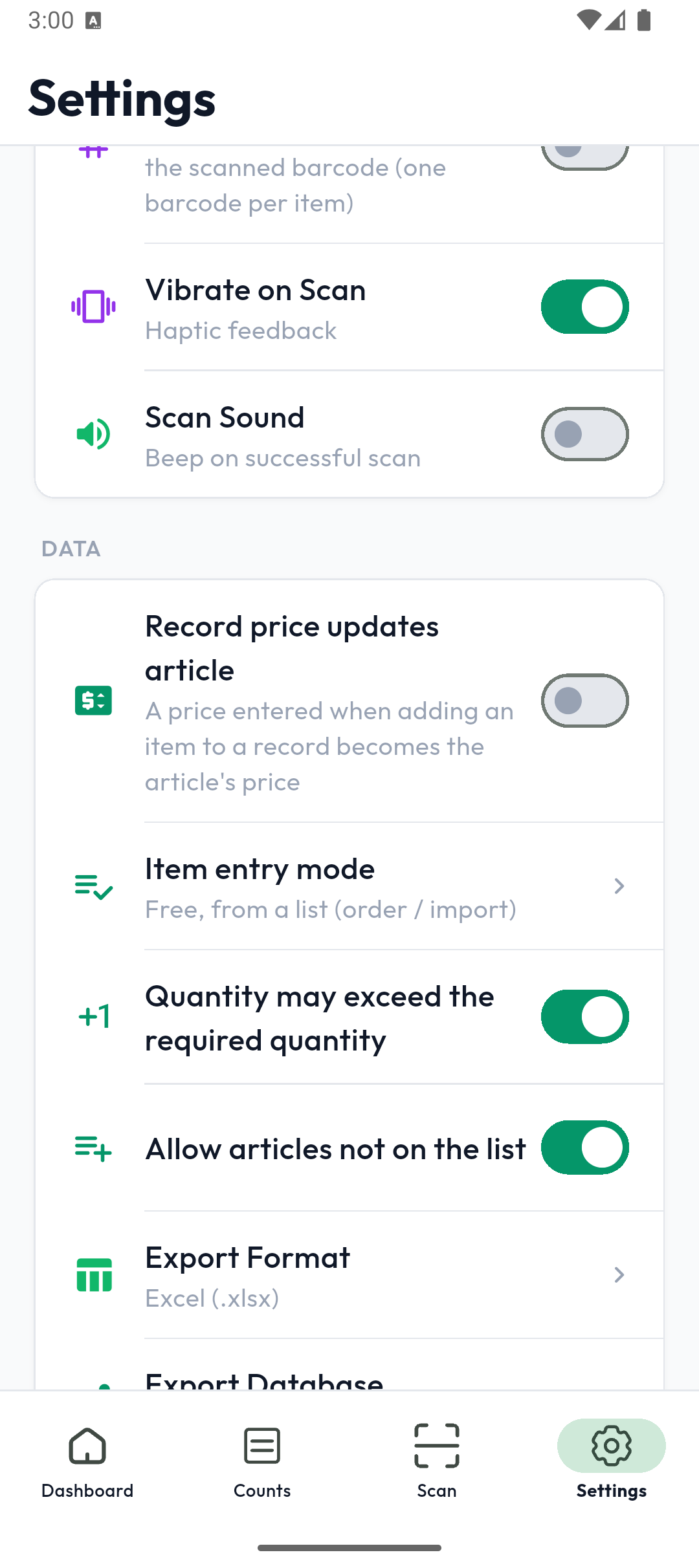
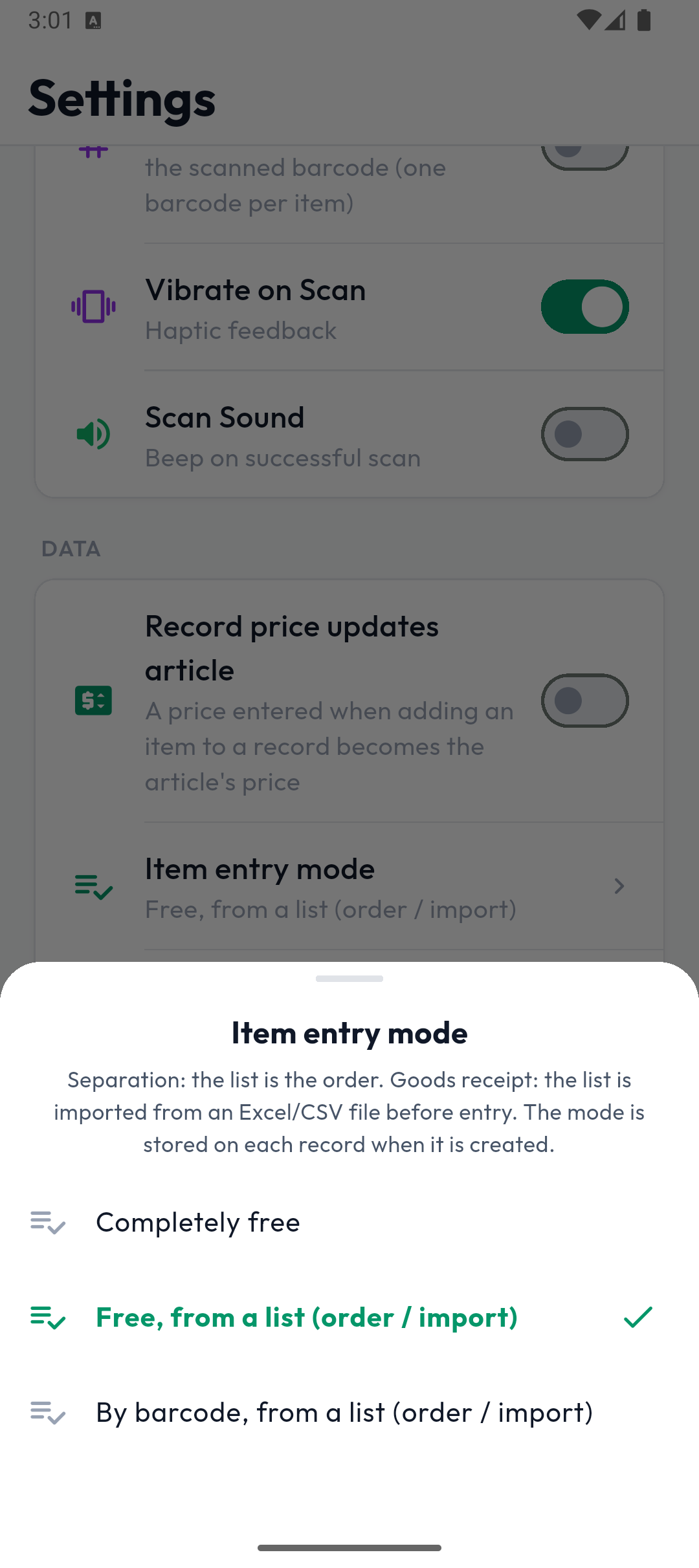
In Popis PRO Offline (with records) this section also has the settings that Popis PRO takes from the portal: Item entry mode, Quantity may exceed the required quantity and Allow articles not on the list.
Account
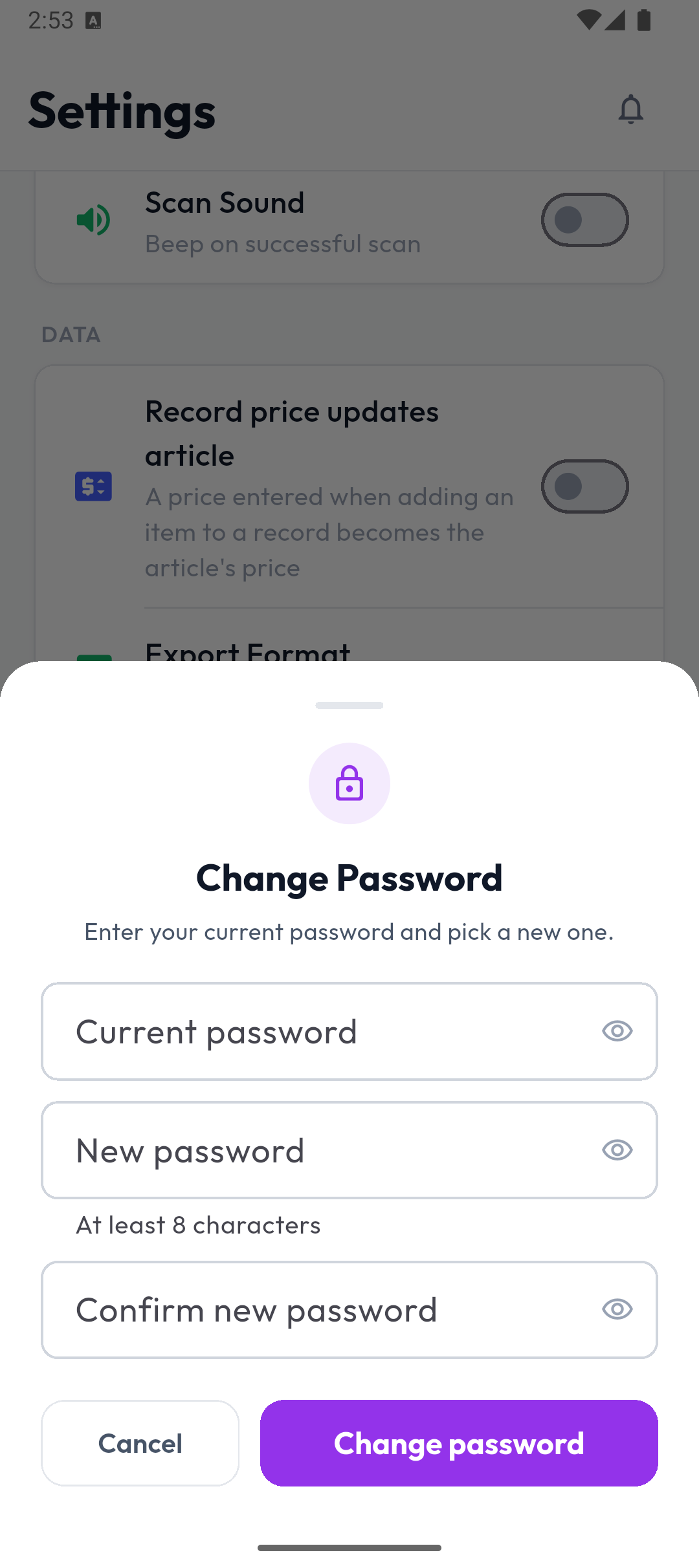
- Change Password (Popis PRO only): the current password, a new one (at least 8 characters) and its confirmation. On success: Password changed successfully.
- Sign Out asks Sign Out?. Before signing out, Popis PRO sends unsaved lists and records (Saving your work…); if something can't be sent, signing out is blocked (Logout blocked) with the list of lists or records, and Stay logged in and Try again.
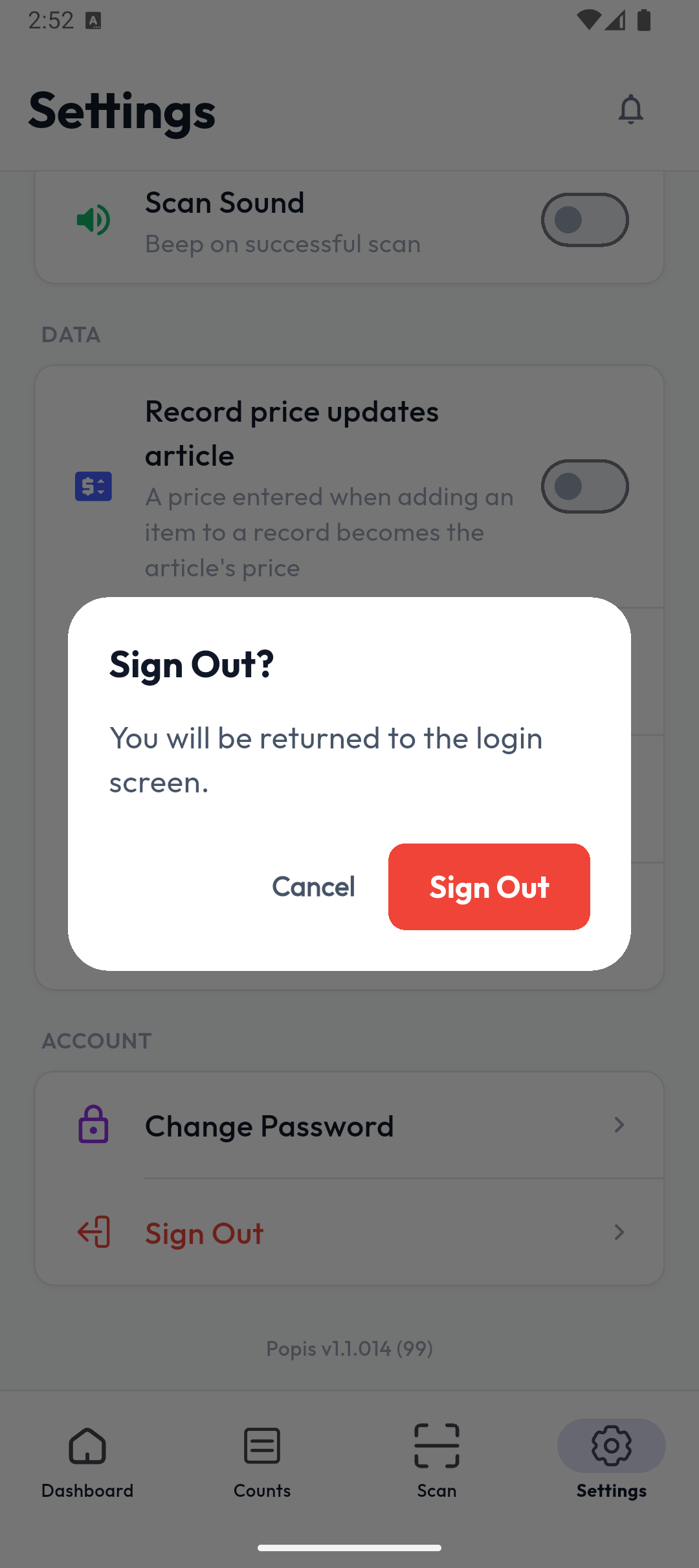
On an iPhone there is also Package — viewing and buying a package in the app. The app version is at the bottom of the screen, e.g. Popis v1.1.014 (99).