

Counts and lists
The Counts tab shows all of your company's counts and the lists you counted. A count is the counting at one location and consists of lists; each user counts on their own list. How to count on a list is described in Counting items.
The counts list
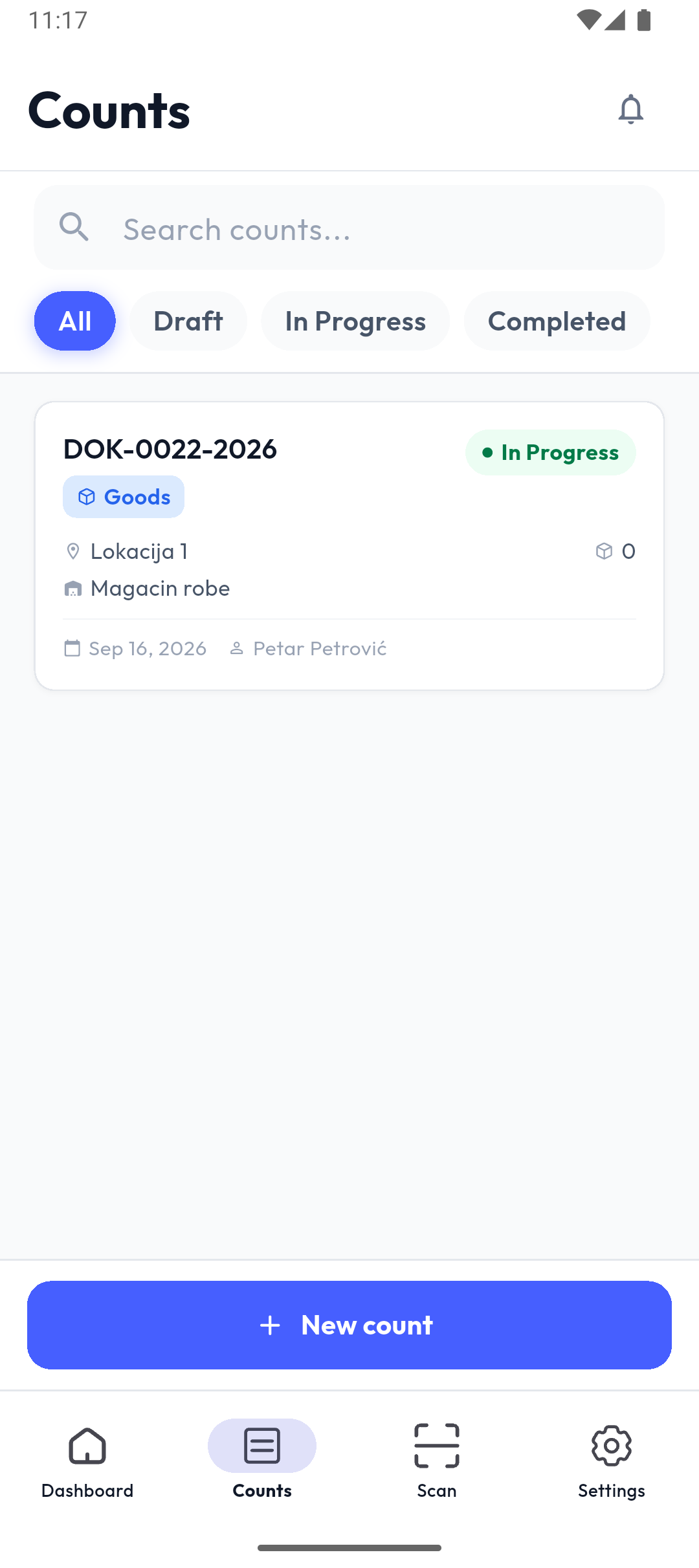
- Search (Search counts...) looks in the count's number, name and location.
- The All, Draft, In Progress and Completed chips filter by status; tapping the chip again clears the filter.
- A count card shows the number (e.g. DOK-0022-2026), type (Goods or Assets), status, location, warehouse, number of items, note, date and who created it.
In Popis PRO, the list is refreshed from the server each time you open the tab.
New count (administrators)
Administrators see a New count button at the bottom of the screen.
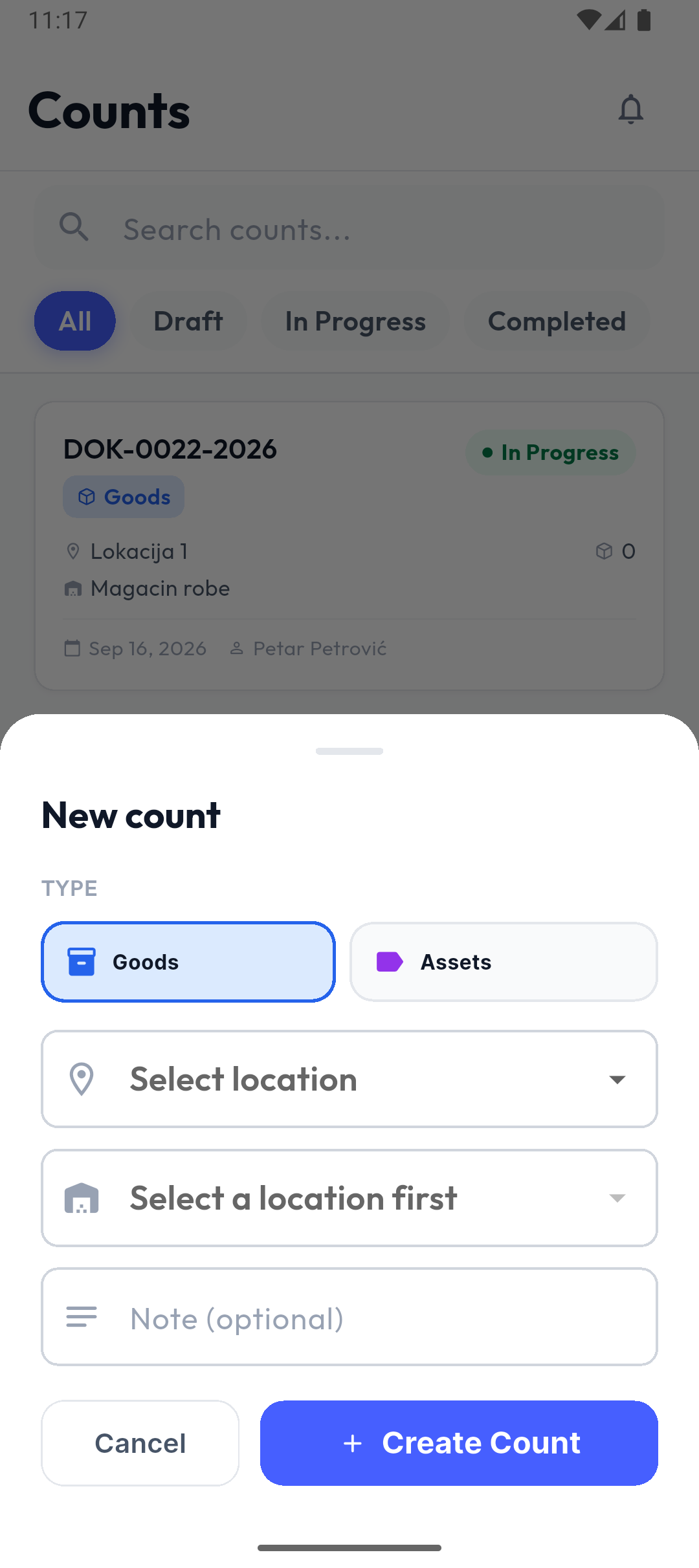
- TYPE: Goods or Assets (according to your package).
- Location: in Popis PRO you pick it from a list (Select location); in Popis PRO Offline you type it.
- Warehouse: choose it after the location (Select warehouse (optional)); empty means all warehouses of the location.
- Note (optional).
- Create Count.
A count created in the app is always complete; partial counts are created in the portal. There can be only one unfinished count for the same location and warehouse.
The count page
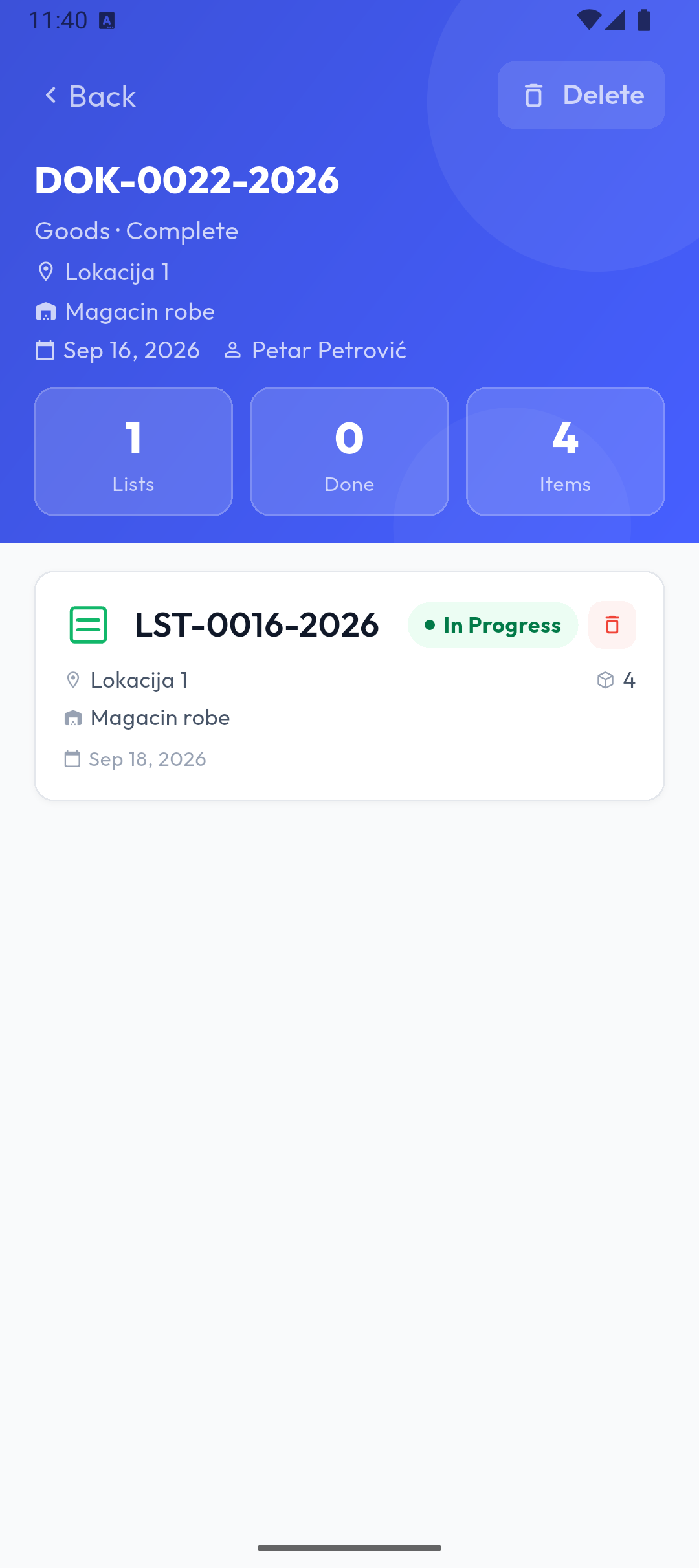
- Header: the count number, Goods · Complete (or Partial), location, warehouse, date, author and note.
- Tiles: Lists, Done, Items (and Counted for a partial count).
- Below are your lists on this count, with the status In Progress or Completed. Other users' lists are visible in the portal.
New list
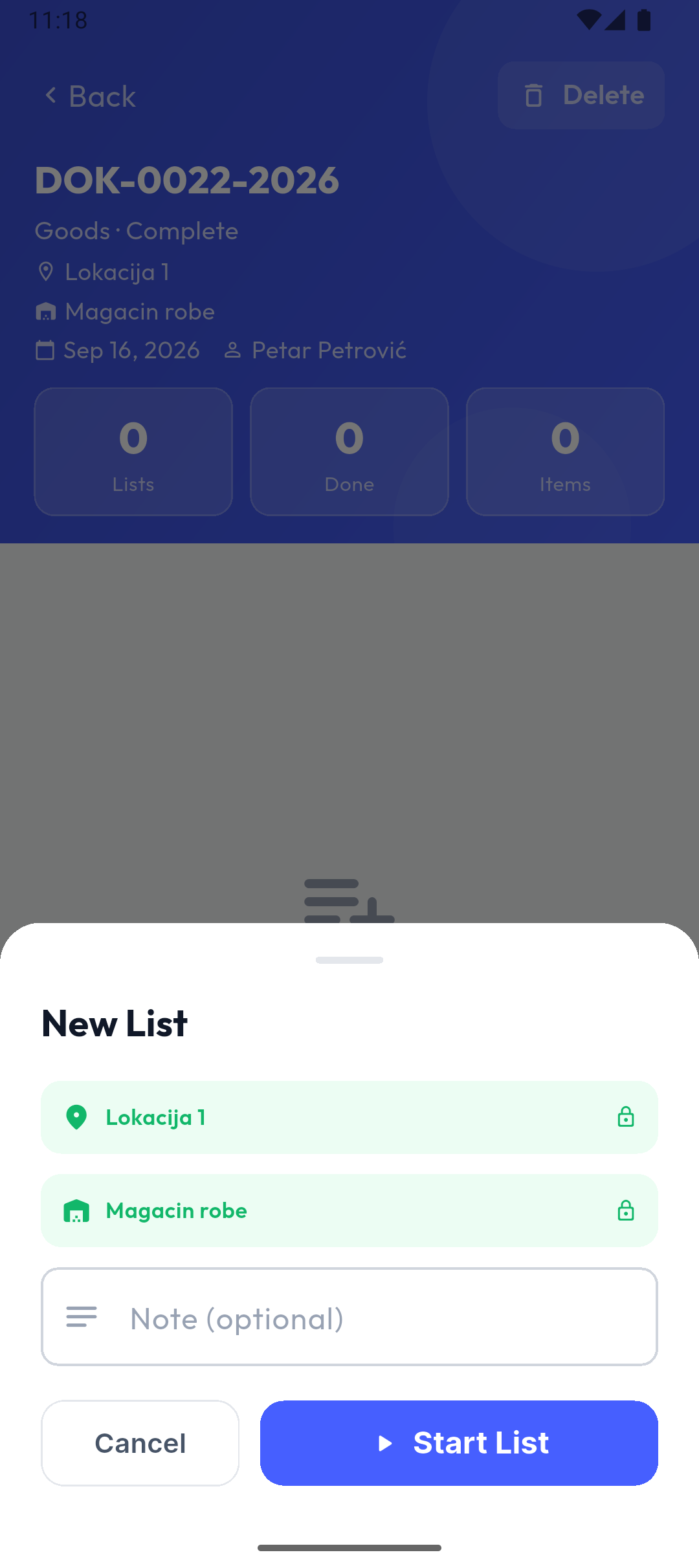
The New List button at the bottom of the count page opens a window where the location and warehouse are already filled in from the count. If the count has no warehouse, you choose one (it's required). Note is optional. Start List creates the list and opens the counting screen.
- While you have an open list, New List isn't shown: finish that list first.
- If you already have an open list for that warehouse (e.g. from another phone), the app asks List already exists and offers Take over and continue (you continue on it, with the items already entered) or Delete and create new.
- Your unfinished lists come back to the phone by themselves when it syncs, so you can continue on another device.
Finishing and deleting a count (administrators)
- Finish in the header completes the count when no list is open. The app asks Finish Count? and shows how many lists are done. The server refuses while any list on the count (including other users' lists) is unfinished.
- Delete deletes the count with all its lists (Delete Count?). On the server, only your company's main user can do this.
- Delete a list with the bin on its card, or from the ⋮ menu on the counting screen (Delete List?). You can delete only your own lists.
Export
On a completed count (the Export button in the header) and on a finished list (⋮ menu → Export), you create a file with the columns Code (or Inventory Number), Name and Quantity, and share it through the share menu. A count export adds up the quantities of the same code across all lists. Choose the format (Excel, CSV or XML) in Settings → Data → Export Format.
When data goes to the server (Popis PRO)
The items you enter are saved on the phone and sent to the server when you finish the list, or when you sign out. So:
- you don't need internet while counting, but you do when finishing the list;
- if sending fails when you sign out, the app shows Logout blocked and won't sign you out until the items are sent (Try again).
In Popis PRO Offline, everything stays on the phone.