

Record items
Tapping a record in the list opens its screen.
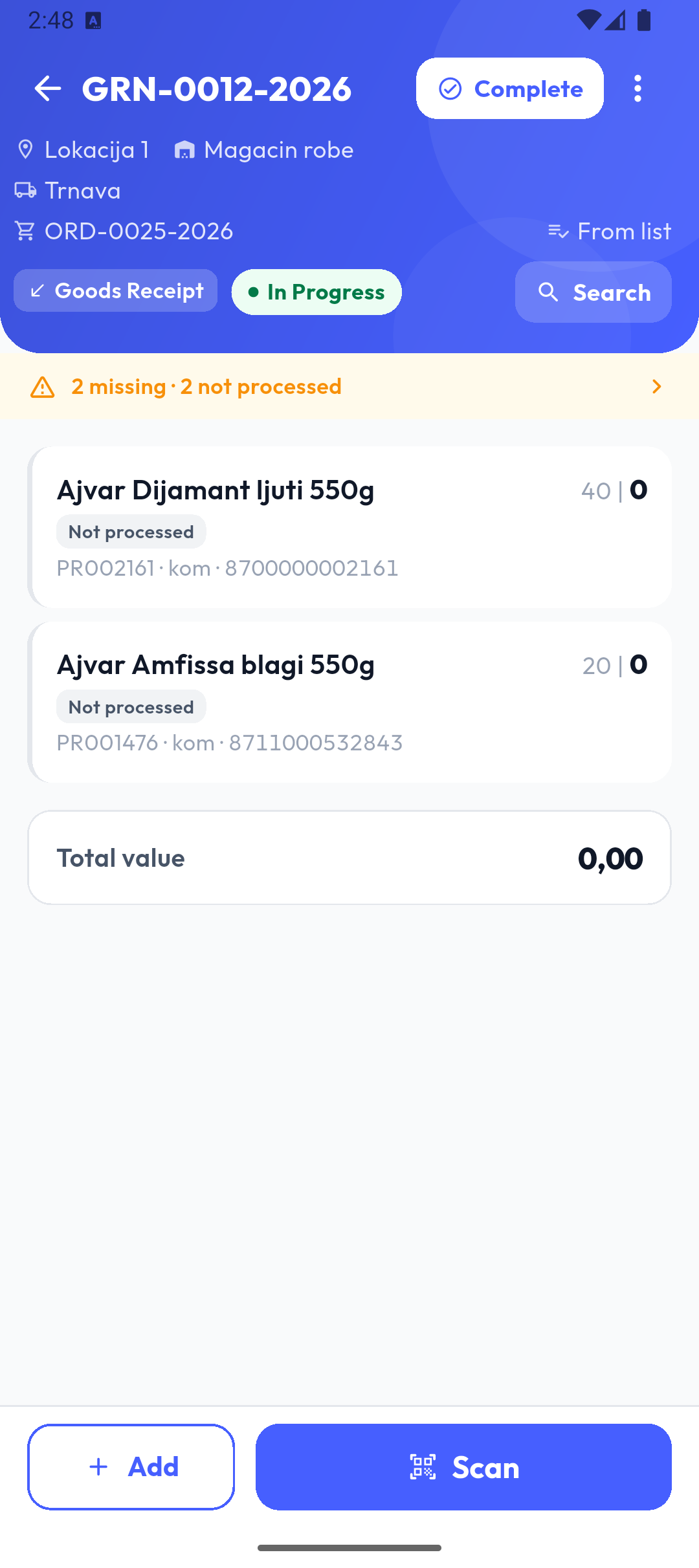
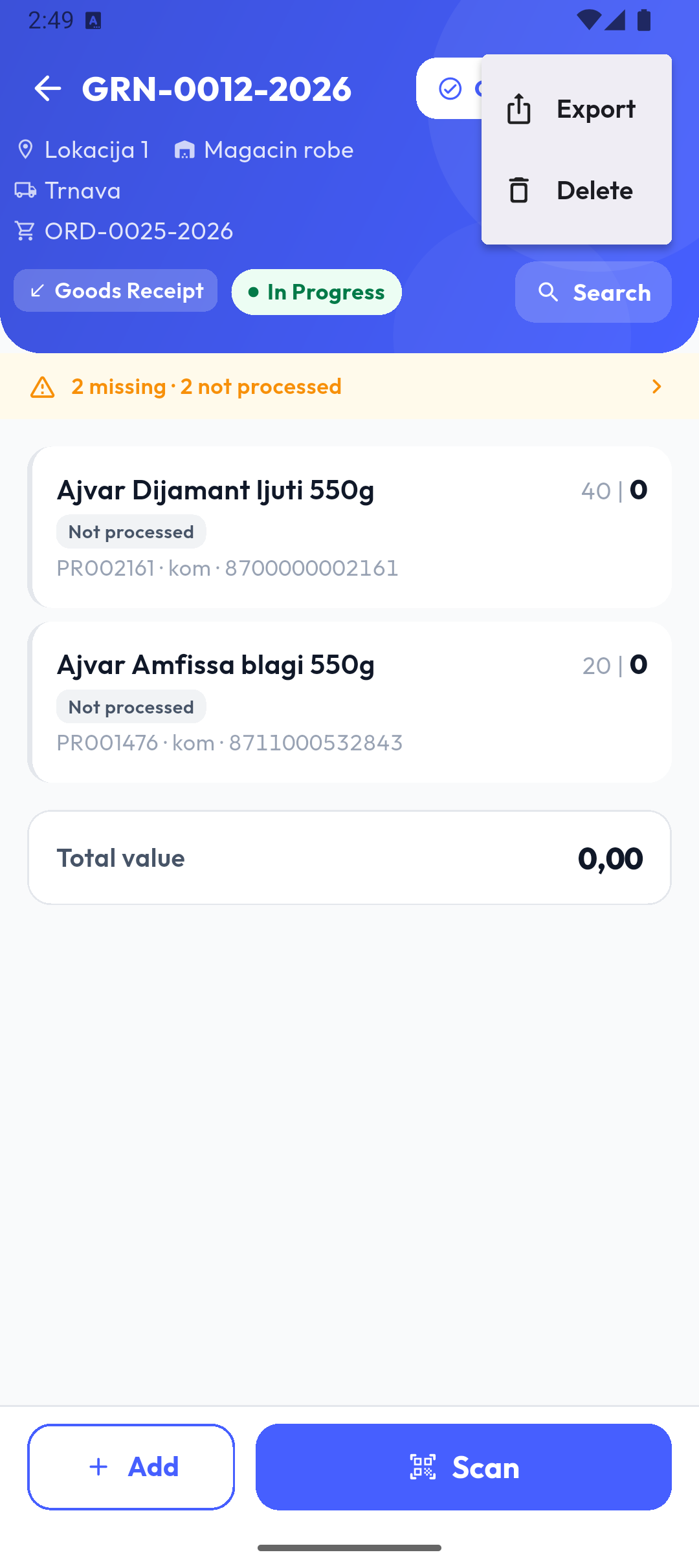
The header has the number, Complete (while the record is open and has items) and the ⋮ menu, and below: the location and warehouse, partner, document number (a cart icon when made from an order), entry mode (Free, From list, By barcode), type, status and Search. The header collapses while you scroll; tapping the title brings it back.
Search opens an item search on the Code, Name and Barcodes chips.
Items
Each item shows its name, code, unit, barcodes and note; on orders, sales and receipts also the price and value, and on expiry records the date. The newest are on top, and below the items is the Total value (order, sale, receipt).
Tapping an item edits it, and the red ✕ removes it (Remove Item?).
Adding
- Add opens the catalogue (Select Item) with a search by name, code or barcode.
- Scan (when the scanner is set to camera) scans a barcode with the camera. With a hardware scanner (Text Input or DataWedge) there is no button — just scan.
- Unknown barcode: Item with barcode '…' not found. An administrator can add a new item right away.
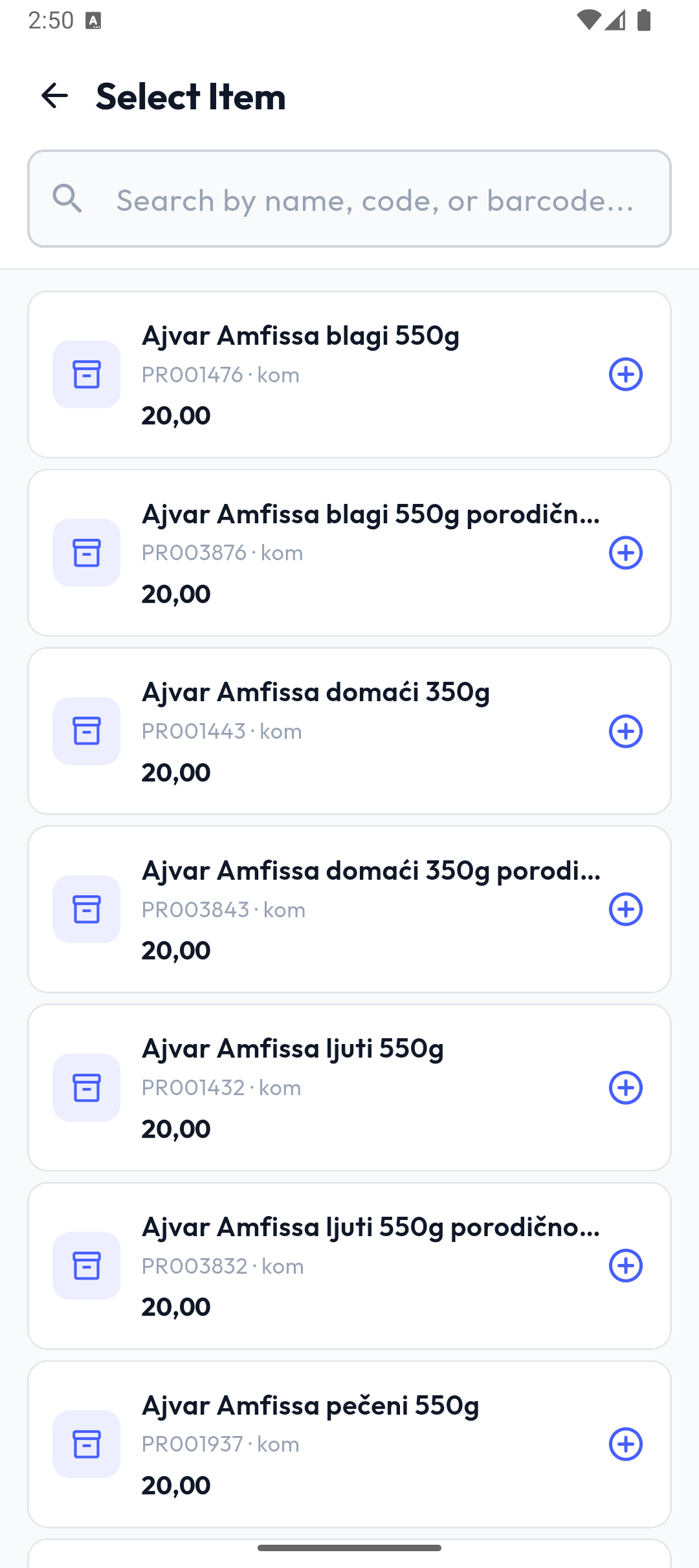
The chosen item opens the entry window:
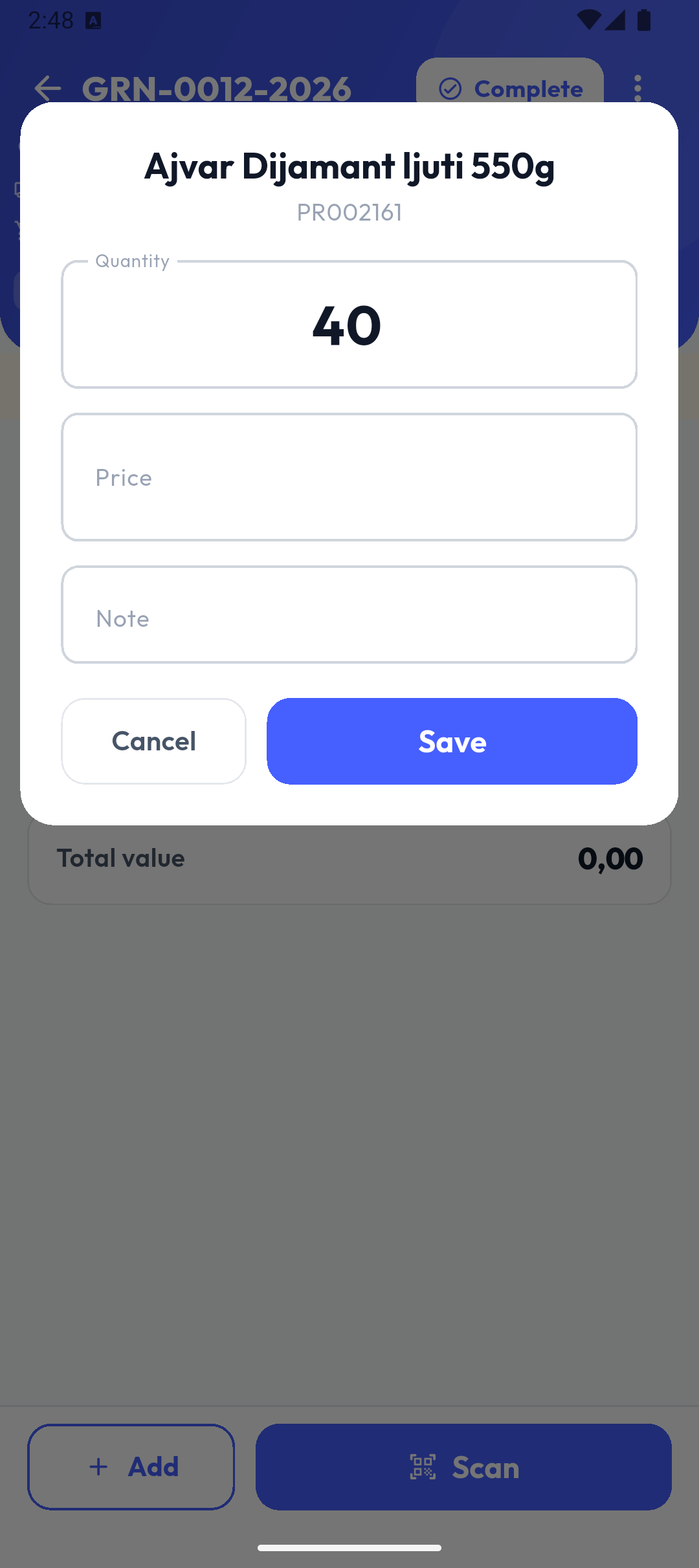
- Quantity (or Number of packages when a package barcode was scanned, converted to units).
- Serial numbers / Lots — for tracked items, on goods receipts and separations only; each lot needs its number, expiry date and quantity.
- Position * — when a mandatory position is turned on in the portal, on every type except orders and sales.
- Expiry date * — expiry records only; today's date by default.
- Price — optional on orders and receipts, required on sales (Price is required for sales.). The item's price is proposed.
- Note.
Add (or Save when editing) stores the item. In free mode, the same item added twice gives two rows.
Tip
The Record price updates article setting (in Settings) writes the price entered on a record back as the item's new price.
Working from a list
On list-based separations and receipts each row shows required | entered, e.g. 40 | 0 while it isn't processed, with the badges Not processed, Not found, Not on order or Not on list. When the quantities differ, the required one is struck through and the entered one is orange.
- Tapping a row (or scanning an item on the list) opens the entry with the required quantity proposed; 0 means the item isn't there.
- List rows can't be removed.
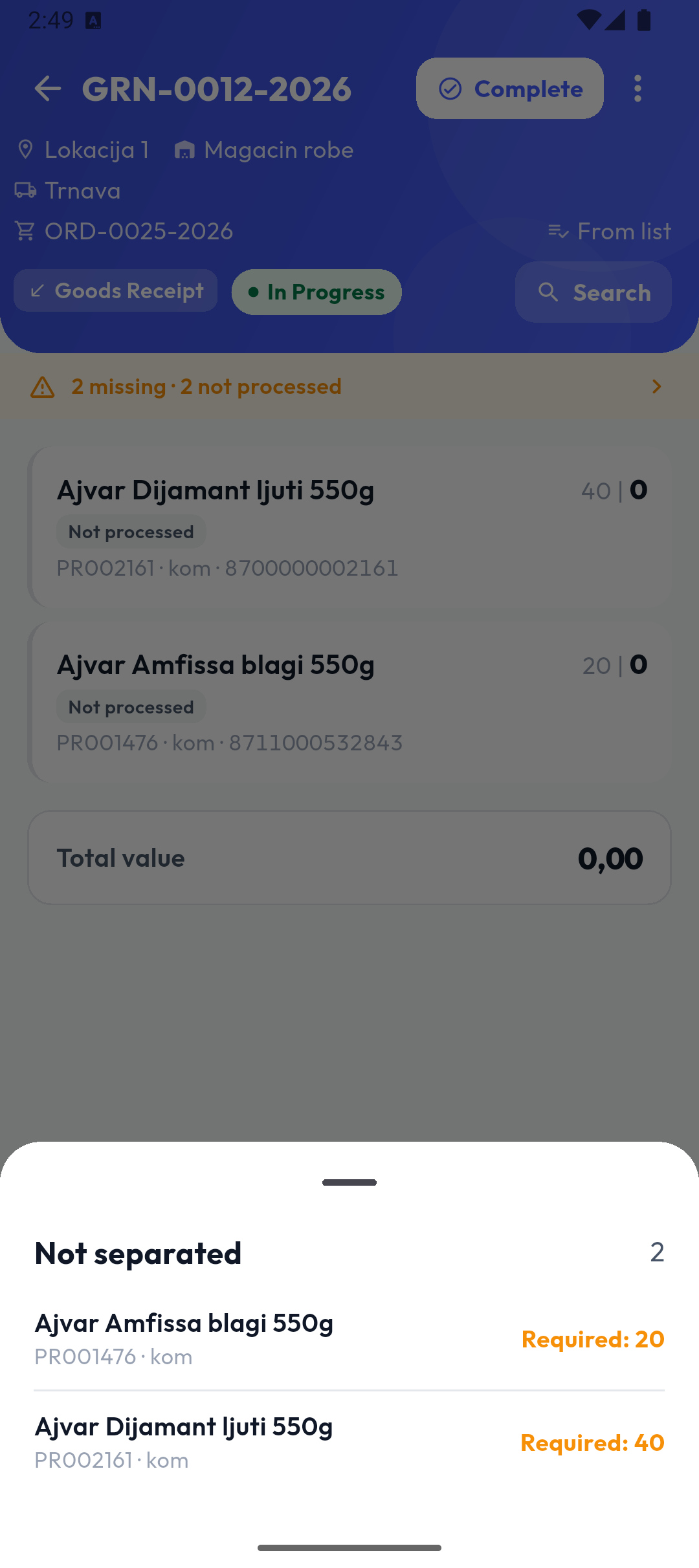
- The bar above the items shows the differences, e.g. 2 missing · 2 not processed; tapping it opens Not separated with the required quantities.
The portal's options apply immediately:
- Quantity may exceed the required quantity off: Quantity cannot exceed the required quantity (N).
- Allow articles not on the list off: Add is greyed and says Adding articles outside the defined list is currently not allowed. Check the settings on the portal., and a scanned item that isn't on the list is refused. On: the app asks The article is not on the list. Add it?
- By barcode: a row whose item has a barcode opens only by scanning (This article can only be edited by scanning its barcode.).
Import and export
In the ⋮ menu:
- Import loads an Excel file (.xlsx, .xls, .csv) with the columns code, quantity, note, price, expiry date; the first row is skipped. For a list from Excel the columns are code, expected quantity, note, and you can import again until you enter the first quantity. A record made from an order has no import.
- Export creates a file in the format chosen in Settings (Excel, CSV or XML) and opens the share sheet.
Completing
Complete checks, in order:
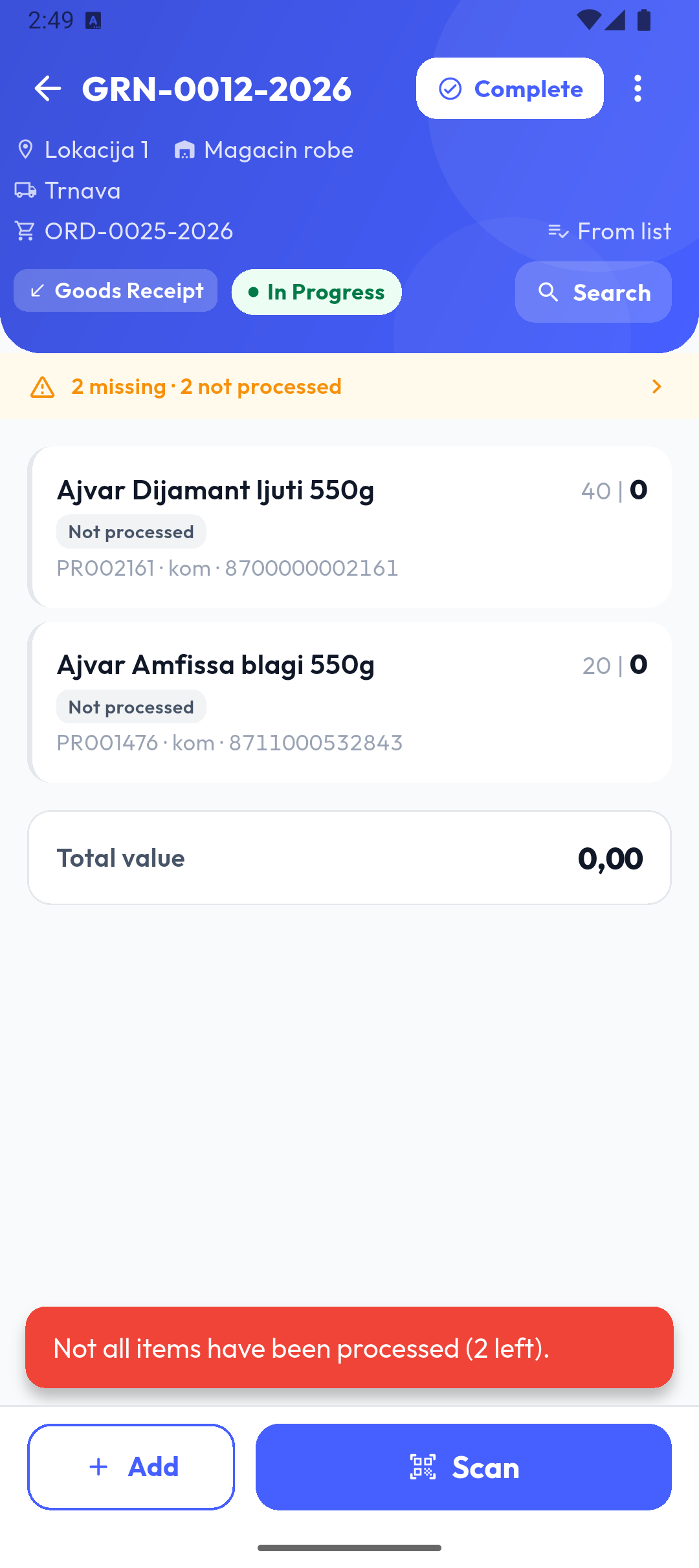
- that every list row is processed — otherwise Not all items have been processed (N left).;
- that tracked items and items with a mandatory position have all their data — otherwise Missing data with the list of items;
- the confirmation Complete record? — on a list with differences, the warning Some ordered items are missing or quantities differ. Finish anyway?
A completed record is read-only; Export and Delete remain.
Sending to the portal
In Popis PRO a record is created on the server right away, while its items are stored on the phone and sent when you open or refresh the records list, when you sync and when you sign out; Complete sends all items at once. You can continue an unfinished record on another phone. If sending fails when you sign out, signing out is blocked until the items are sent.