

Records
Records track the movement of goods: orders, sales, receipts, write-offs, packaging, expiry dates and separations. On the dashboard, tap the Records card (shown if your package includes records).
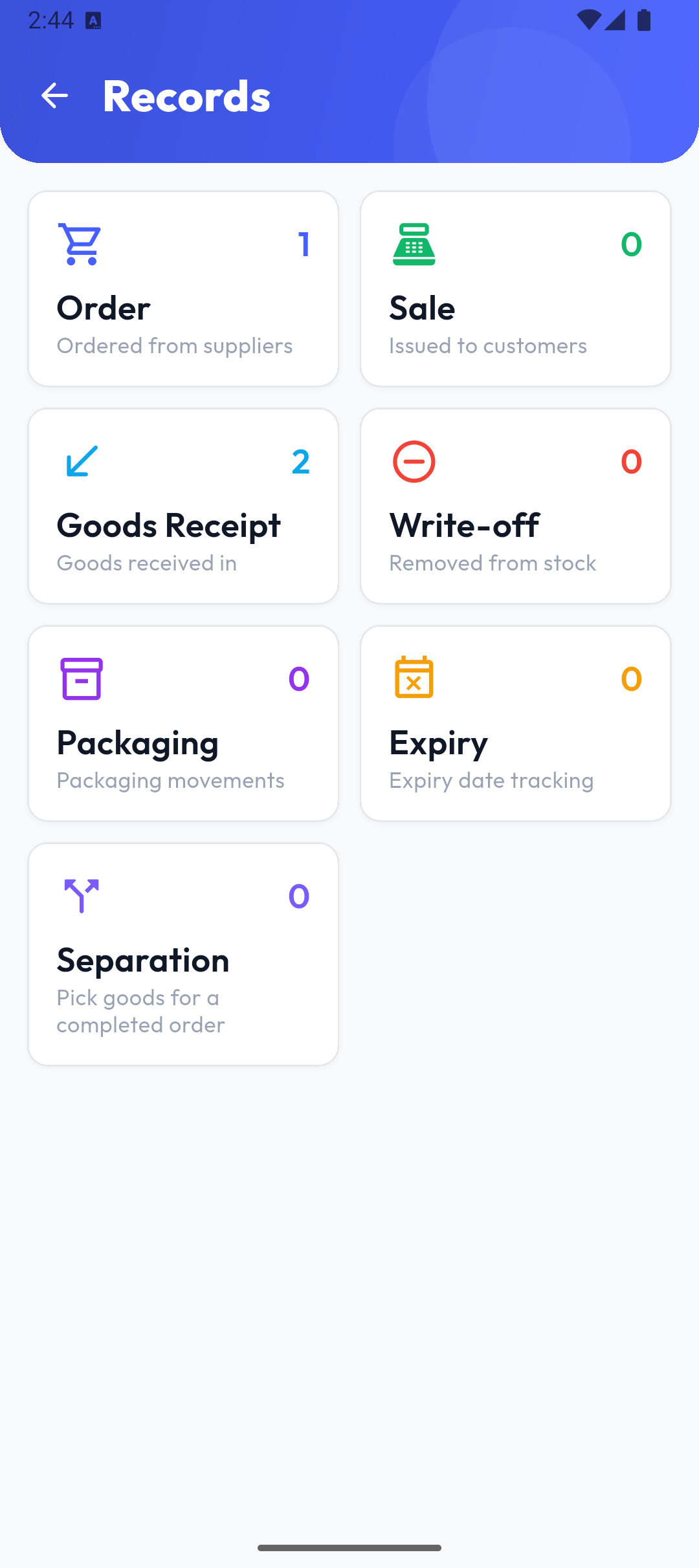
Each type has its own card; the number on a card is how many records of that type you made in the app in the last 7 days. Expiry opens a separate screen — see Expiry dates.
The types, partners and prices are the same as in the portal: order (customer or supplier order), sale (price required), goods receipt, write-off, packaging, expiry and separation.
Note
In the app you see only the records you made in the app. Records from the portal and from other users are seen in the portal.
The list
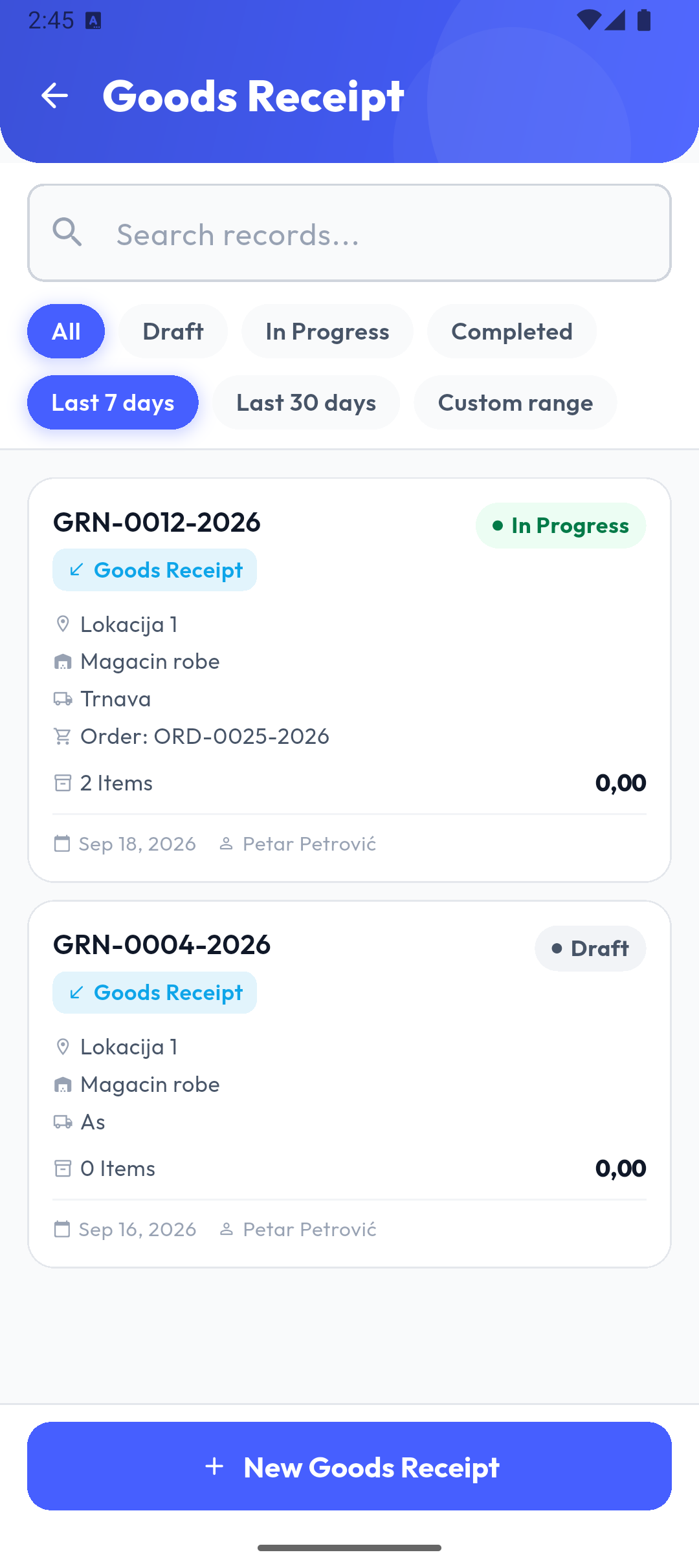
- Search records... looks in the number, location, warehouse, partner and note.
- Status chips: All, Draft, In Progress, Completed. A record moves from draft to In Progress when you add its first item.
- Period: Last 7 days (default), Last 30 days or Custom range.
- A card shows the number, type, status, location, warehouse, partner, number of items, total value (order, sale, receipt), the date and who made the record. A separation or receipt made from an order shows Order: ORD-….
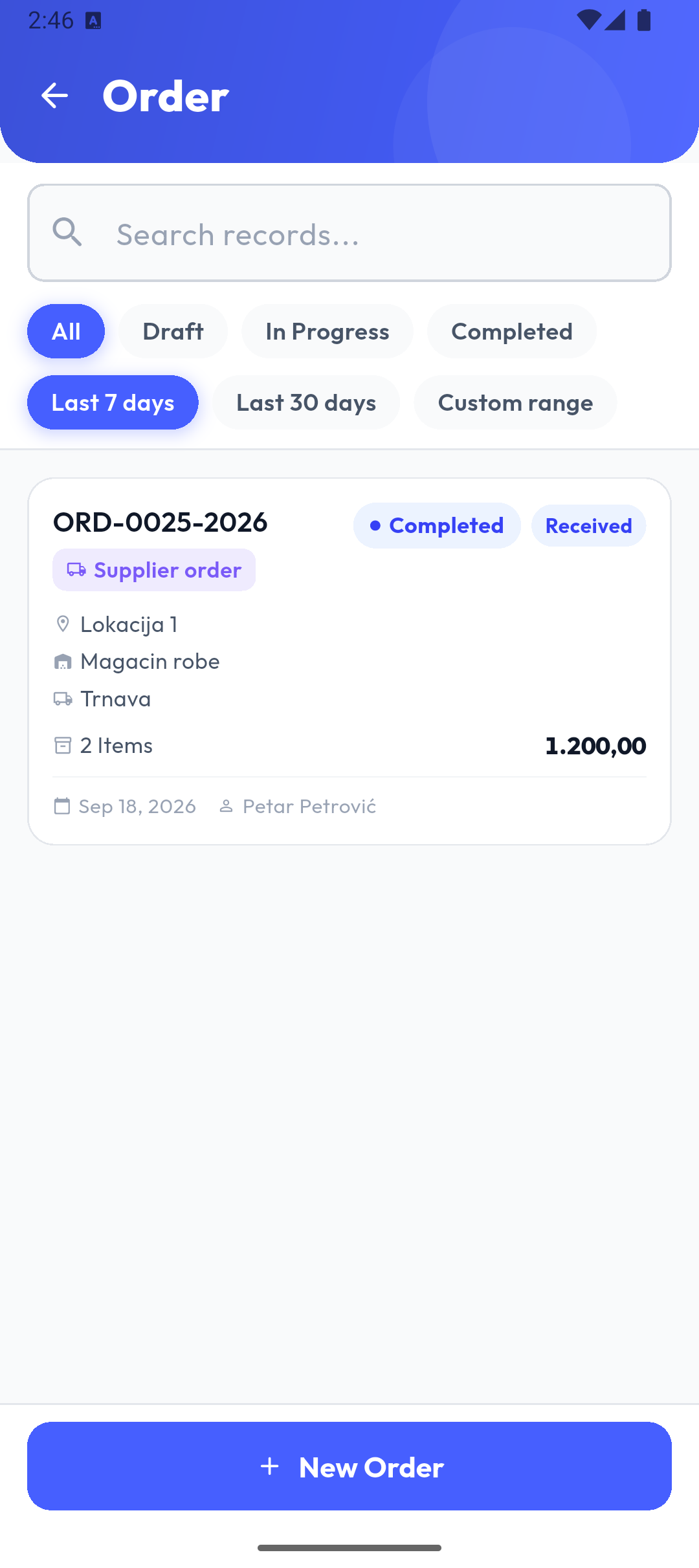
Orders also show their type — Customer order or Supplier order — and, once a document was made from them, a Separated or Received badge:
A completed list-based record with differences has a ⚠ N badge.
New record
The button at the bottom of the list (New Order, New Sale, New Goods Receipt …) opens the form:
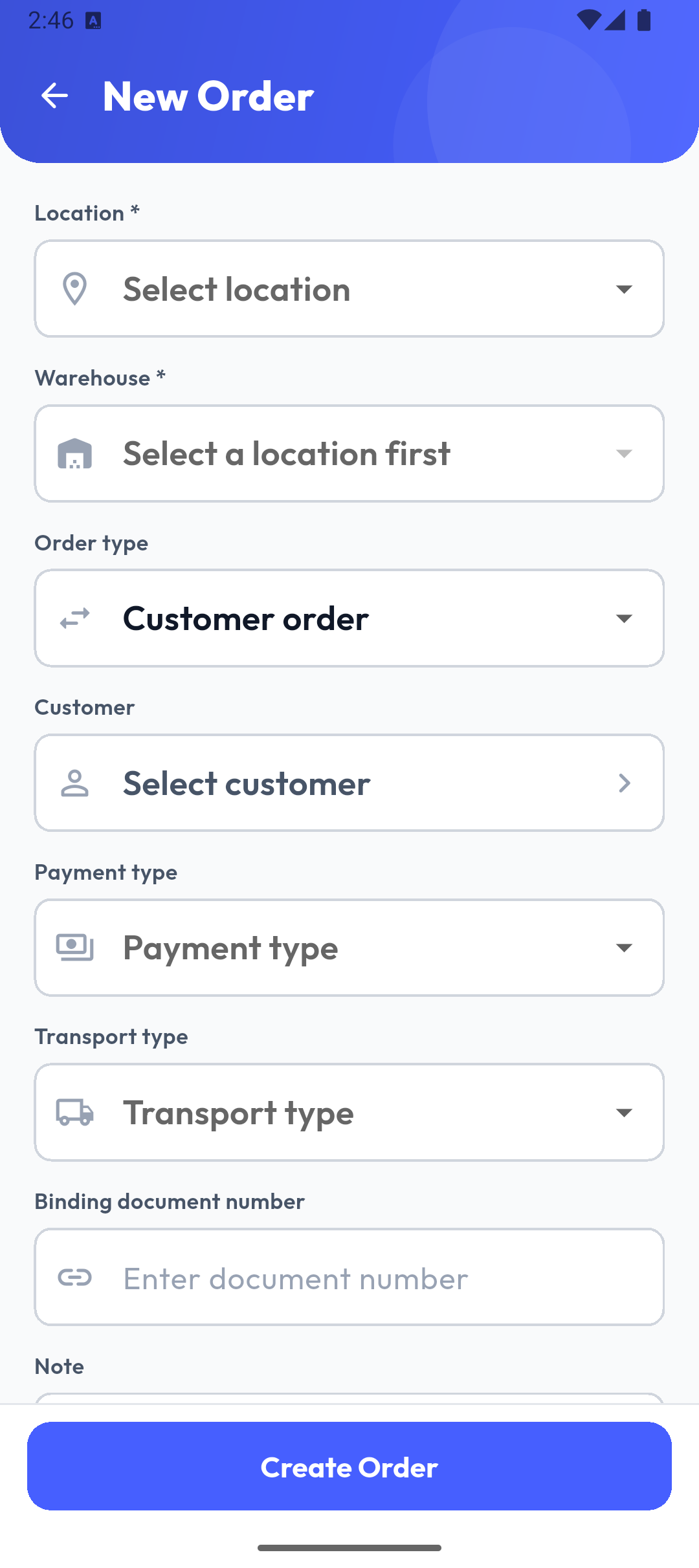
| Field | Description |
|---|---|
| Location * | Selected automatically when there is only one. If your company doesn't use separate locations, the field is hidden. |
| Warehouse * | Offers the warehouses of the chosen location (Location / Warehouse without separate locations). |
| Order type | Orders only: Customer order (default) or Supplier order. Changing it clears the chosen partner. |
| Customer | Customer order, sale and separation. |
| Supplier | Supplier order and goods receipt. |
| Payment type and Transport type | Orders only. |
| Binding document number | Order, sale, receipt and separation. Required for a separation and for a receipt done completely free. |
| Note | All types. |
Write-off, packaging and expiry have only a location, a warehouse and a note. Create … makes the record on the server (you need an internet connection) and opens it — see Record items. A second open record of the same type for the same location and warehouse is refused with An active record of this type already exists for this location and warehouse.
List-based separations and receipts
When the portal's entry mode is from a list or by barcode (see Working from a list), New Separation and New Goods Receipt first ask for the List source:
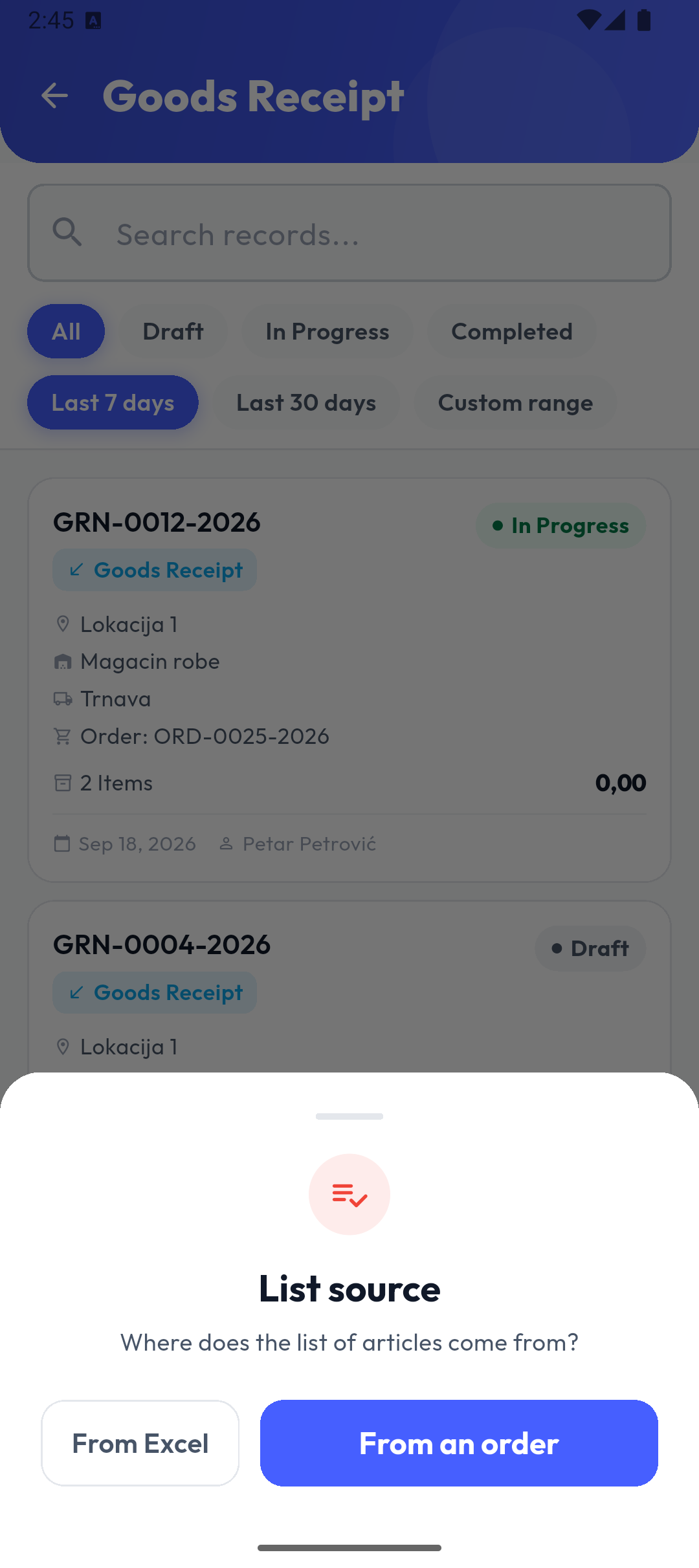
- From an order opens Select order: completed customer orders (for a separation) or supplier orders (for a receipt) that no document has been made from yet. Tapping an order creates the record immediately: the location, warehouse and partner are copied, the order number becomes the binding document, and the order's items become the list. With no free orders it says No unseparated orders (or No orders).
- From Excel opens the usual form; you import the list on the record afterwards.
Deleting
On a record, ⋮ → Delete asks Delete record?; Delete removes the record with all its items, even when it is completed. An order that a separation or receipt was made from can't be deleted (Cannot delete an order that has a separation.); once you delete the separation or receipt, the order is free again.
Popis PRO Offline
In the app without a server, records work the same way, with these differences: you type the location, warehouse and partner as text, numbers are assigned on the phone, only orders on the phone can be separated or received, and the entry mode and list options are set in the app settings. Nothing is sent to the portal.