

Counting items
Counting happens on a count list. Open a list from the count page (its card), or create one with a new list (see Counts and lists).
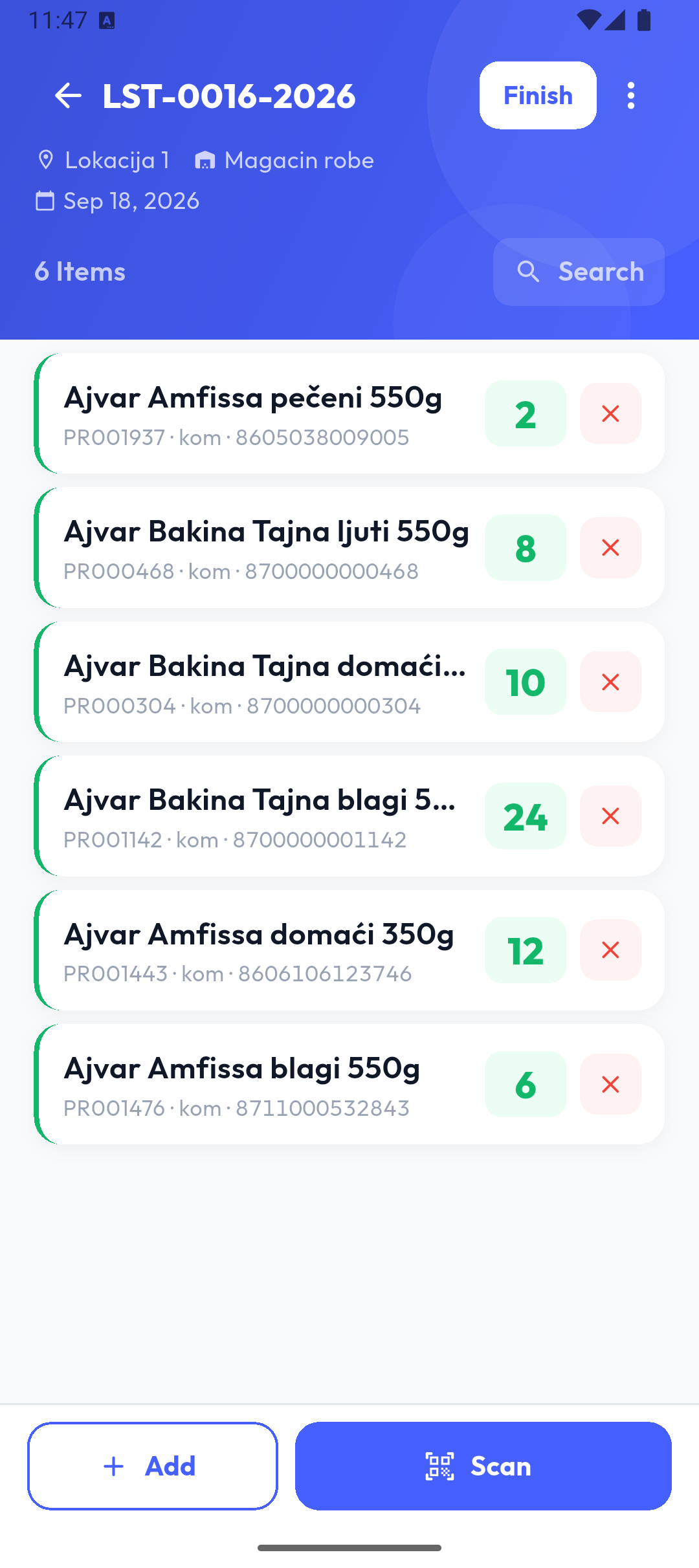
The header shows the list number, location, warehouse, date and number of items, the Finish button and the ⋮ menu (Delete). Items are listed newest first. Each shows the name, code, unit, barcode and quantity; the red ✕ removes an item. At the bottom are Add and Scan.
Adding an item
You add an item in one of three ways.
From the list
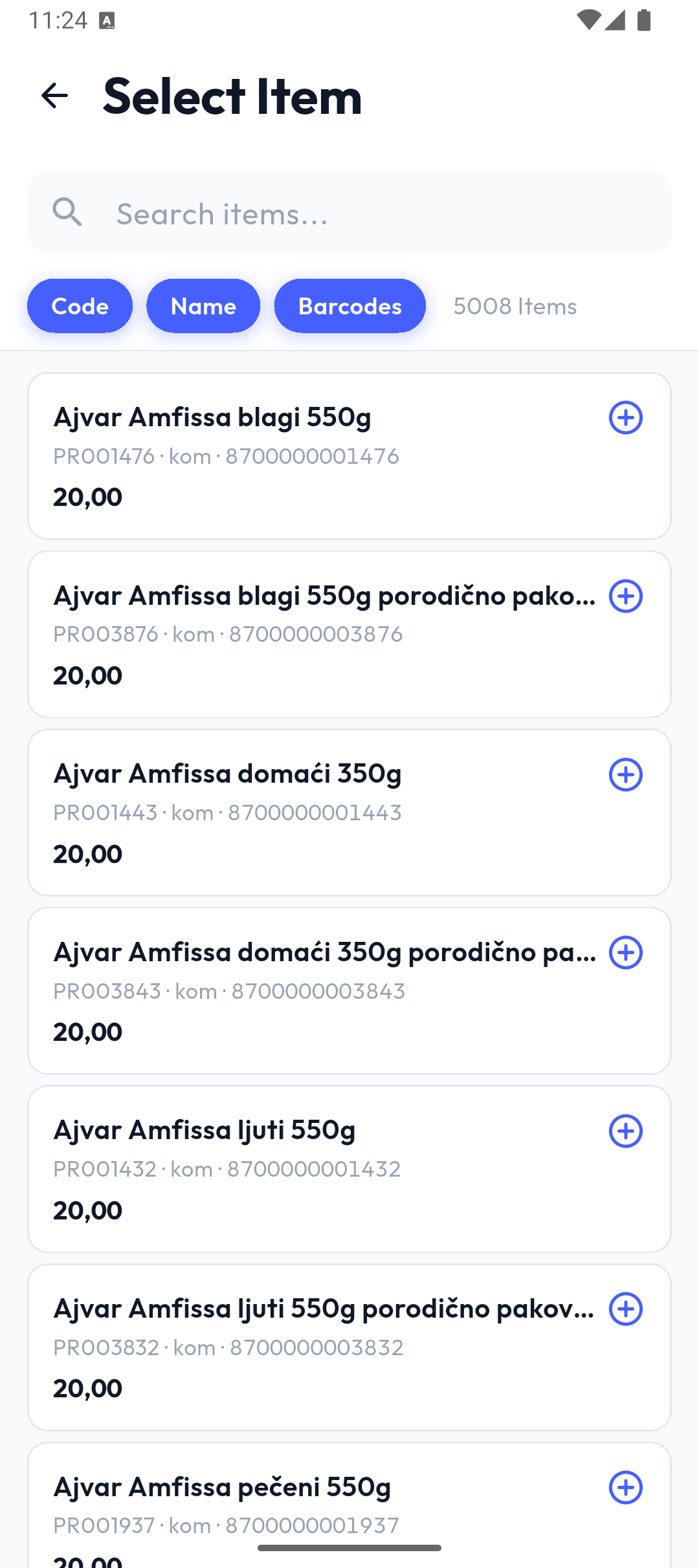
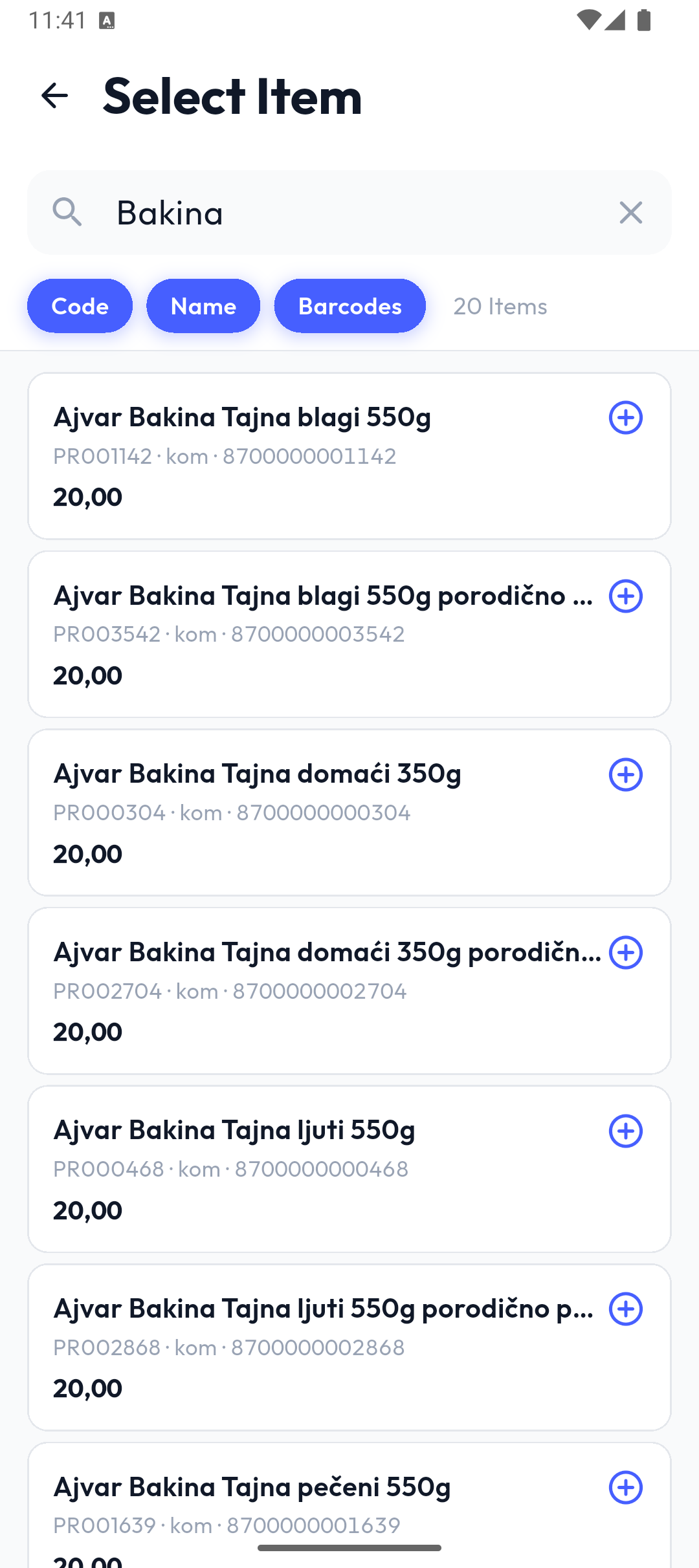
Add opens Select Item: the whole catalogue, with search on the Code, Name and Barcodes chips. Tap the item's row.
Scanning with the camera
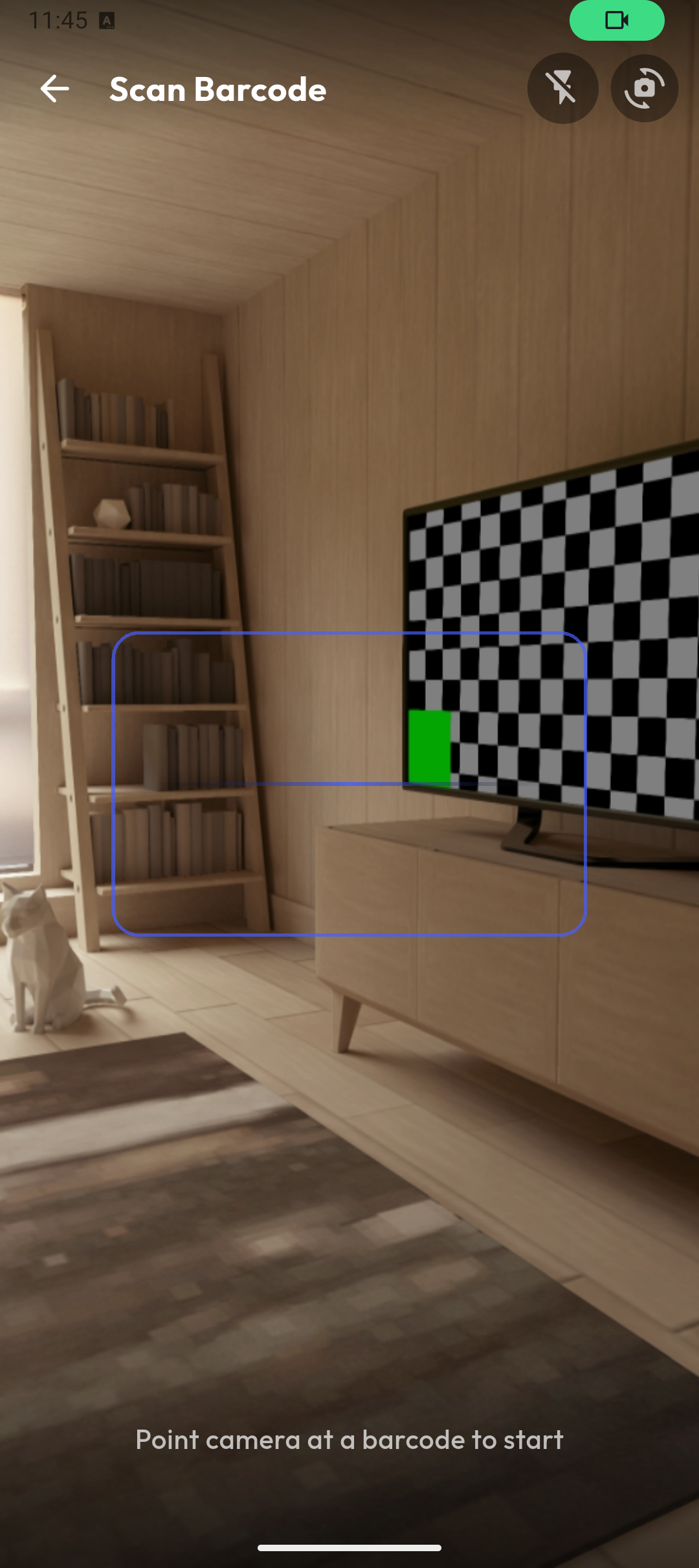
Scan opens the camera (Scan Barcode). Point the camera at a barcode; when it's recognised, the quantity entry for that item opens. The torch and switch-camera buttons are at the top.
With a hardware scanner
When Settings → Scanner Mode is set to Text Input or DataWedge (the device's built-in scanner), the Scan button isn't shown: just scan while the list is open. The same barcode scanned twice within 1.2 seconds counts once.
Entering the quantity
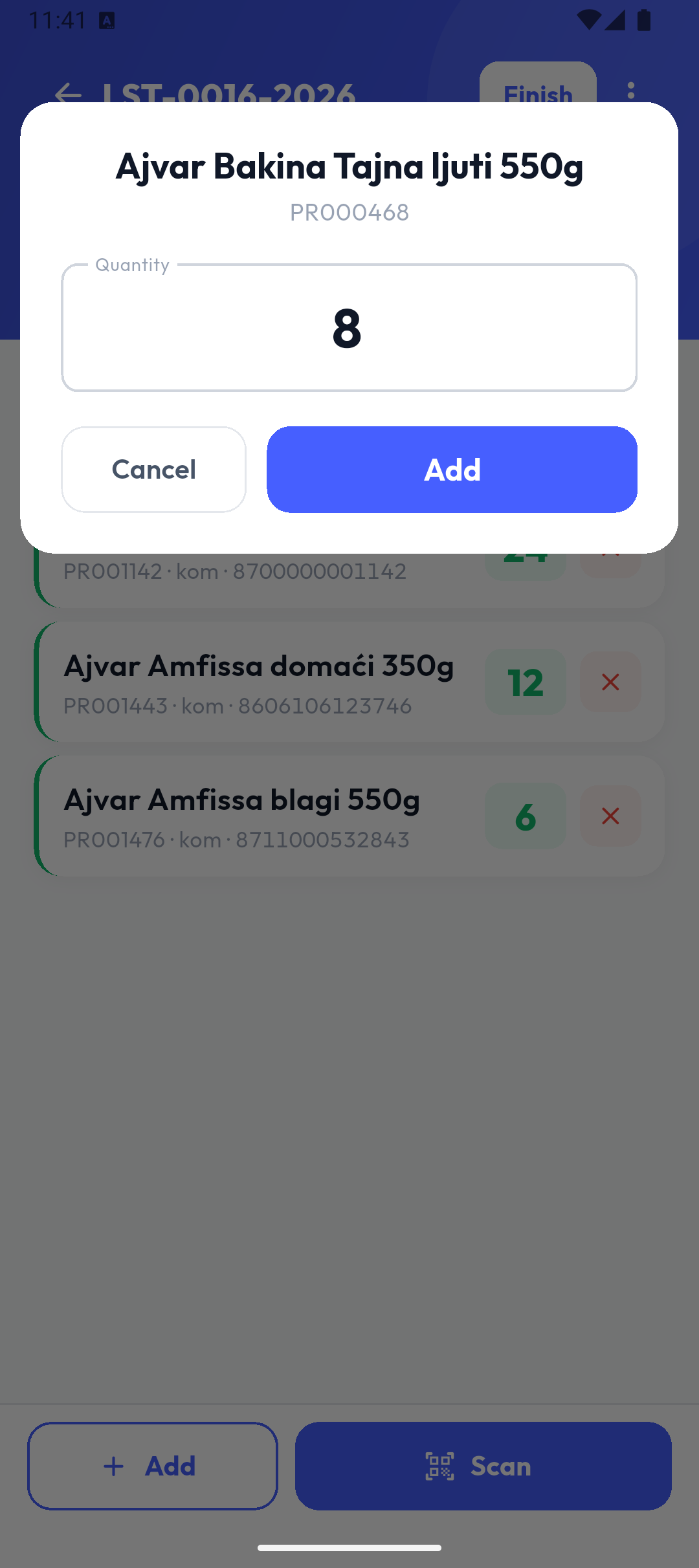
After you pick or scan an item, a window shows its name and code and a Quantity field (1 by default, already selected so you can type over it). Decimals are allowed (comma or point). Add (or Enter) adds the item.
Note
Every scan or add creates a new line on the list; quantities of the same item aren't merged into one line. In the portal's report, quantities are added up per code.
Items with lots
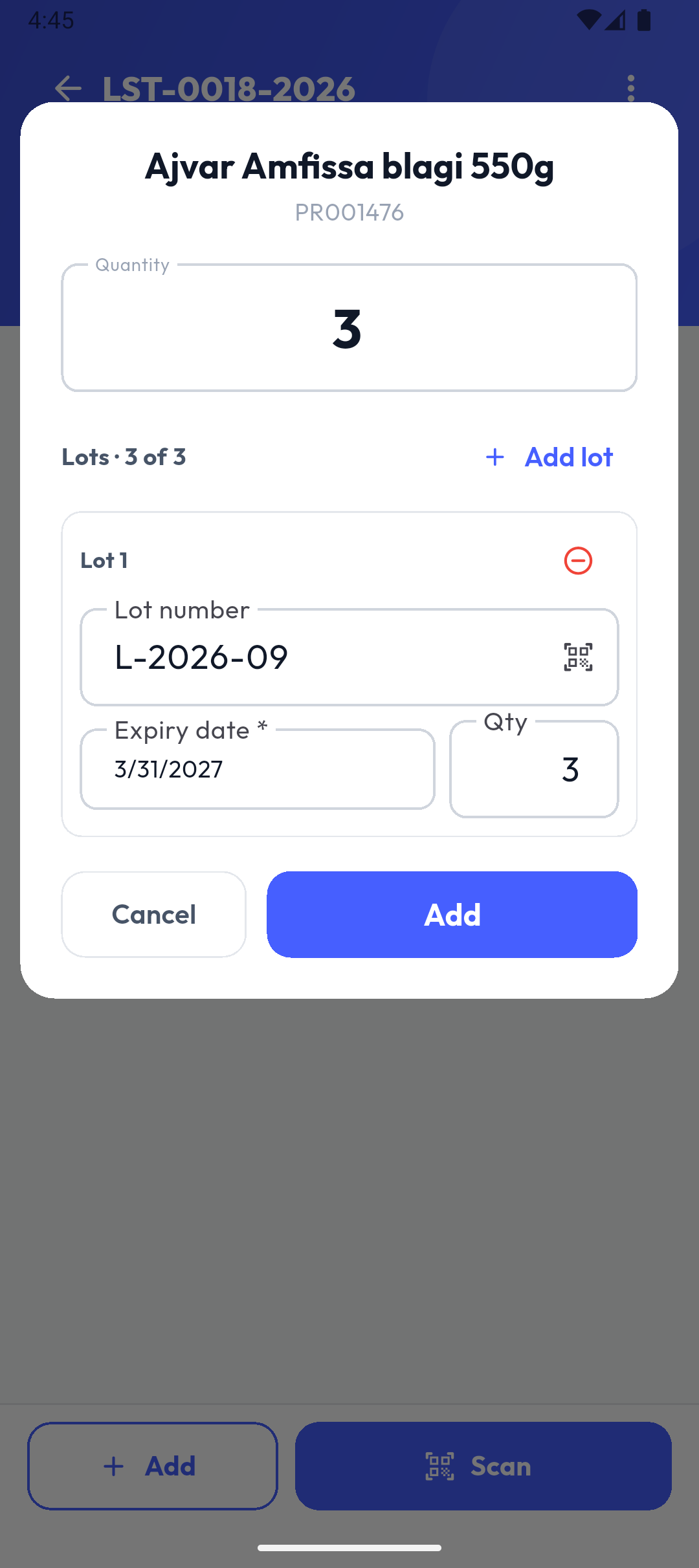
For lot-tracked items, Lots · x of y and Add lot appear under the quantity. For each lot, enter the Lot number (or scan it), the Expiry date (tap the field and pick it — mandatory) and Qty; the lots should add up to the quantity.
Items with serial numbers
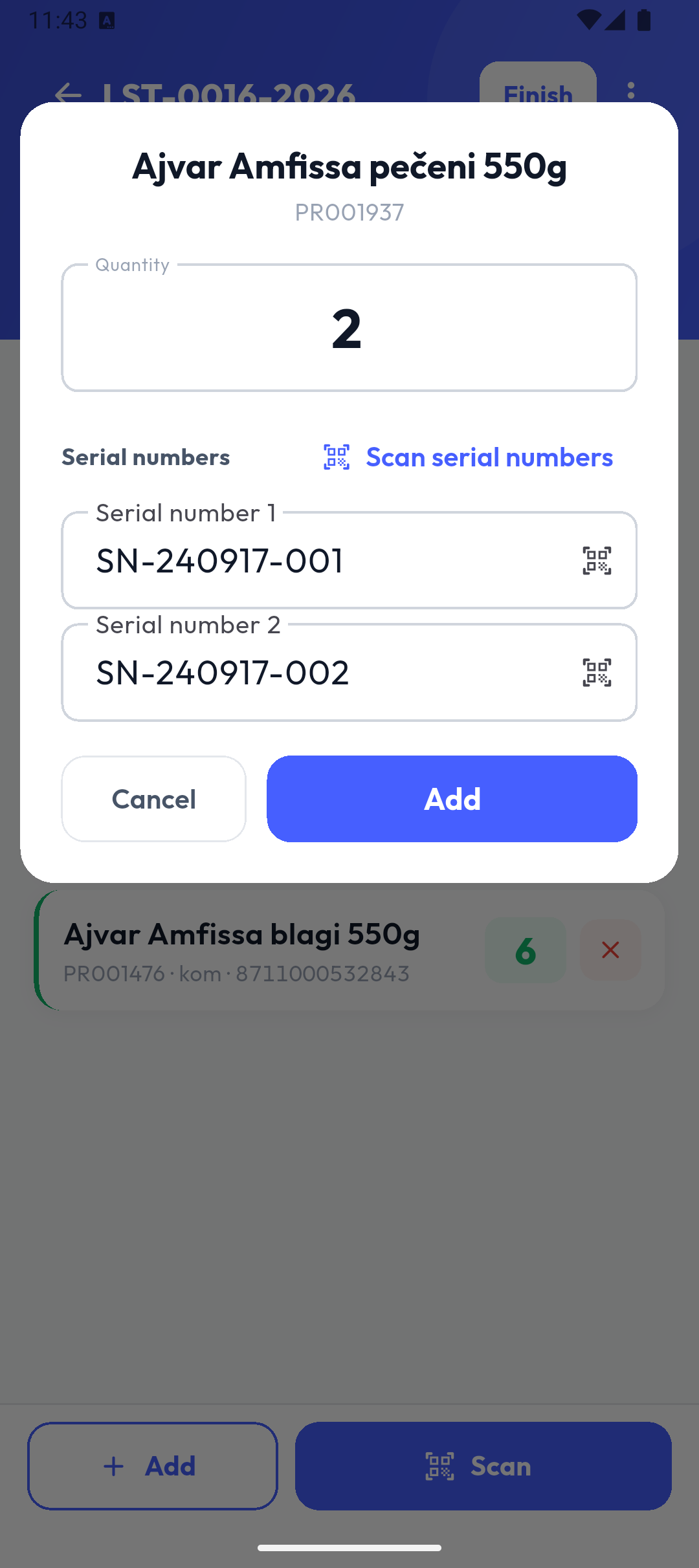
For serial-tracked items, the quantity must be a whole number, and a Serial number field appears for each piece (type or scan it; Scan serial numbers scans them one after another). The same serial number can't be on the same list twice.
You can also enter lots, expiry dates and serial numbers later (see Incomplete items below), but the list can't be finished until they're filled in.
Counting in packages
When you scan a package barcode (commercial, transport or finishing), the window shows the package level and how many pieces it holds (e.g. Transport · 1 = 24 pcs), and the field becomes Number of packages; the total in pieces is shown underneath. Packages are set up in the portal.
Fixed assets
- A standard asset is added immediately, without a quantity (it's always 1). The same asset can't be on the same list twice ("…" is already on this list.).
- Small inventory has a quantity entry like goods.
Position
If your company requires a position per item, the window also has a Position field (type or scan it). Without that setting there's no field.
Barcode not found
If a scanned barcode isn't in the catalogue, Item not found appears. Administrators can right away:
- Add item: opens the new-item form with that barcode, then the quantity entry;
- Assign to existing article: pick an article and the barcode type (Base barcode or a package level), and the barcode is added to that article;
- Cancel.
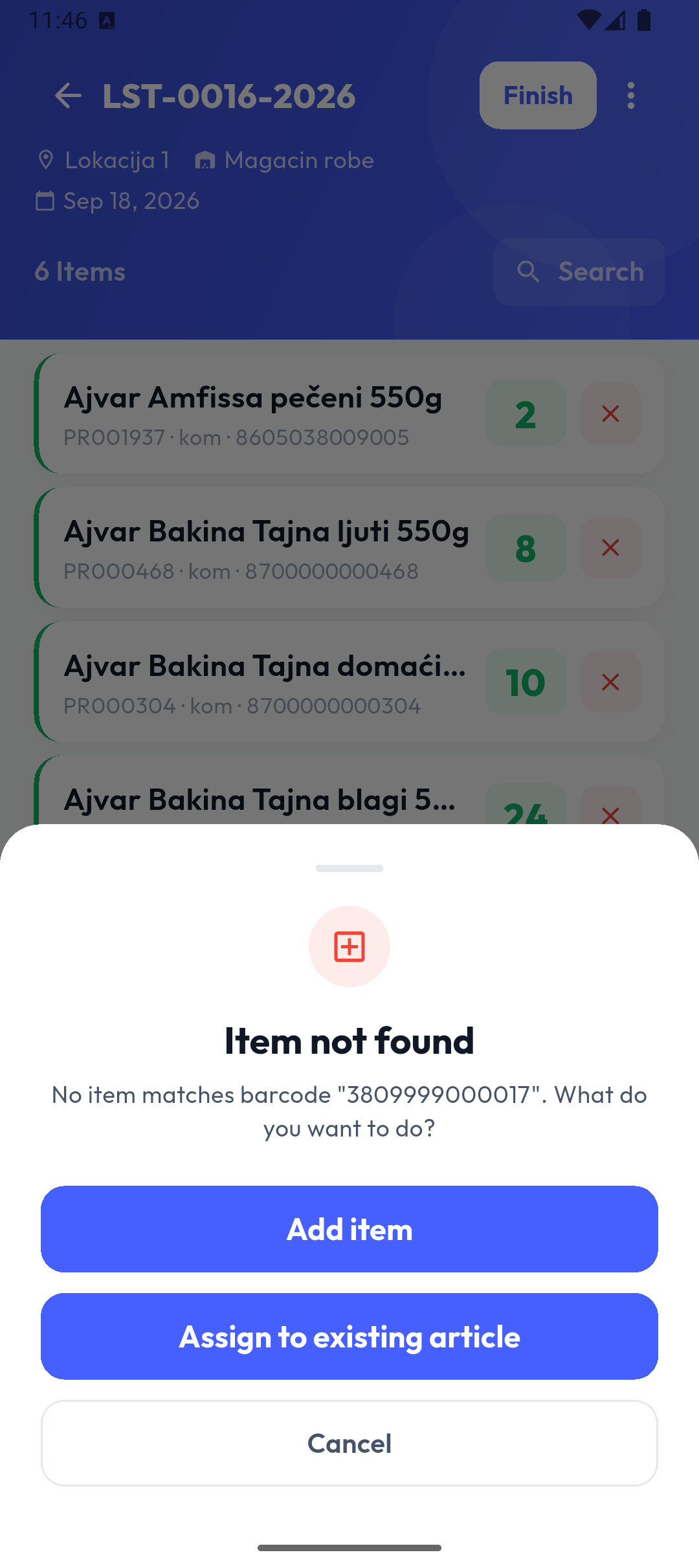
Other users just see that the item wasn't found. A new item and an assigned barcode reach the portal with the next sync.
For a partial count, only the items the administrator picked in the portal can be added; others aren't offered in Select Item, and scanning doesn't find them.
Editing and removing an item
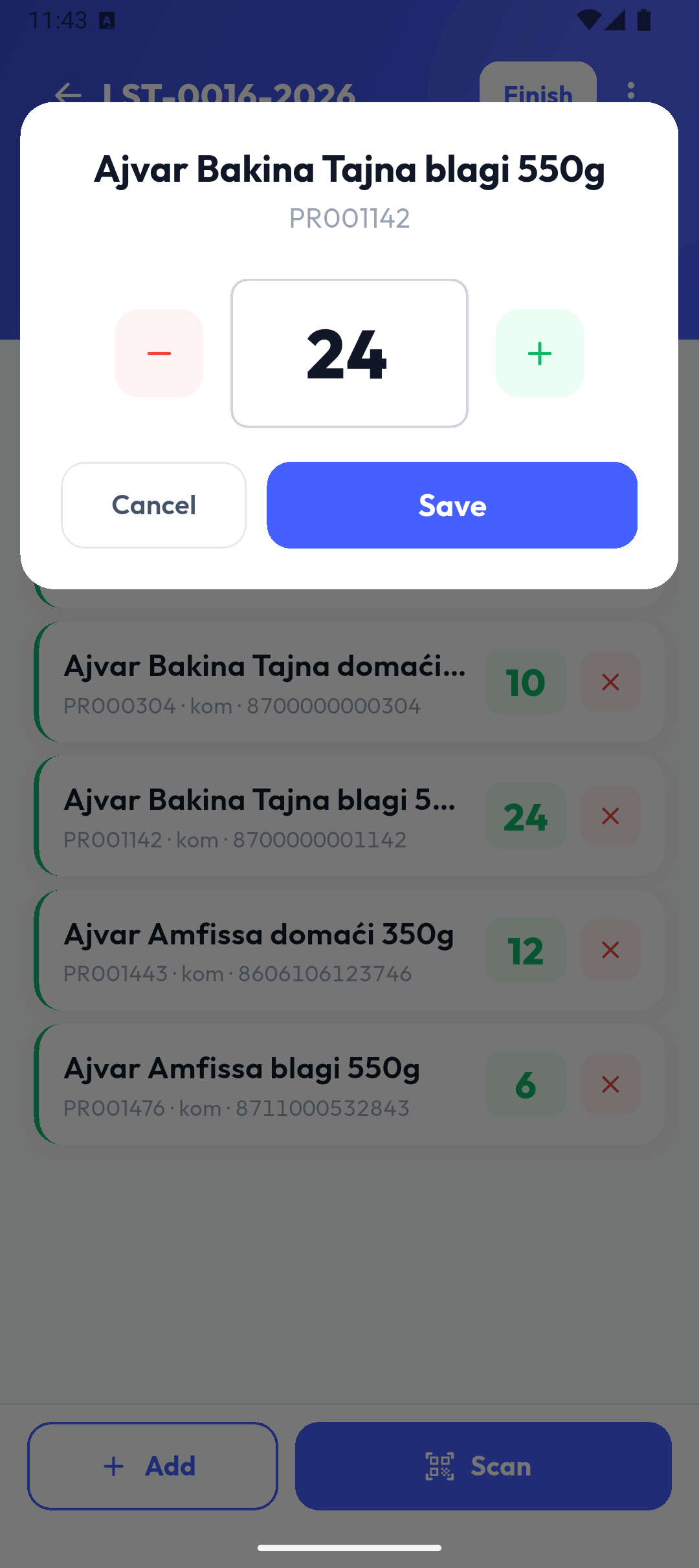
Tap an item to edit it: − and + change the quantity by 1, or type it. Save keeps the change. For items with lots or serial numbers, you complete them here too.
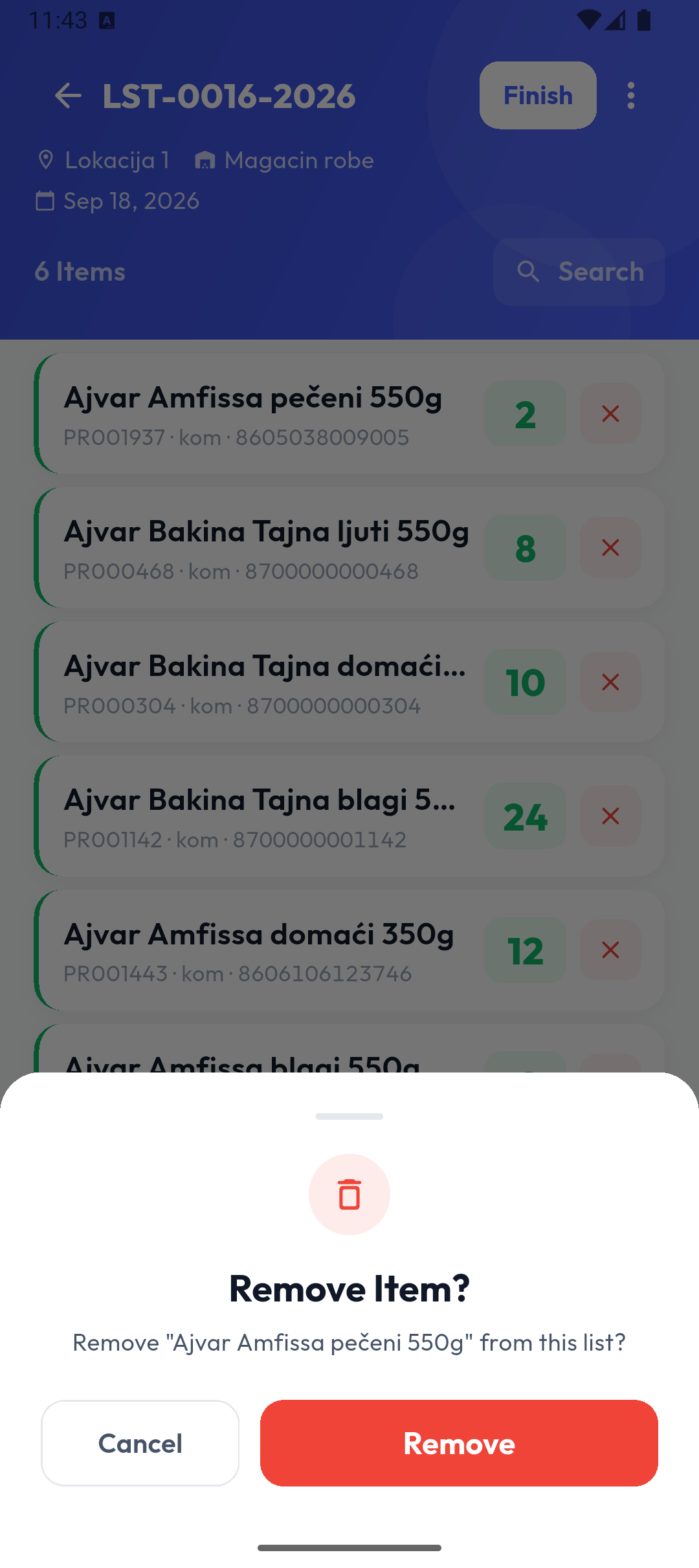
The red ✕ asks Remove Item?; Remove takes it off the list.
Searching the list
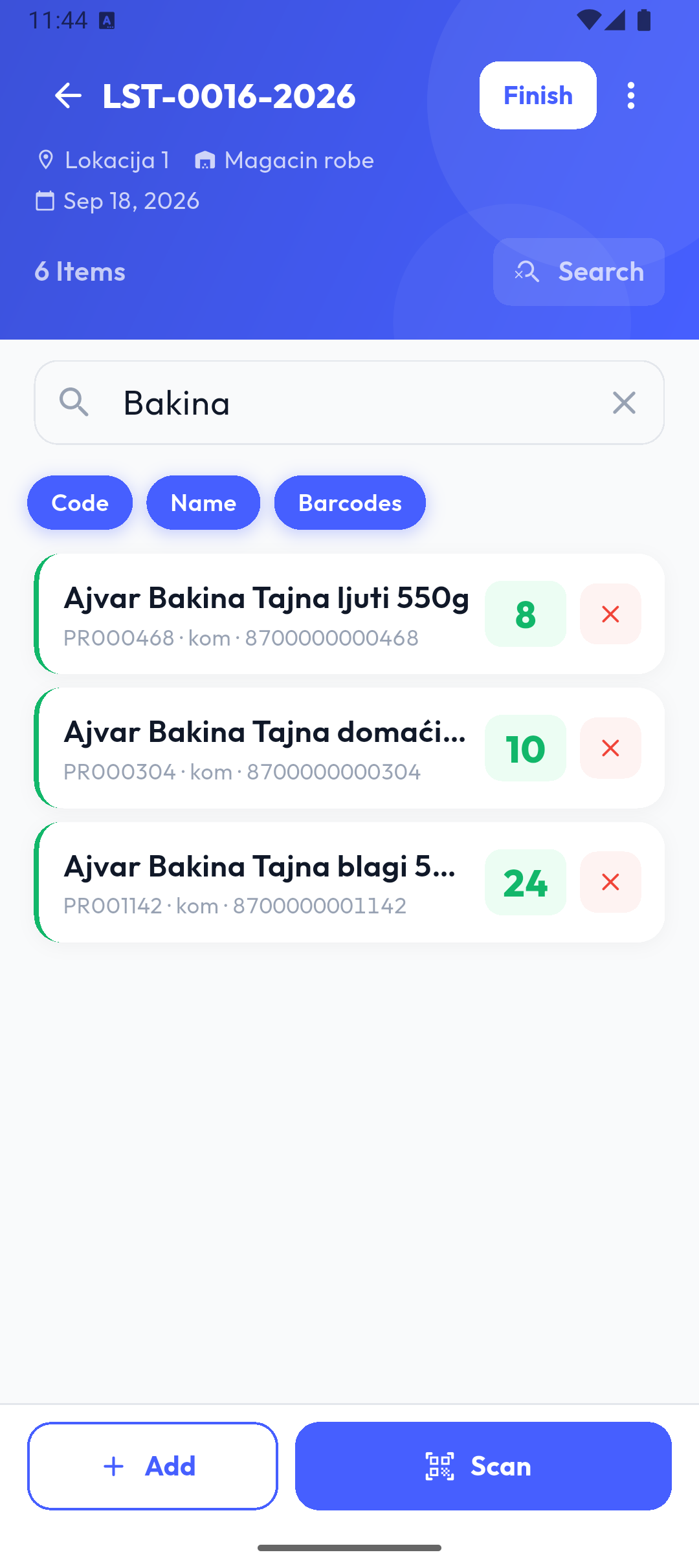
Search in the header opens a search of the list's items (Search items...), by code, name and barcodes.
Incomplete items
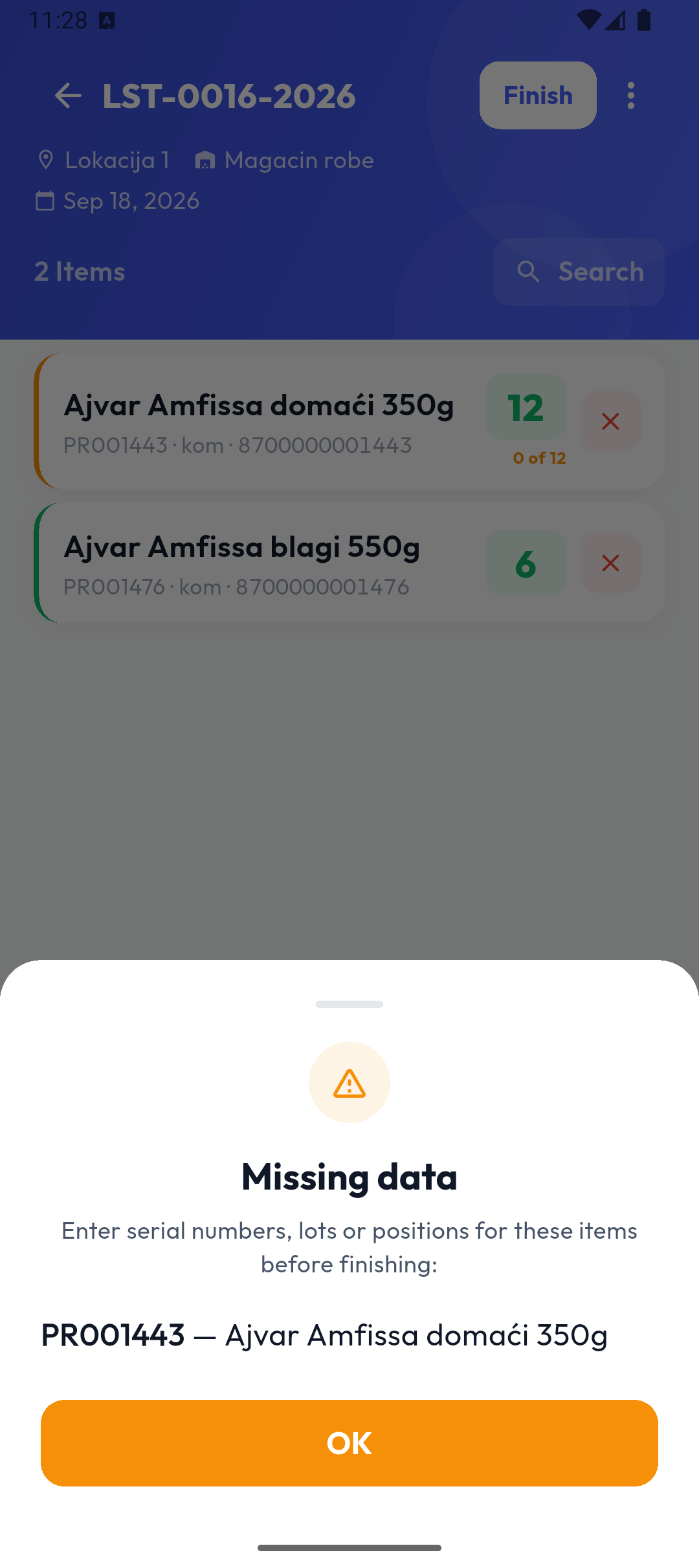
An item missing lots, serial numbers, expiry dates or a position has an orange edge and a label, e.g. 0 of 2 or Expiry date missing.
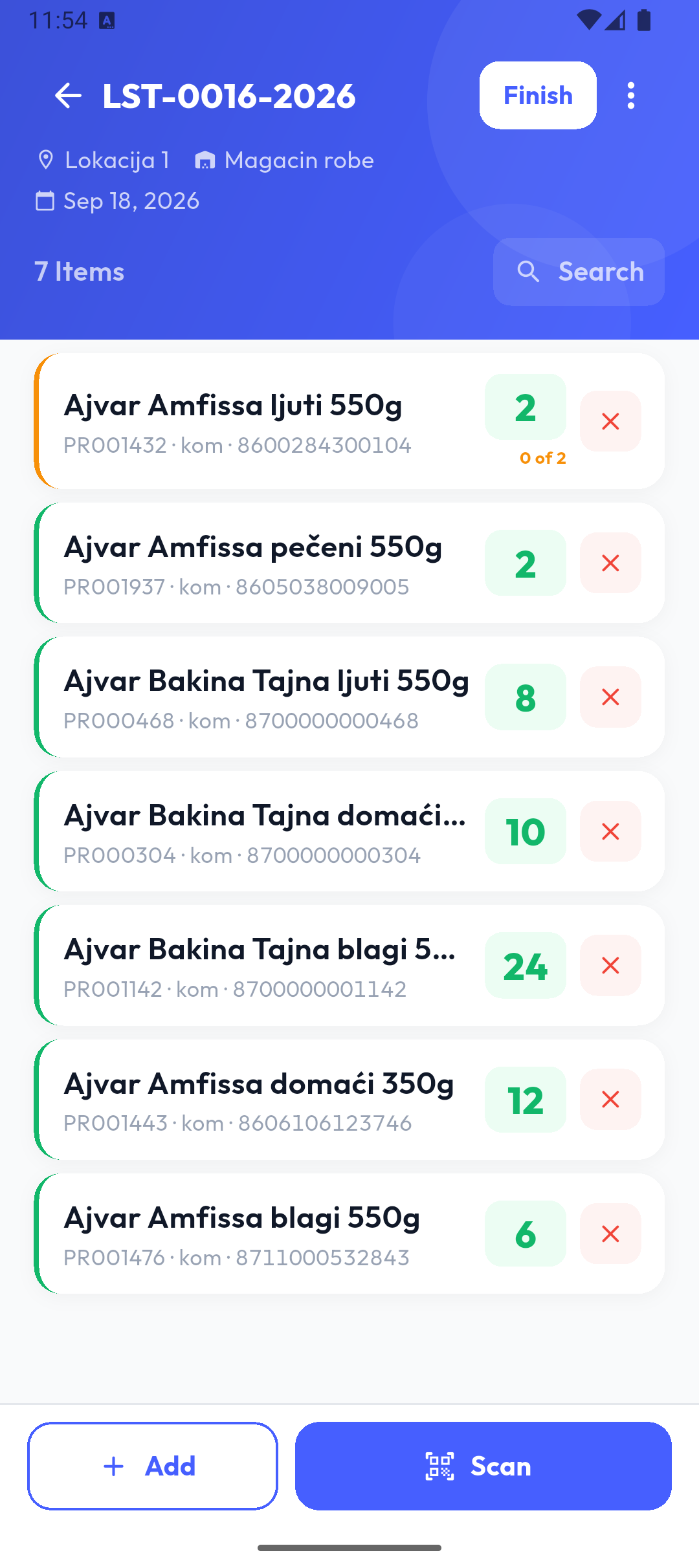
If you try to finish the list with such items, Missing data appears with a list of them. Complete them (tap the item), then finish the list.
Finishing the list
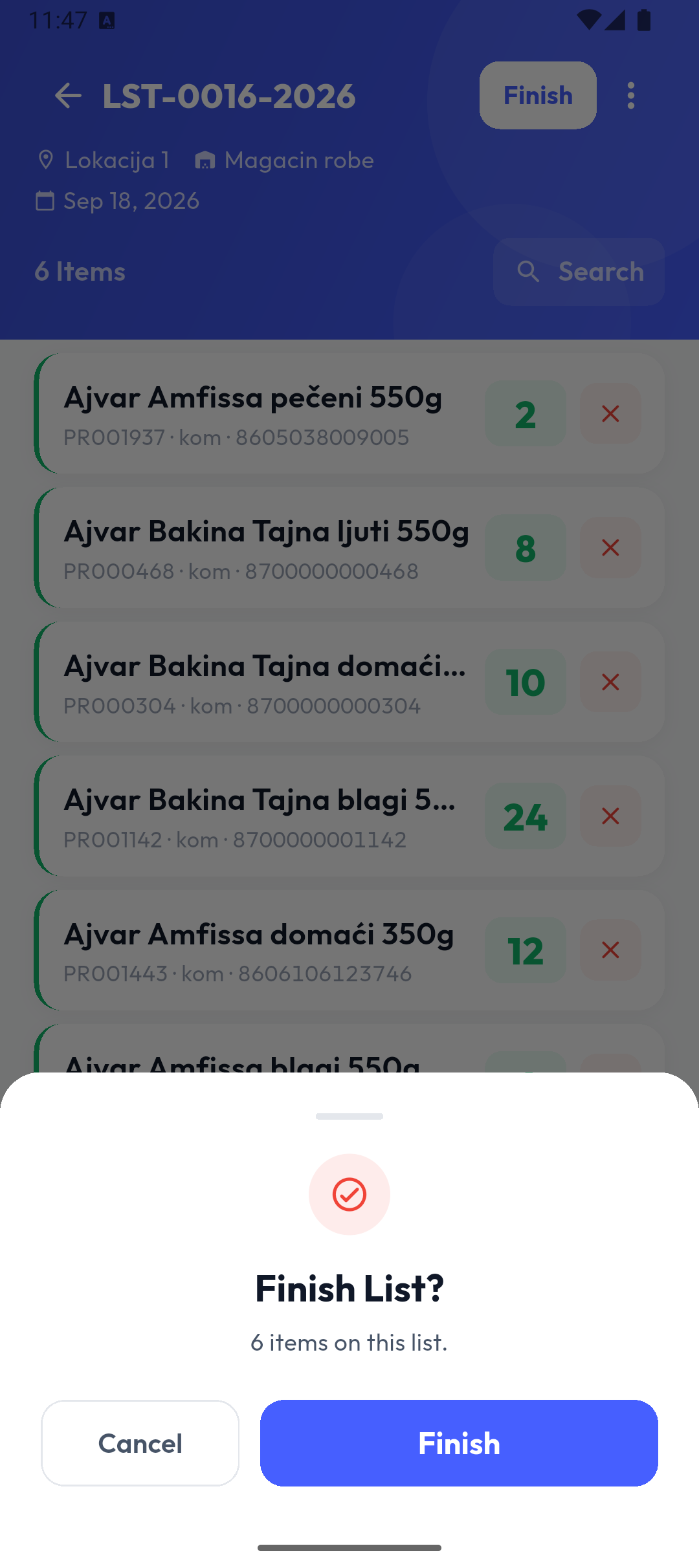
When you've counted everything, tap Finish. The app asks Finish List? and shows the number of items.
- In Popis PRO, the list is then sent to the server with all its items; you need an internet connection. If sending fails, the list stays open and you can try again.
- A finished list is Read-only and can't be reopened.
- An administrator completes the count once all lists are finished.