

Search
The Search items... box in the portal's top bar finds an item quickly from any page.

- Click the box (or press Ctrl + K, on a Mac ⌘ + K) and type part of a name, code or barcode.
- Press Enter or the magnifier to the right of the box.
The Items page opens with the results; the search looks in the name, code and barcode at the same time.
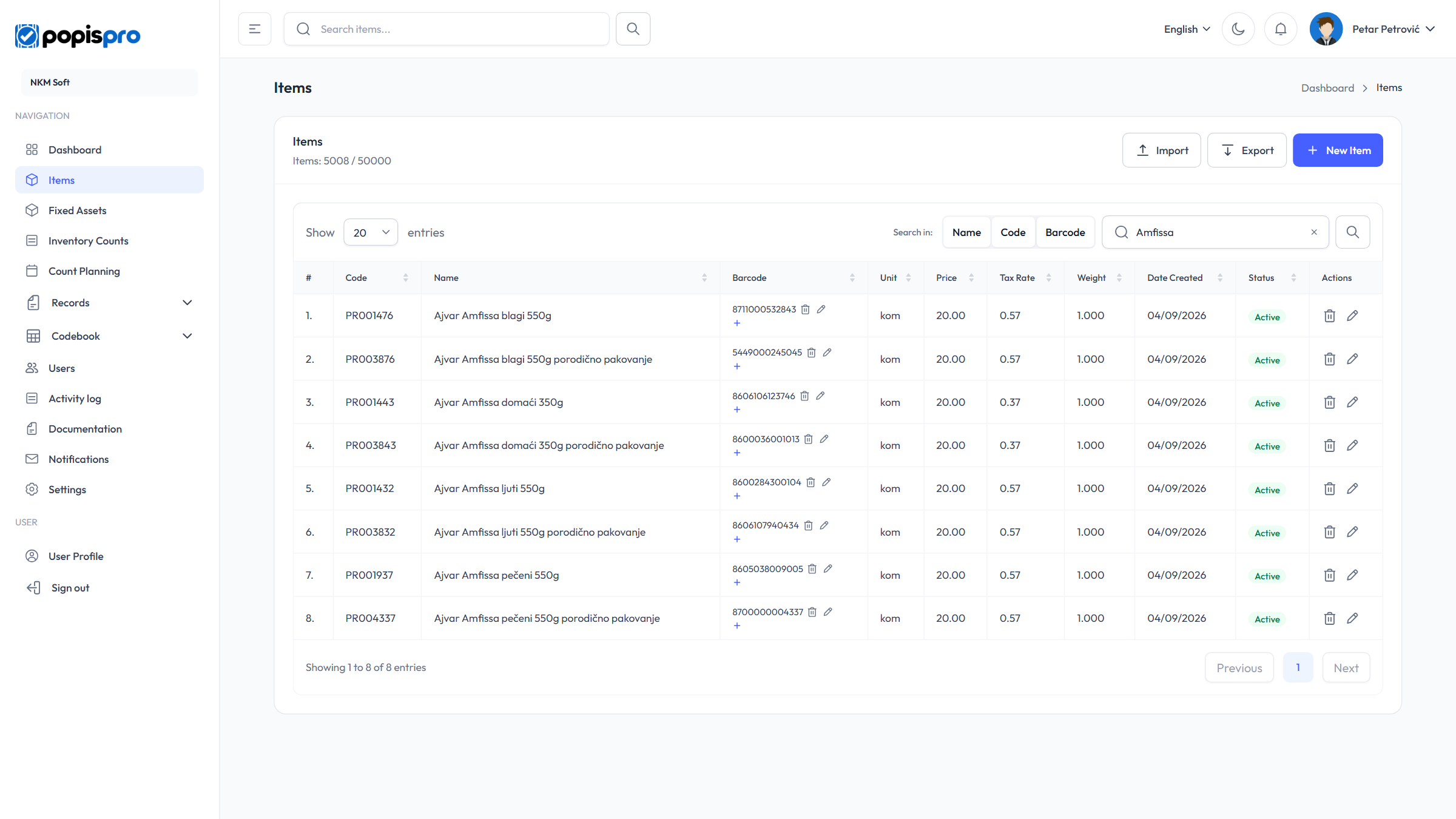
On the Items page the search text stays in the search box above the table. There you can narrow it with the Name, Code and Barcode chips or clear it with ✕, and then work with items as usual. The ✕ in the top box clears the typed text before searching.
- If your package has only fixed assets, the box is called Search assets... and opens Fixed assets, searching the name, inventory number and barcode.
- The box is shown on a wide screen (from 1280 pixels). On a narrower screen, use the search on the Items page.
- Counts, records and the other lists are searched with the Search... box on their own pages.